Joining your chapter
You join in two steps: first your chapter, then its challenge. Your chapter’s invite link or code is in the newsletter, or ask your activities officer.
Join with the link
Section titled “Join with the link”- Tap the invite link. The sign-in screen says “Sign in to join” and your chapter’s name. Sign in.
- New to the app? Accept the terms and go through the welcome steps. The last one, Join your chapter, has the code filled in. Tap Finish.
- Already finished the welcome steps? You land on Join a chapter with the code filled in. Tap Join.
Join with the code
Section titled “Join with the code”- Open https://ride.getkickstand.app/join. If you’re in no chapter yet, Home shows the same Join a chapter screen.
- Type the code in the Invite code box. Capital letters don’t matter, and spaces become dashes.
- Tap Join.
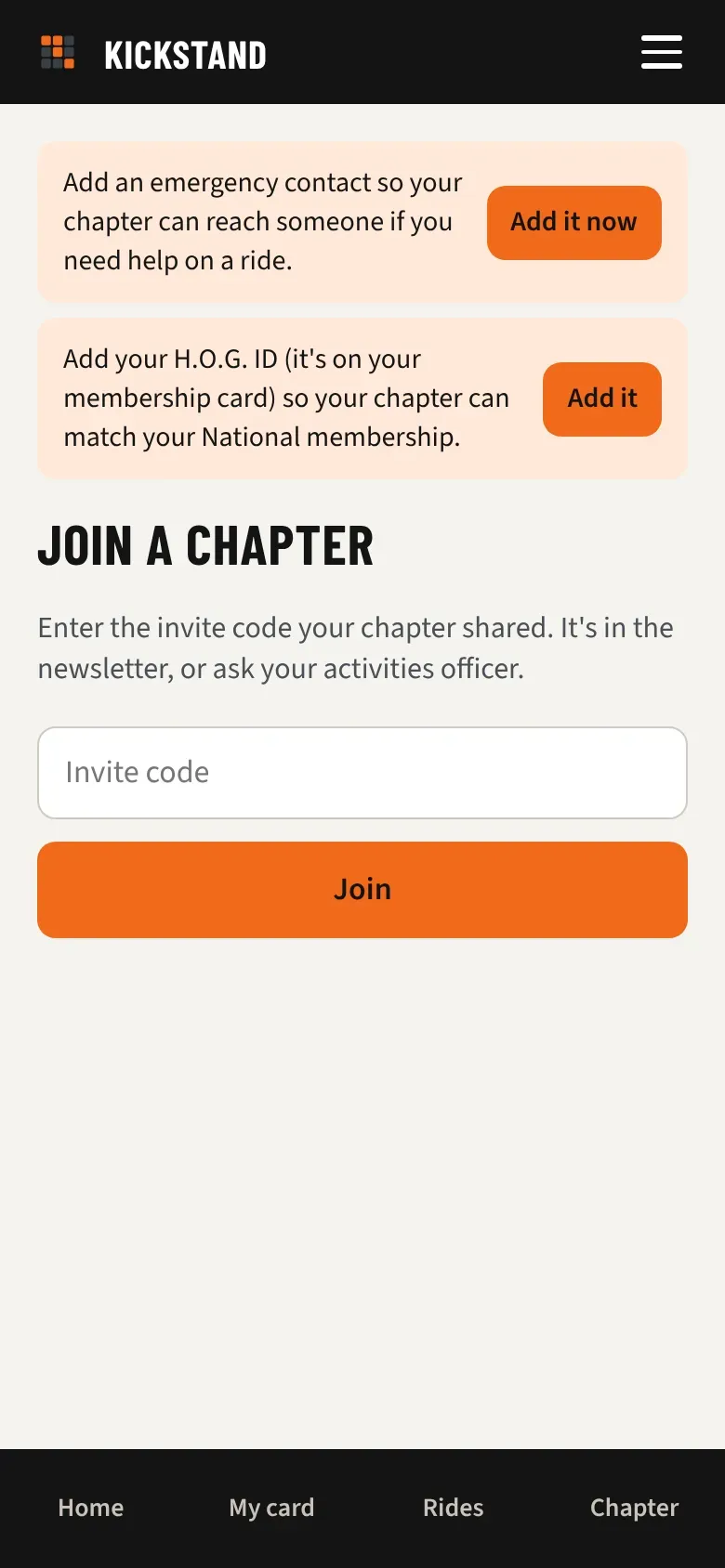
You’ll see “You’re in. Head to Home to see your chapter’s challenges.” Some chapters approve new members first. Then you’ll see “Request sent. A chapter officer will approve you soon.”
If a chapter asks you to join
Section titled “If a chapter asks you to join”A chapter can add its roster to Kickstand. If you already have an account, you aren’t added on their say-so. They ask you, and you decide.
- You get an email, “[Chapter name] invited you to join on Kickstand”. The request also shows on Home, and on the Join a chapter screen if you aren’t in a chapter yet.
- Find the card that says the chapter “asked to add you”, with the name of the officer who sent it. It says nothing about you is shared with them unless you say yes.
- To say yes, tap the Join button, which ends with the chapter’s name. You see “You’re in” followed by the chapter’s name. To decline, tap No thanks. You see a note that the chapter won’t see anything about you.
If you say no, the chapter’s imports skip you from then on. You can still join later with the chapter’s invite link or code.
Join a second chapter
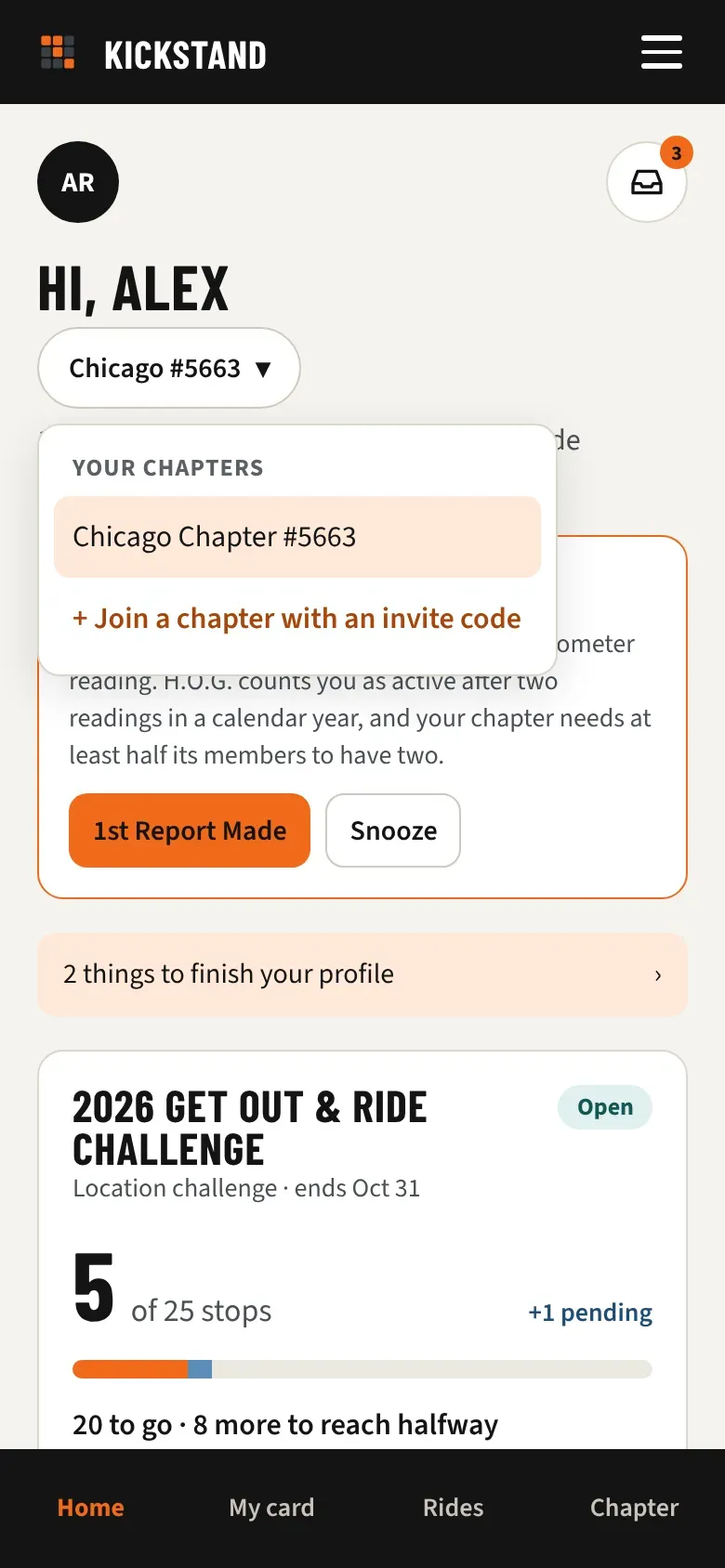
Section titled “Join a second chapter”- On Home, tap your chapter’s name under “Hi,” at the top. A list called Your chapters opens.
- Tap + Join a chapter with an invite code.
- Enter the other chapter’s code and tap Join.
To switch between your chapters, open the same list and tap the one you want. Home shows that chapter, and My card, Rides, and Chapter follow the challenge Home last showed.
Join a challenge
Section titled “Join a challenge”- On Home, find your chapter’s challenge. Tap Join this challenge on the big card.
- Other challenges sit in smaller cards below. Tap Join, or Join when it opens for one that hasn’t started yet. You can join early.
- Once you’re in, tap Open my card to see your stops.
Good to know
Section titled “Good to know”- Joining a chapter and joining a challenge are two steps. You need both before you can send photos.
- If you see “That invite code didn’t match a chapter,” check the spelling or ask for the current code. Officers can make a new code, and the old one stops working.
- After “Request sent,” your chapter stays off Home until an officer approves you. If you’re in no other chapter, Home keeps showing Join a chapter. Ask your activities officer if it takes a while.
- A challenge that has ended shows Results instead of a join button.
- One account works in every chapter. Your H.O.G. ID and emergency contact go with you.
- National challenges, like H.O.G.’s 50 Rides, One Nation and 15 for ’26, plus Dealer Visits, have no join step. You’re already in. Tap See all stops, nearest first on Home to find one. See National challenges and Dealer Visits.