Add stops and use the place library
A stop is a place riders visit and photograph. You add stops in challenge setup, and every one you add is saved to your chapter’s place library so you can reuse it next season. Chapter admins and the challenge’s managers can add stops.
Add a stop
Section titled “Add a stop”-
Open Chapter console, stay on Challenges, and click your challenge in the list. Scroll to Stops.
-
Pick a way in:
- Type in Search for a place or address and tap Search. Results come from Your places, Suggested places, the shared Library, and Google once it is connected. Tap one to fill in the form.
- Tap Add by hand for a mural, statue, or bridge where you want to set the pin yourself.
- Tap Browse suggestions to see Suggested places. Set Within (50 mi up to any distance, starting at 150 mi) or tap a tag chip. The list runs nearest your sponsoring dealer first, or A to Z if no dealer pin is set. Tap a place to use it. Places already on the card say “On this card”.
-
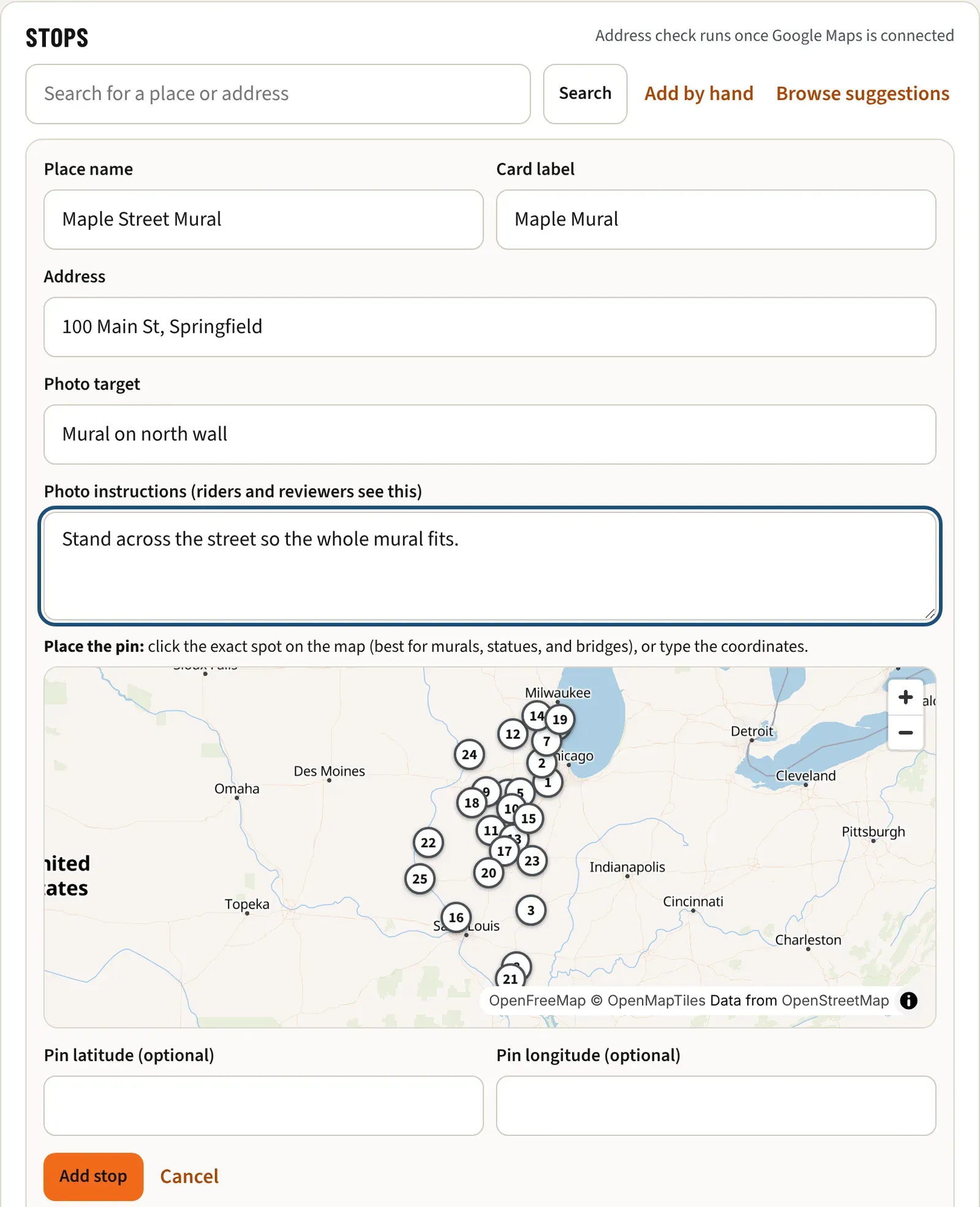
Check the Place name, Card label (up to 60 characters, shown on the card), and Address. Place name and Address are required. If you leave the card label empty, the place name is used. A place from your library or the suggestions fills these in and locks the name and address.
-
Fill in the Photo target, such as “Signage”. It feeds the “Photo must show” list that riders and reviewers see. Add Photo instructions (riders and reviewers see this), such as where to stand.
-
For a new place, click the exact spot on the map to drop the pin. You can also type Pin latitude (optional) and Pin longitude (optional). In Google Maps, right-click the spot to copy them.
-
Tap Add stop. The new stop takes the next open square.
Edit, move, or remove a stop
Section titled “Edit, move, or remove a stop”- Edit opens the Card label, Photo target, Photo instructions (riders and reviewers see this), and Notes for riders (hours, parking, anything else). Tap Save stop.
- Move pin shows a map. Click the right spot, or type its coordinates in Latitude and Longitude (in Google Maps, right-click the spot and tap the numbers at the top of the menu, then paste both into either box). Tap Save new pin. Riders keep credit for photos already approved. The new pin is yours alone: other chapters keep theirs, and your place library uses the new pin from now on, so next season’s card starts there. If the map doesn’t appear, your browser has WebGL switched off (look for “hardware acceleration” in its settings) or is a remote or automated browser; the coordinates still work, or try another browser.
- Remove asks you to confirm. Riders keep any credit they already earned there, and the square opens up.
Squares and the stop table
Section titled “Squares and the stop table”-
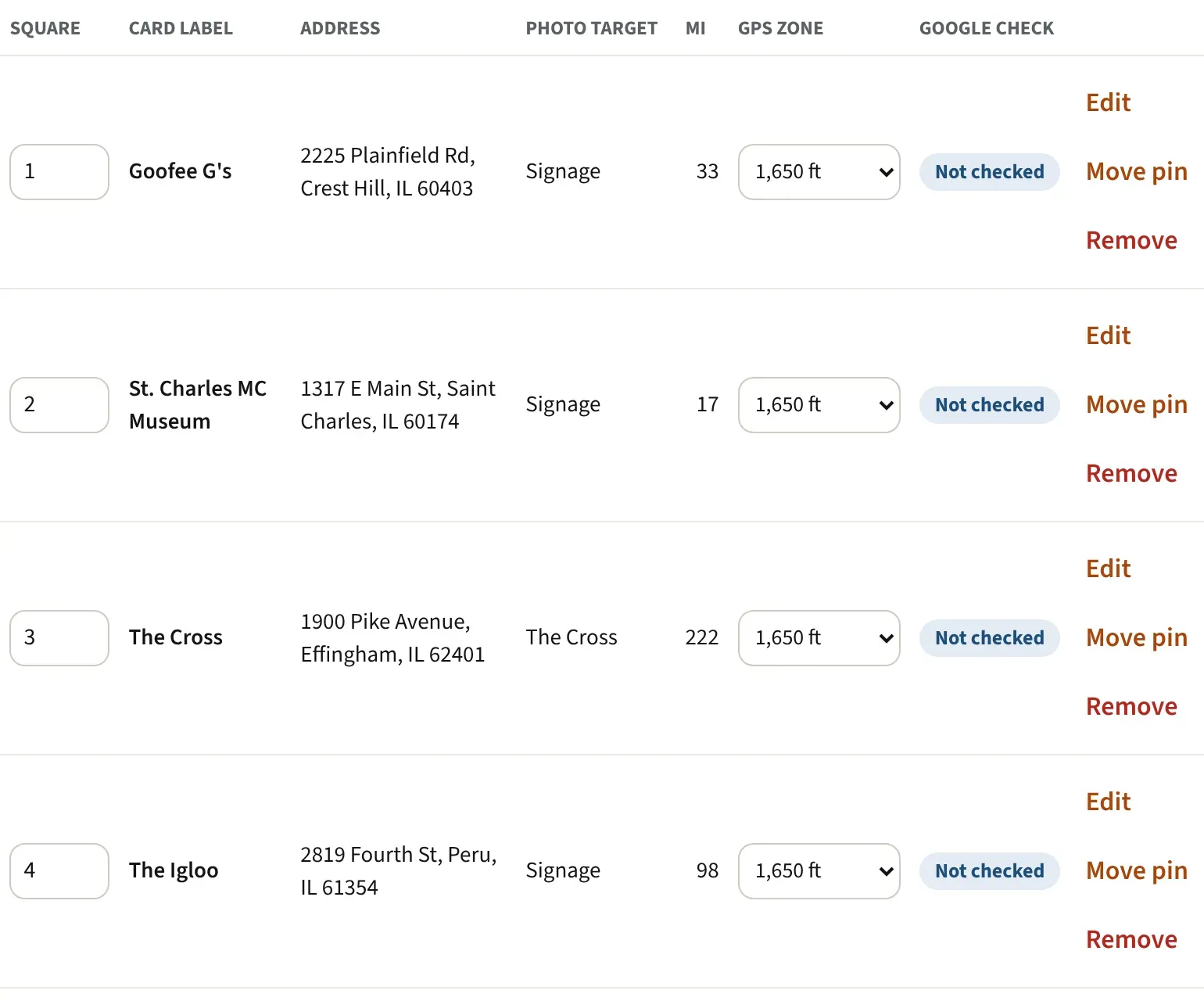
Square: type a number from 1 to 64 and tap away to move a stop. If another stop has it you will see “Another stop already uses that square.” Clear the box to take a stop off the grid. It still shows in the list.
-
Mi is road distance from your sponsoring dealer.
-
GPS zone is how close a photo must be to count as a match: 500 ft, 1,000 ft, 1,650 ft, 0.5 mi, or 1 mi. It is only a hint for reviewers.
-
Google check shows Validated, Not checked, No street address: place the pin, More than one match: confirm, Google says closed, or No match. A pin you place by hand counts as Validated, and so does Move pin on a flagged stop. The checks run once Google Maps is connected.
The Places library
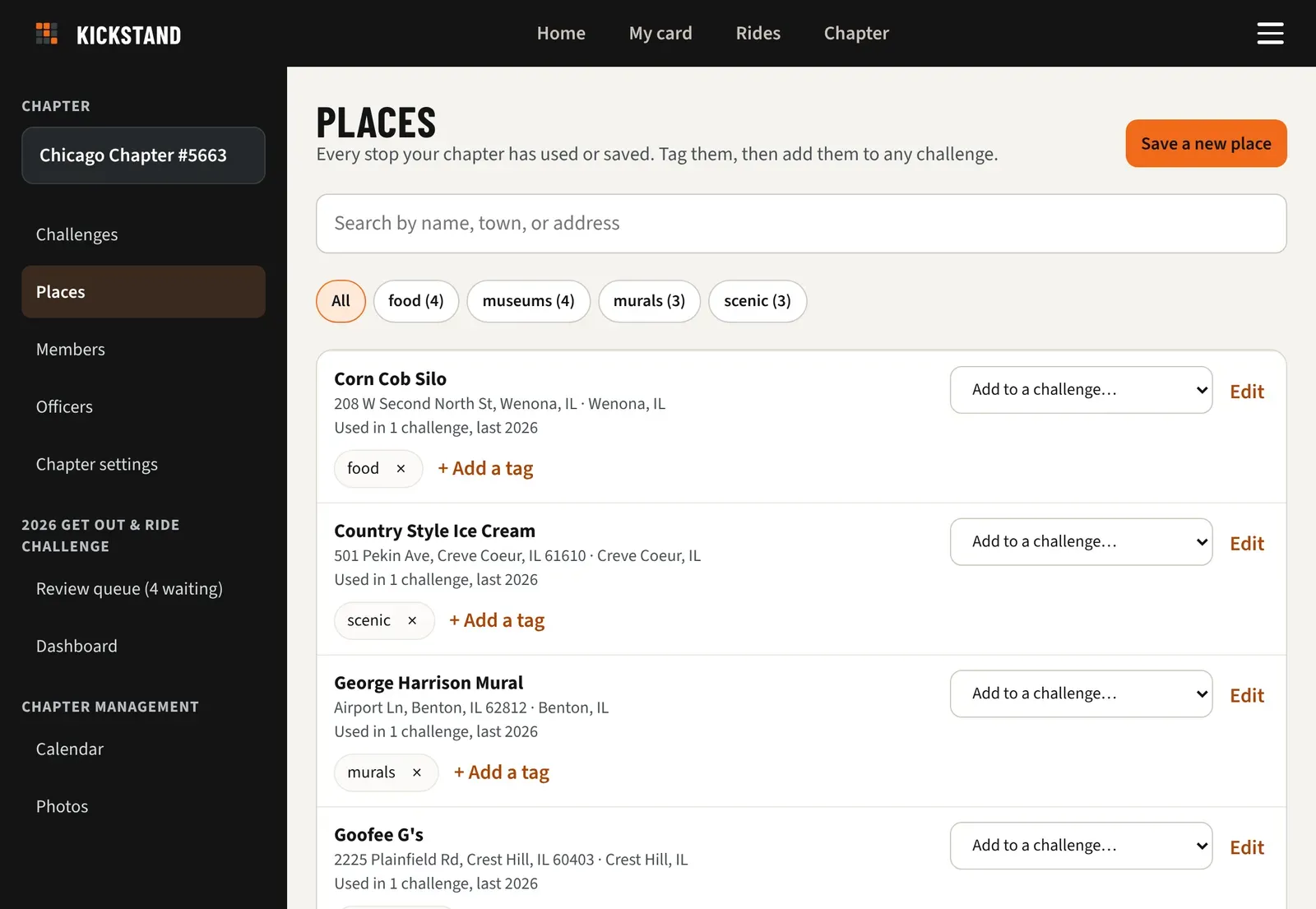
Section titled “The Places library”Chapter admins find it under Chapter console, then Places.
-
Save a new place adds one that isn’t on a challenge yet. Fill in Name (as it shows on a card), click the map to drop the pin, and tap Save place. If the map doesn’t appear, type the Latitude and Longitude instead (in Google Maps, right-click the spot and tap the numbers at the top of the menu to copy them, then paste both into either box).
-
Search places looks at names, towns, and addresses. Tap a tag chip to filter.
-
+ Add a tag lets you type a tag and press Enter, or tap one like + dealer. Tap × to remove it.
-
Add to a challenge… puts the place on any challenge that isn’t closed, with the library’s details.
-
Edit changes the defaults for next time. Stops already on a card keep their own details.
-
Archive hides a place from your list. Challenges that already use it keep it.
Good to know
Section titled “Good to know”- New stops land in order, and the free center square is skipped. A full card or a list-only challenge leaves the stop without a square.
- A place picked from the suggestions isn’t changed for other chapters when you edit or move it on your card.
- More on card sizes and the free square: Set up a challenge in 15 minutes.