Manage a member
Every member has a page that chapter officers can open. Use it to correct details, help someone who is stuck signing in, or look up an emergency contact when it matters.
Find a member
Section titled “Find a member”- Open Chapter console from the menu (top right), then click Members in the sidebar.
- Type in Search by name, email, or H.O.G. ID.
- Click a chip to narrow the list: Everyone, Officers, Not signed up yet, Waiting for approval, Lapsed, No H.O.G. ID, No emergency contact, Cooling, Inactive, or Never used the app. Each shows how many people it holds, and a chip with nobody in it is hidden.
- Use Sort to order by Name or Last active.
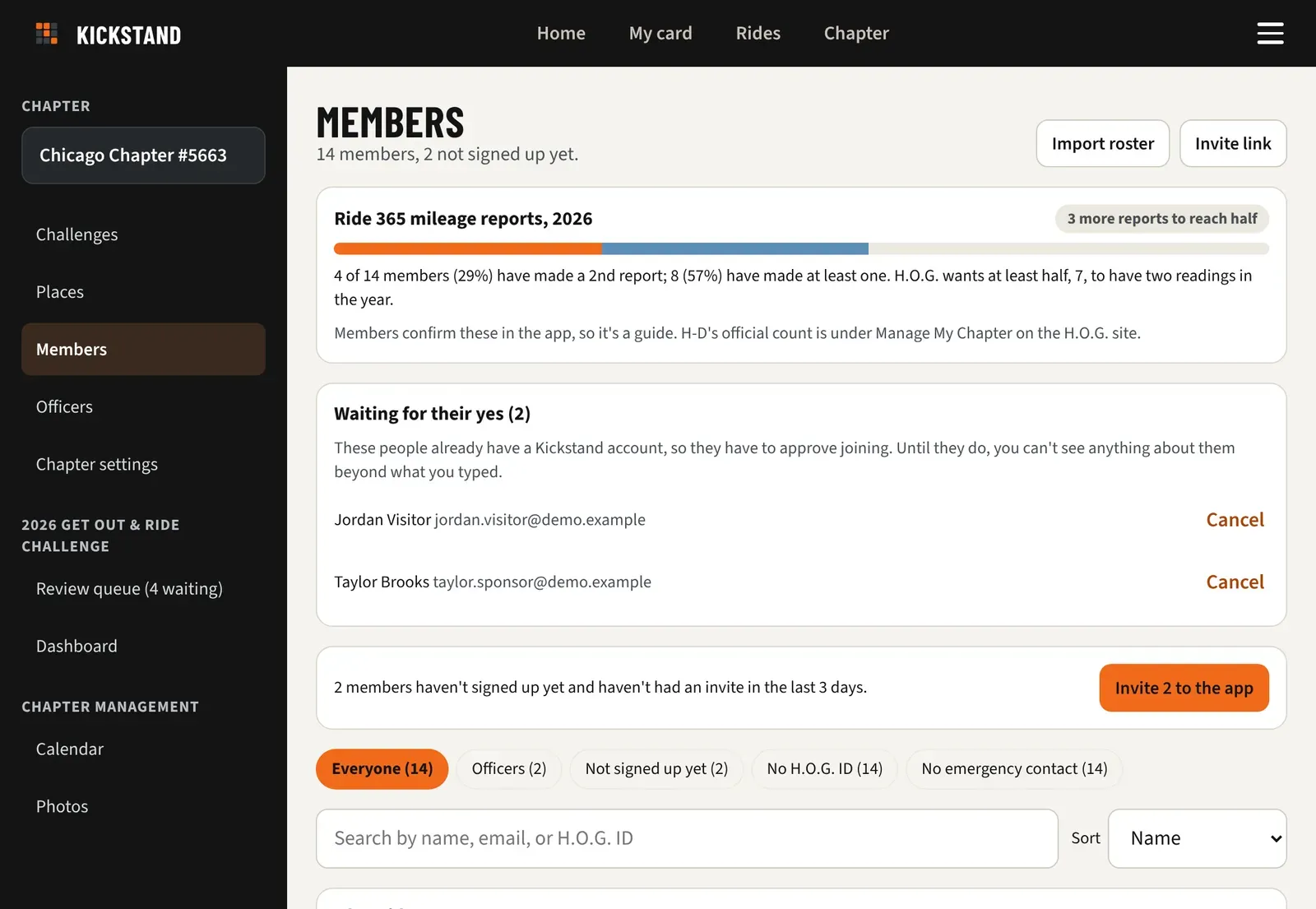
A red Lapsed tag next to a name means their H.O.G. membership or your chapter dues have run out (a Passenger tag marks a passenger). The page header counts them, like “153 members (5 lapsed)”. Lapsed members stay on your roster: nothing is deleted, hidden or blocked, in case someone is working on getting them to renew.
On the right of each row you see Active, Cooling, Inactive, or Not yet with the last day they used the app. Active means in the last 30 days, Cooling 31 to 90 days, Inactive more than 90 days, and Not yet means no use on record. On the Cooling chip, Copy their emails copies the addresses so you can paste them into BCC for a friendly nudge.
Open a member
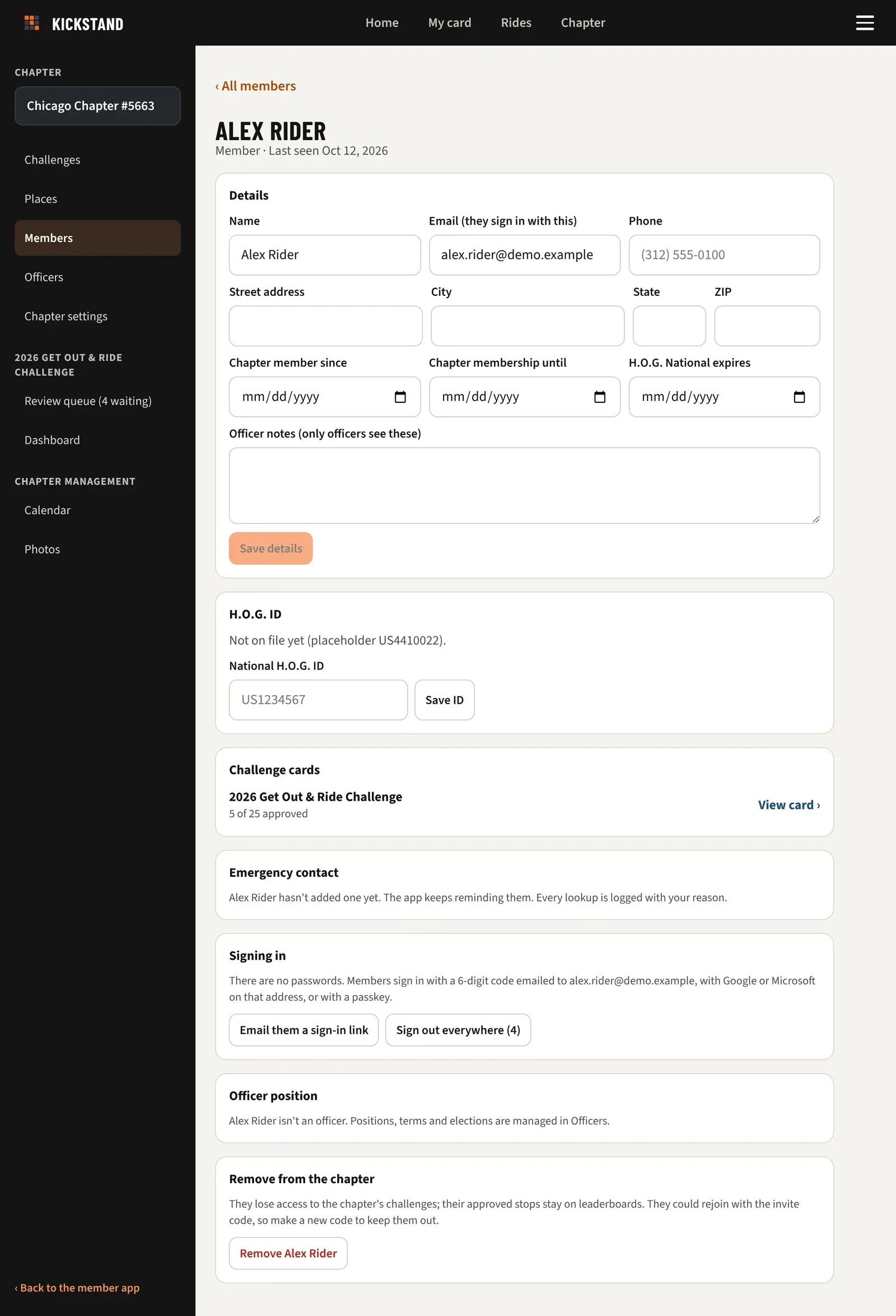
Section titled “Open a member”Click a name. The page has these sections, top to bottom:
- Details: Name, Email (they sign in with this), Phone, Street address, City, State, ZIP, Chapter member since, Chapter membership until, Joined H.O.G. National, H.O.G. National expires (leave it blank for a life member), and Officer notes (only officers see these). Click Save details, or Undo changes. Changing the email of someone who has signed in asks you to confirm, and the app tells their old address.
- H.O.G. ID: shows the ID, or “Not on file yet” with a placeholder. Type the National H.O.G. ID with its country code, like US1234567, and click Save ID. Once a real ID is saved the field reads Change to. The app won’t save an ID that is already on another account.
- Challenge cards: each challenge they are on, with how many stops are approved. Click one to open their card with photos and dates. See Open a rider’s card and add a photo.
- Emergency contact: says “On file.” or that they haven’t added one yet. See below.
- Signing in: Invite them to the app (or Send the invite again, or Email them a sign-in link if they have signed in) emails them a link. Sign out everywhere signs them out on every phone and computer, and they sign back in with an email code. Remove passkeys clears a lost or replaced phone’s passkeys, and they can add a new one in their profile. Both buttons show a count and appear only when the member has a signed-in device or a passkey.
- Officer position: shows their position and points you to Officers. See Officers, positions and election changeovers.
- Remove from the chapter: click Remove and their name, then confirm.
Look up an emergency contact
Section titled “Look up an emergency contact”Only chapter officers can see emergency contacts. When a contact is on file, click Show contact. It doesn’t ask for a reason, because in a real emergency you shouldn’t have to stop and type one. You see their name, relationship, phone numbers and notes, with a Text link on mobile numbers. Every lookup is recorded with who looked and when.
Good to know
Section titled “Good to know”- Someone who asked to join shows Waiting for approval with an Approve button at the top of their page.
- Lapsed is worked out from two dates: the day their H.O.G. National membership ends and the day your chapter membership ends (it ends every December 31). The day after either, they read as lapsed, and their page says which one ran out and when. Enter a new date and the mark clears. Chapter member since is the day they joined your chapter; Joined H.O.G. National is the day they joined H.O.G., which can be earlier.
- Name, email, phone and address belong to the member’s account, so a change shows in any chapter they belong to. Chapter dates and officer notes stay with your chapter.
- Removing someone ends their access to your challenges. Their approved stops stay on the leaderboards. They can rejoin with your invite code, so make a new code to keep them out. See Invite members to your chapter.
- Importing a whole list? See Import your roster and invite everyone.