Run the chapter calendar
Chapter admins run the calendar. Members see events and answer Going, Maybe, or Can’t go. The calendar comes with the Chapter Platform plan. See Choose a plan and pay for it.
Add an event
Section titled “Add an event”- In the Chapter console, click Calendar under Chapter management. On Home, the Chapter calendar button opens the same page.
- Click Add an event.
- Type What, like “Saturday breakfast ride”.
- Pick the Date, then Starts and Ends. Leave Starts empty and the event is all day.
- For a rally or a trip, tick All day and pick the Last day.
- Add Where (an address or place name), Details (meet time, route, what to bring), and a Link (optional) that starts with http or https.
- Under Who can come?, pick Closed event or Open event. New events start on Closed event. You have to choose one. What each means is under Open and closed events, below.
- Click Add to the calendar. The new event’s page opens.
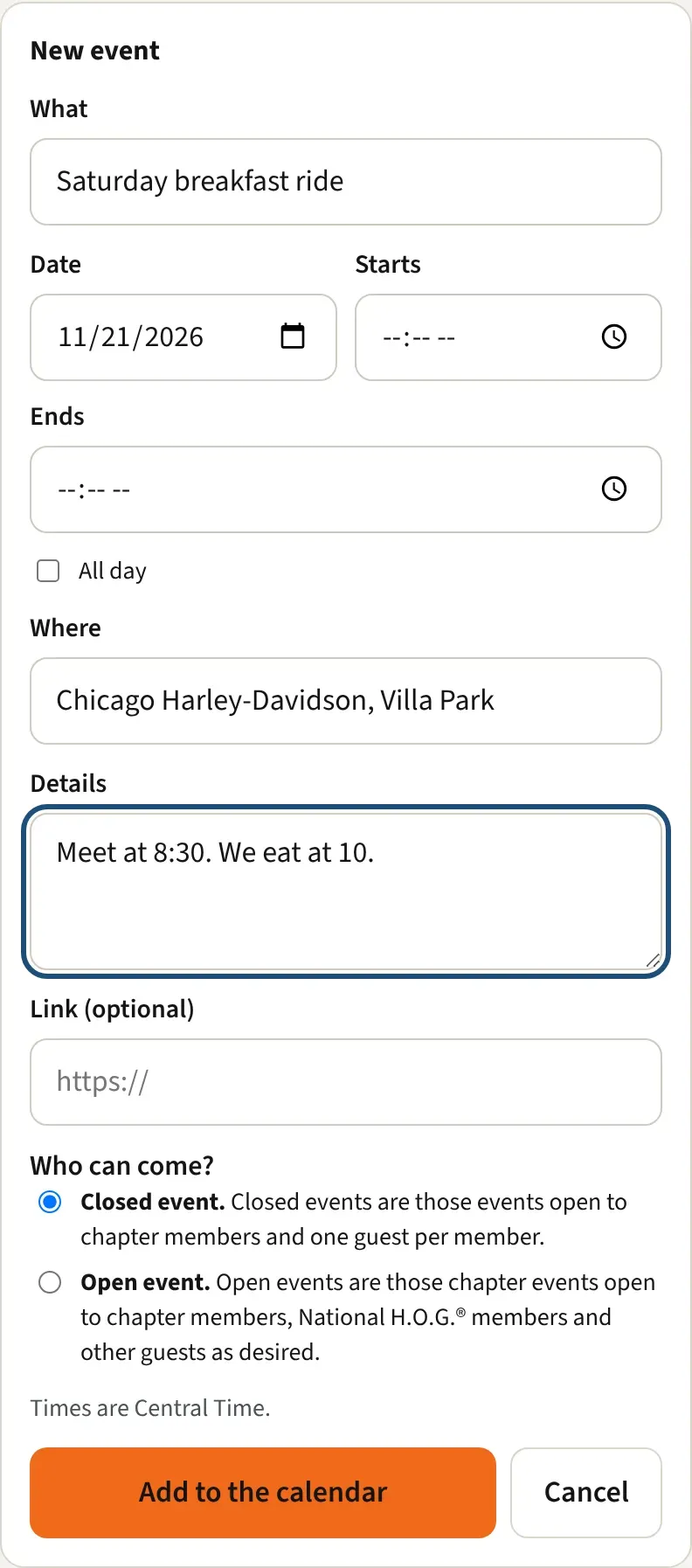
Times are in your chapter’s time zone. The form says which one, under the fields. Change it in Chapter settings. See Set up your chapter.
Edit or cancel an event
Section titled “Edit or cancel an event”- Click the event in the list.
- Click Edit, change what you need, and click Save changes. The Cancel button beside it closes the form without saving.
- To call it off, click Cancel the event and confirm.
The edit form has the same Who can come? choice. On an event that isn’t marked yet, nothing is picked, and you need to pick one to save.
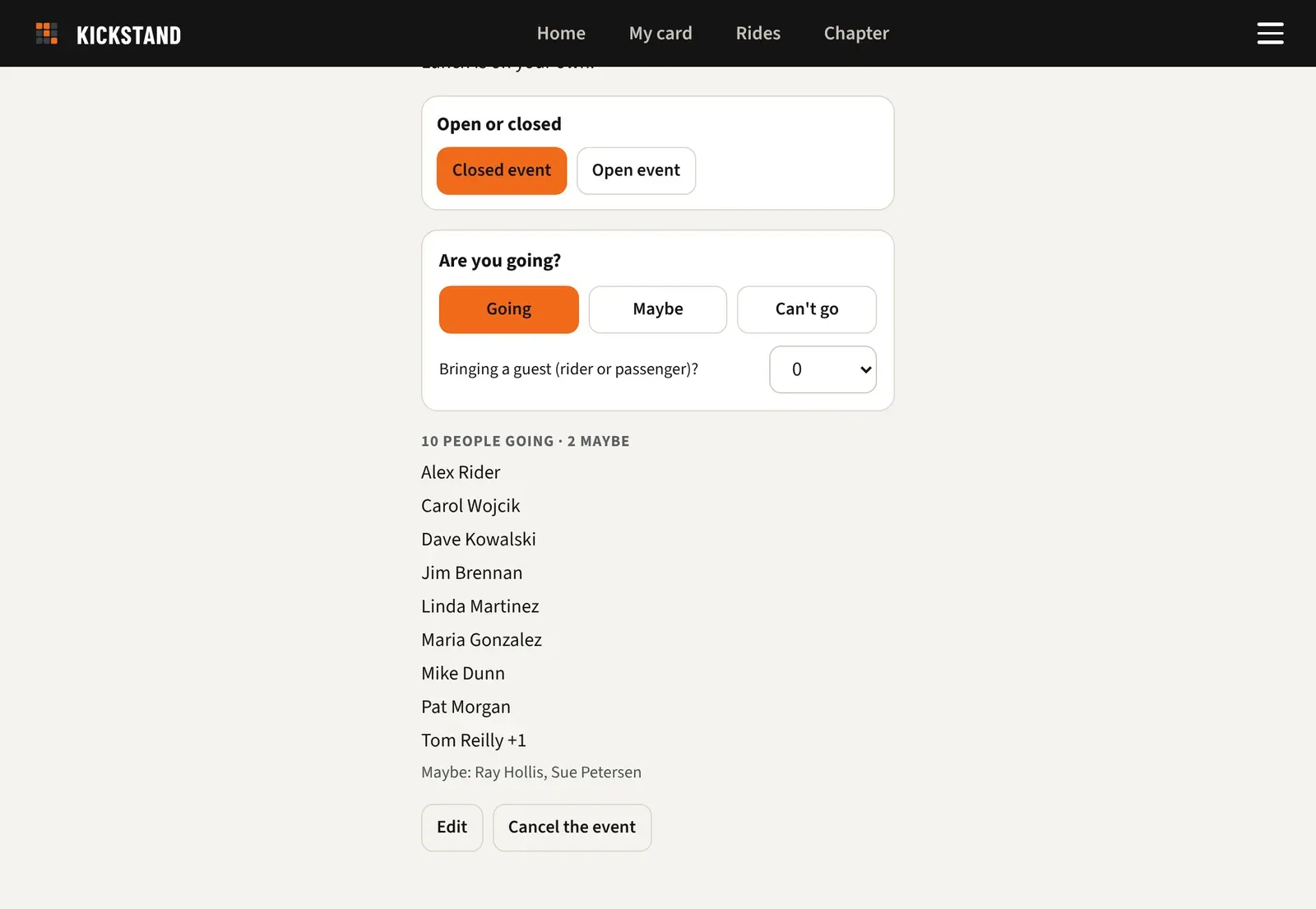
A cancelled event stays on the calendar, crossed out and marked Cancelled. It leaves Coming up on Home, and members can no longer answer it. Click Put it back on to restore it. There is no delete button.
Open and closed events
Section titled “Open and closed events”H.O.G. asks chapters to say, for every activity, whether it is open or closed. Each event on your calendar can carry one of these two labels. Members see the words the app shows:
- Closed event. “Closed events are those events open to chapter members and one guest per member.”
- Open event. “Open events are those chapter events open to chapter members, National H.O.G.® members and other guests as desired.”
Set it when you add the event (step 7 above) or change it any time:
- Open the event.
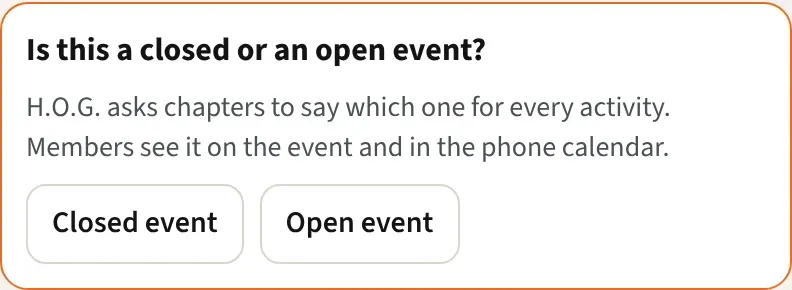
- Find the box under the details. On an event with no label yet, it is outlined in orange and asks Is this a closed or an open event? Once an event has a label, the box is titled Open or closed.
- Click Closed event or Open event. It saves right away, and the one you picked is highlighted. Click the other one to switch.
Only officers see this box.
Where members see it
Section titled “Where members see it”- On the event, under the date and time, as the label and its sentence.
- In the calendar list, after the time, like “Sat, Jul 4 · 10:30 AM to 2:00 PM · Closed event”. Cancelled events don’t show it.
- In the phone calendar. The event’s notes start with the label and its sentence, then your Details. Phone calendars pick up a change within a few hours.
Home’s Coming up list doesn’t show the label.
What it changes for RSVPs
Section titled “What it changes for RSVPs”A closed event takes one guest per member. On a closed event the guest picker offers 0 or 1 and is worded “Bringing a guest (rider or passenger)?” On an open event, or one with no label yet, members can bring up to 10 guests.
Who sees the names on an RSVP list
Section titled “Who sees the names on an RSVP list”You see everyone who answered Going or Maybe, always, so you can plan the ride and look after people. What members see is up to your chapter and to each rider.
- In the Chapter console, open Settings and find Events.
- Under Who’s coming, pick Full name, Initials, or Nothing (just counted). It starts on Full name, so nothing changes until you pick another.
That is the default for every rider who hasn’t chosen. In their own Profile, under On event RSVP lists, show me as, a rider can pick any of the three, and their pick always wins, whether it shows more or less than your setting.
Members see names in full for Full name, as initials like S. S. for Initials, and only a line like and 3 others for Nothing (just counted). The event page says what your chapter does. A rider sees their own answer in full either way. Guests are never named to members. Dealer staff with view access see the same full list you do.
The setting appears once your chapter is on the Chapter Platform plan.
Copy a calendar you already keep
Section titled “Copy a calendar you already keep”Many chapters already run a calendar on HOG[SCAN] or their own website. Kickstand can copy it.
- At the bottom of the calendar, click Officers: calendar settings.
- Paste the calendar’s ICS subscribe link (an address ending in .ics) into Copy events from your chapter’s existing calendar. Many chapter sites have one at /calendar/feed. A webcal link works too.
- Click Save. Kickstand checks the link now and tells you how many events it copied, or what went wrong.
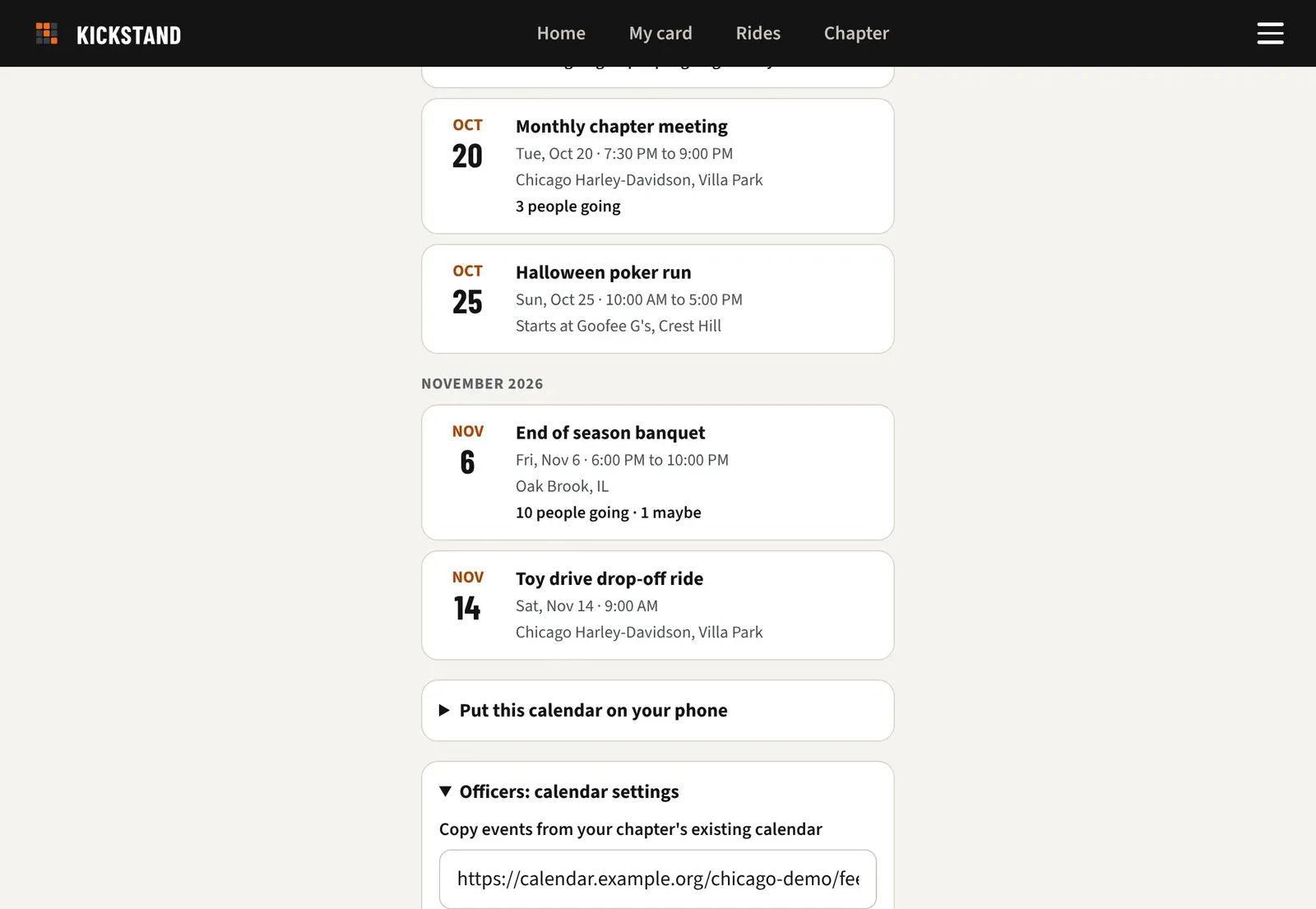
After that the app copies it every hour. Copy now copies right away. Members can answer copied events like any other.
Copied events arrive with no open or closed label. Open each one and use the Closed event and Open event buttons to mark it. Marking an event this way does not change how it follows the other calendar, and the hourly copy never overwrites your choice. Editing the event with Edit does stop it following.
Good to know
Section titled “Good to know”- Copied events change only on the other calendar. If you edit or cancel one here, it stops following that calendar, and its page says so. Marking one open or closed doesn’t count as an edit.
- Events that were on the calendar before the open and closed labels arrived have no label either. Members see no label on them until you mark them.
- An upcoming copied event that disappears from the other calendar is marked Cancelled, not deleted, so people’s answers survive.
- To stop copying, clear the link field and click Save. Copied events nobody answered are removed. The ones with answers stay, marked Cancelled.
- Repeating events are not expanded. A source that uses a repeat rule shows only its first date. HOG[SCAN] lists each date separately.
- If the members’ phone link ends up somewhere public, click New subscribe link and confirm. The old link stops working, and members who subscribed need the new one from Put this calendar on your phone.
- The app shows everyone your chapter’s time. Phone calendars show the same moment in each phone’s time zone.
- Riders choose whether their name is listed in their profile. See Your profile and settings.
- Riders see the calendar through The chapter calendar.