Set up your chapter
We create your chapter and make you its first admin. Everything below lives in Chapter settings. A computer or tablet makes this easiest.
- Open the menu (top right), tap Chapter console, then Chapter settings. On Home you can also tap Chapter admin and challenge setup first. On a phone, Chapter settings is in the menu.
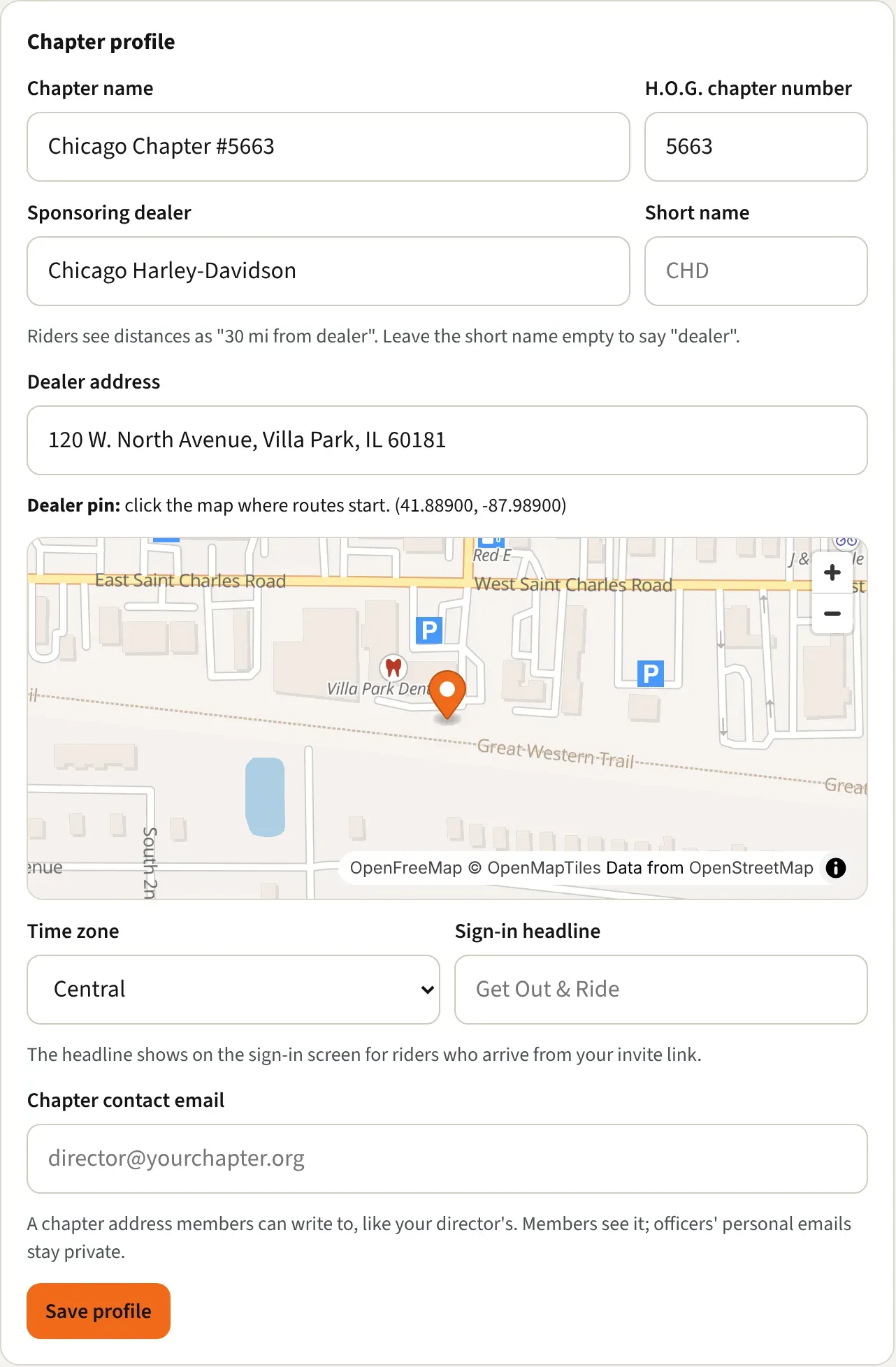
- Under Chapter profile, check the Chapter name and H.O.G. chapter number.
- Enter your Sponsoring dealer and its Short name (for example, CHD). Riders see distances like “30 mi from CHD”. Leave the short name empty to say “dealer”.
- Enter the Dealer address, then click the map where rides start to set the Dealer pin. Route planning starts from that pin. If the map doesn’t load in your browser, type the dealer’s Latitude and Longitude in the boxes that appear instead (in Google Maps, right-click the dealer and tap the numbers to copy them).
- Pick your Time zone: Eastern, Central, Mountain, Arizona, Pacific, Alaska, or Hawaii. Challenges open and close on their dates in that zone.
- Add a Sign-in headline if you like (up to 40 characters, for example “Get Out & Ride”). Riders who arrive from your invite link see it on the sign-in screen.
- Add a Chapter contact email, like your director’s. Members see it, and officers’ personal emails stay private. Members on the Challenge plan who want chapter tools get a ready-made note addressed to it.
- Tap Save profile.
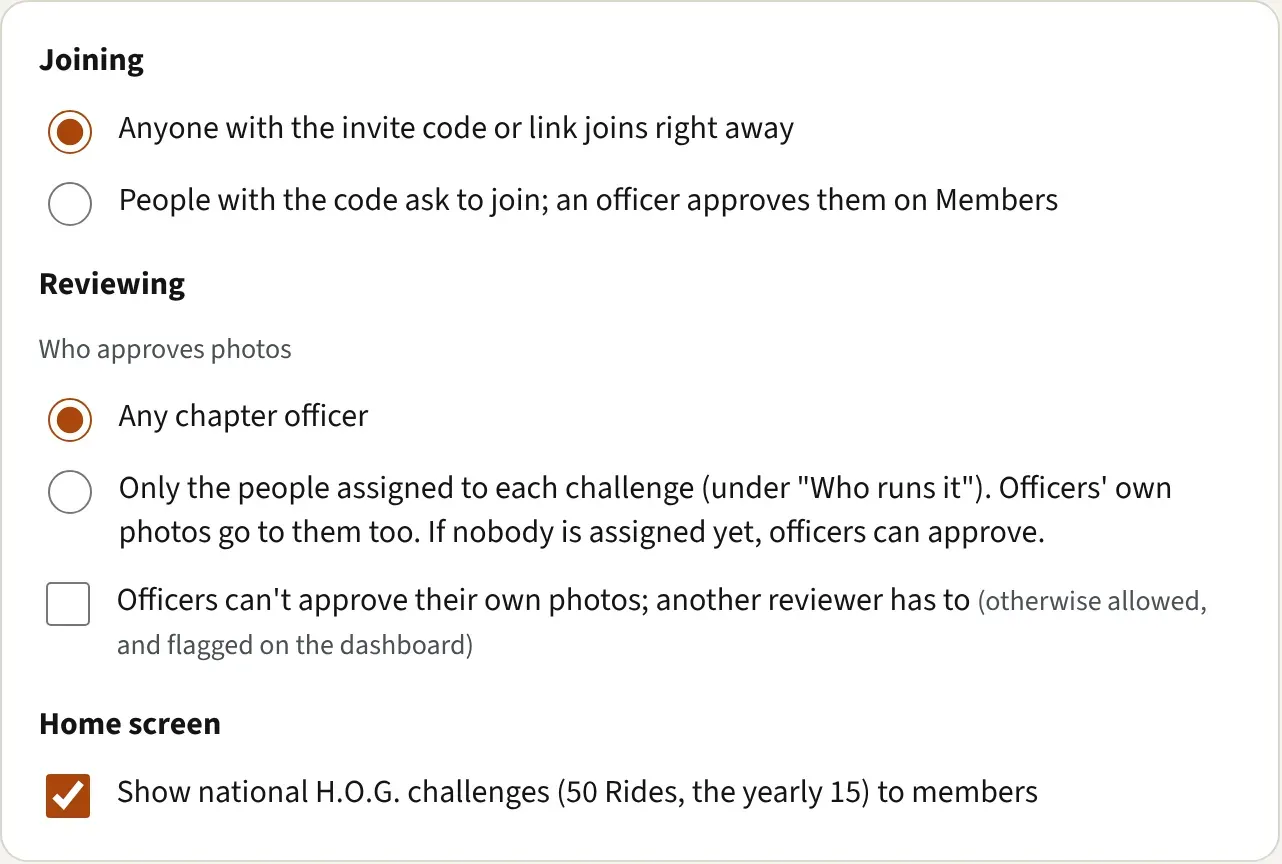
- Under Joining, choose whether people with your code join right away, or ask to join and wait for an officer to approve them.
- Under Reviewing, choose Who approves photos: Any chapter officer, or Only the people assigned to each challenge. If your activities officer approves every photo, pick the second one and add them under Who runs it on each challenge.
- Tick Officers can’t approve their own photos; another reviewer has to if you want a second pair of eyes on officers’ photos.
- Under Home screen, tick or clear Show national H.O.G. challenges (50 Rides, the yearly 15) to members.
- On the Chapter Platform plan, Events has Who’s coming. Pick Full name, Initials (like S. S.), or Nothing (just counted). It is what members see for every rider who hasn’t picked their own, and a rider’s own pick always wins. Officers always see everyone. See Run the chapter calendar.
- Under Map look, pick a Light mode map and a Dark mode map. This is the default for your members’ maps.
- Share your invite link. See Invite members to your chapter.
- Set up your challenge. See Set up a challenge in 15 minutes.
- Pick a plan under Plan and billing, at the bottom of this screen. See Choose a plan and pay for it.
Good to know
Section titled “Good to know”- Joining, Reviewing, Home screen, and Map look save as soon as you tap them. Only the profile needs Save profile.
- With Only the people assigned to each challenge, an officer’s own photos go to those people too. If nobody is assigned yet, officers can approve, so photos never wait.
- Without the second-reviewer box ticked, officers can approve their own photos.
- Riders can still pick their own map look in their profile. Platform default means no chapter choice.
- Only chapter admins see Chapter settings, Places, Members, and Officers. For who sees what, see A tour of the Chapter console.