Fix a photo that was sent back, or withdraw one
A reviewer sends a photo back when something is missing, like the sign or your bike. It’s easy to fix: open the stop, read why, and send a new photo. You can also take back a photo that hasn’t been reviewed yet.
If your photo was sent back
Section titled “If your photo was sent back”- On My card, find the square with a red exclamation mark. On the List tab it has a Resubmit button.
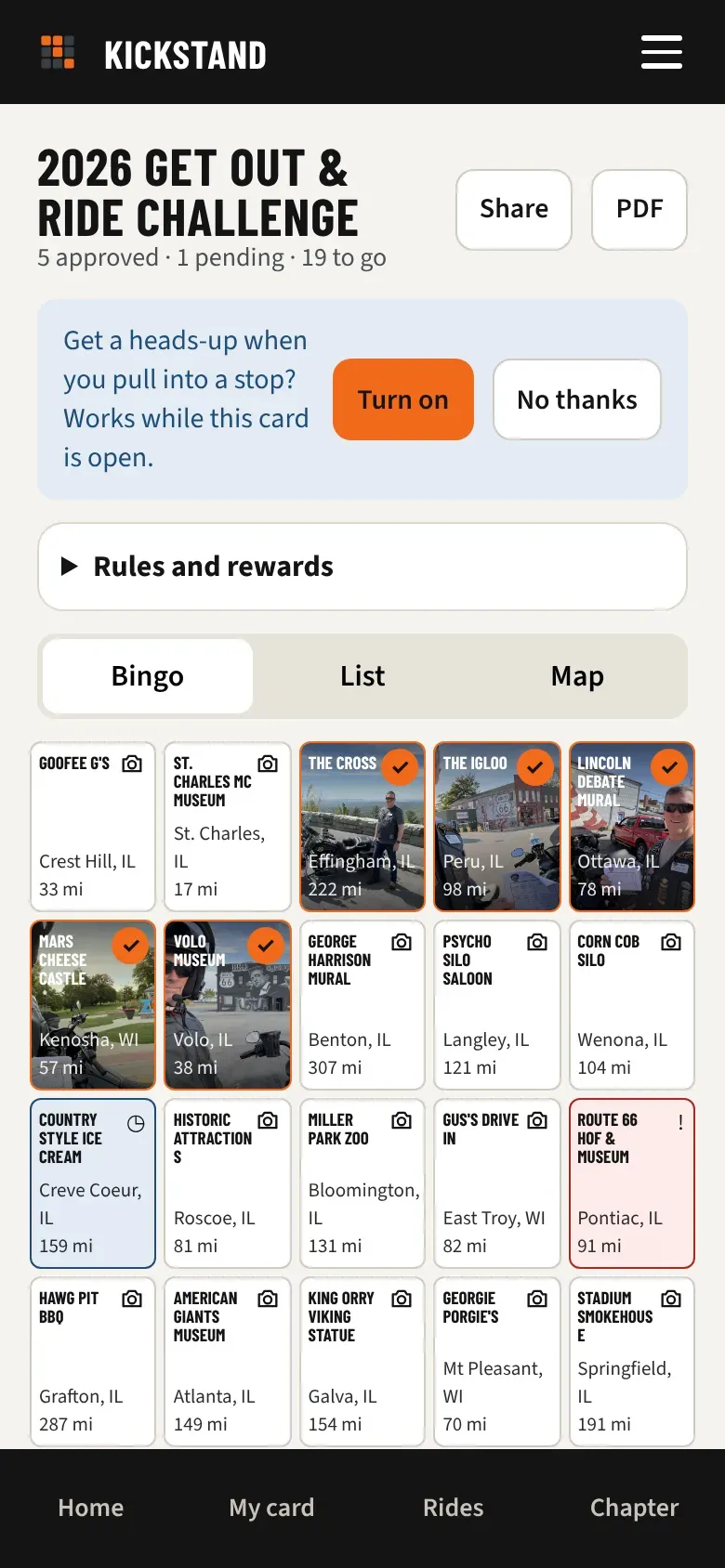
- Tap it. The stop page shows a red note: “Your last photo wasn’t approved:” and the reason, such as “The sign or landmark isn’t visible.” If the reviewer chose “Something else,” it says “see the reviewer’s note.”
- If the reviewer wrote you a message, it shows under Note from the reviewer:.
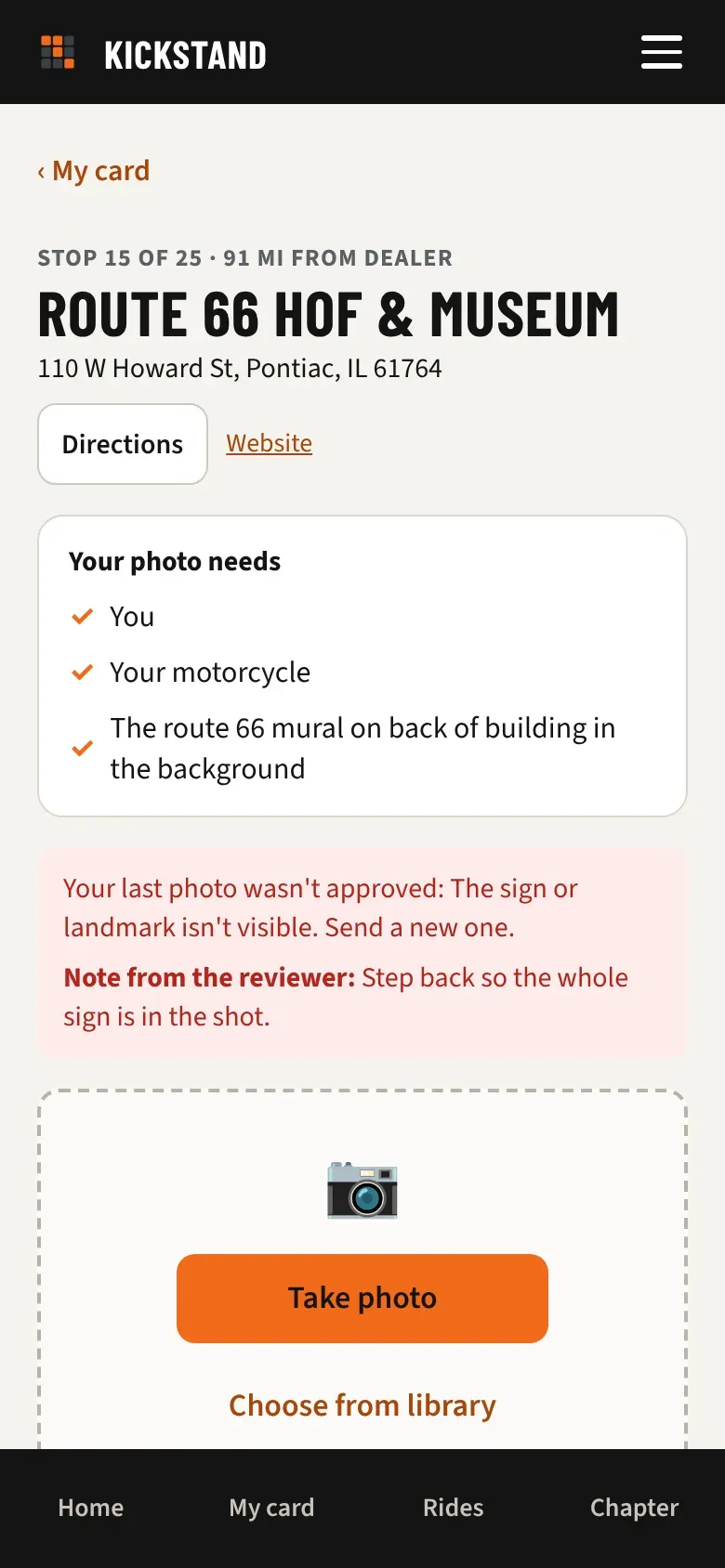
- Tap Take photo or Choose from library and send a new one the usual way. See Taking a photo that gets approved.
- Tap Submit for review. The square turns blue again while the new photo waits.
Withdraw a photo that’s waiting
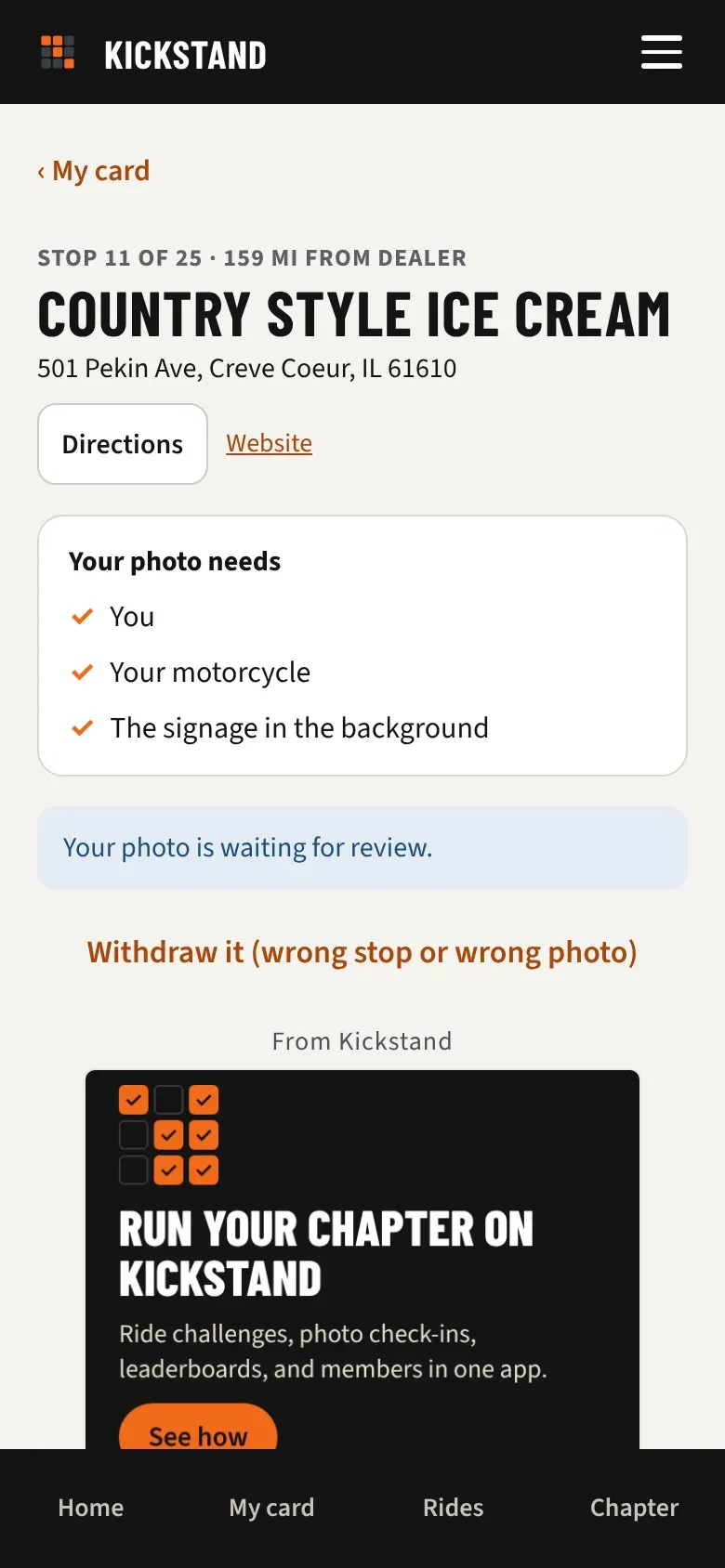
Section titled “Withdraw a photo that’s waiting”Sent the wrong photo, or picked the wrong stop? While the square is blue, you can take it back.
- Tap the blue square. The stop page says “Your photo is waiting for review.”
- Tap Withdraw it (wrong stop or wrong photo).
- The square goes back to plain, and you can send the right photo.
Good to know
Section titled “Good to know”- The reasons a reviewer can pick are: your bike isn’t in the photo, the sign or landmark isn’t visible, you aren’t in the photo, this doesn’t look like the right stop, or something else.
- You may also get an email when a photo is sent back, but the stop page is the place to count on. It always has the reason and any note.
- Only a photo that’s waiting can be withdrawn. Once a stop is approved, a reviewer changes it, so ask your chapter’s officers.
- If you’re standing at a stop that was sent back and you have arrival alerts on, the banner offers Retake your photo. See How the GPS check works.