A tour of the Chapter console and who can do what
The Chapter console is where officers run the chapter: challenges, places, members, officers, settings, and the plan. A computer or tablet shows it all at once. Phones get the same sections in the menu.
Open it
Section titled “Open it”- Chapter admins: tap the menu (three lines, top right), then Chapter console. Or on Home, under You manage, tap Chapter admin and challenge setup.
- Officer of more than one chapter? The menu lists each one as “(chapter name) console”.
- Challenge managers who aren’t admins don’t get the menu item. They tap Set up the challenges you manage on Home.
What the sidebar holds
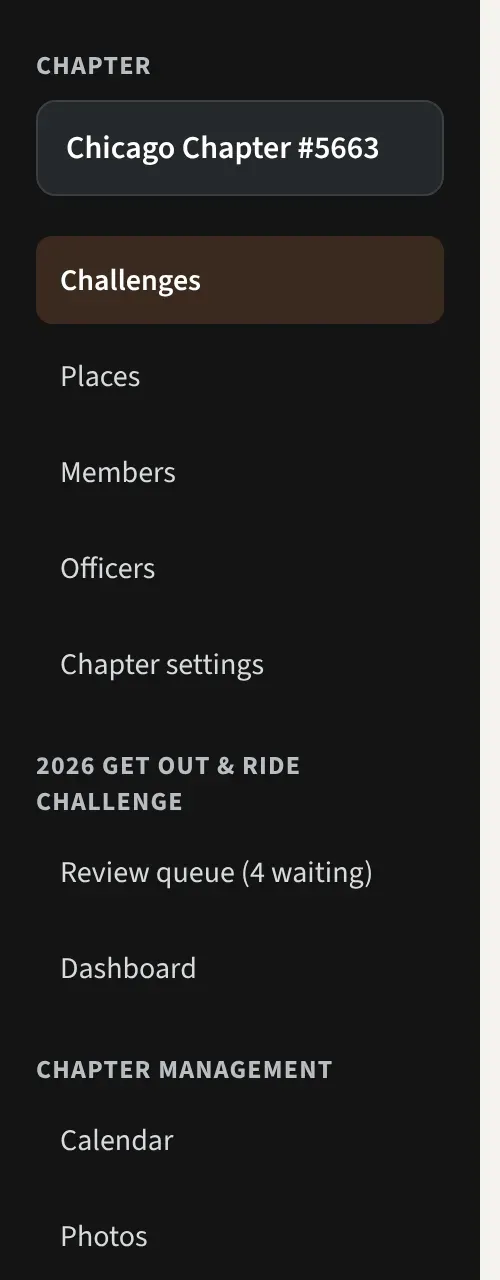
Section titled “What the sidebar holds”- Challenges: your challenges with dates, stops, and status, plus New challenge and Clone a past challenge. Pick one to edit it. See Set up a challenge in 15 minutes, Add stops and the place library, and Load riders’ Word cards.
- Places: every stop your chapter has used or saved, with tags. Same article as stops.
- Members: everyone in the chapter, with Import roster and Invite link. See Invite members, Import your roster, and Manage a member.
- Officers: board positions, changeovers, and Send invite. See Officers, positions, and changeovers and Invite a board member.
- Chapter settings: profile, joining, who approves photos, map look, and Plan and billing. See Set up your chapter and Choose a plan and pay for it.
- Under your open challenge’s name: Review queue (N waiting) and Dashboard. See Reviewing photos fast and The officer dashboard.
- Chapter management: Calendar and Photos on the Chapter Platform plan. On the Challenge plan it holds one link, Upgrade: calendar, website, dues.
- Back to the member app at the bottom takes you home.
Who sees what
Section titled “Who sees what”| Chapter admin | Challenge manager | Reviewer | |
|---|---|---|---|
| Console sections | All five | Challenges only, for the challenges they manage | None |
| Create a challenge, Who runs it, Chapter management | Yes | No | No |
| Review queue | Depends on the setting below | For their challenge | For their challenge |
- Everyone with a board position is a chapter admin. Positions are titles, not separate permissions, with one exception: only the Director, Assistant Director, Secretary and Treasurer can tick off the Chrome Chapter checklist.
- Managers and reviewers are set per challenge, under Who runs it.
- Reviewers use the Review queue row under You manage on Home.
How “Who approves photos” changes it
Section titled “How “Who approves photos” changes it”Set it in Chapter settings, under Reviewing.
- Any chapter officer: every admin sees the Review queue for every open challenge.
- Only the people assigned to each challenge: only the managers and reviewers named under Who runs it see it. Admins who aren’t assigned don’t, unless nobody is assigned to that challenge yet. Then officers can approve so photos never sit waiting.
- Officers can’t approve their own photos; another reviewer has to applies on top of either choice.
On a phone
Section titled “On a phone”The sidebar hides below tablet width. Tap the menu: your chapter’s sections come first, then your open challenge’s Review queue and Dashboard. Calendar and Photos aren’t in that menu. Open them from the Chapter calendar and Photos buttons on Home.