Reviewing photos fast
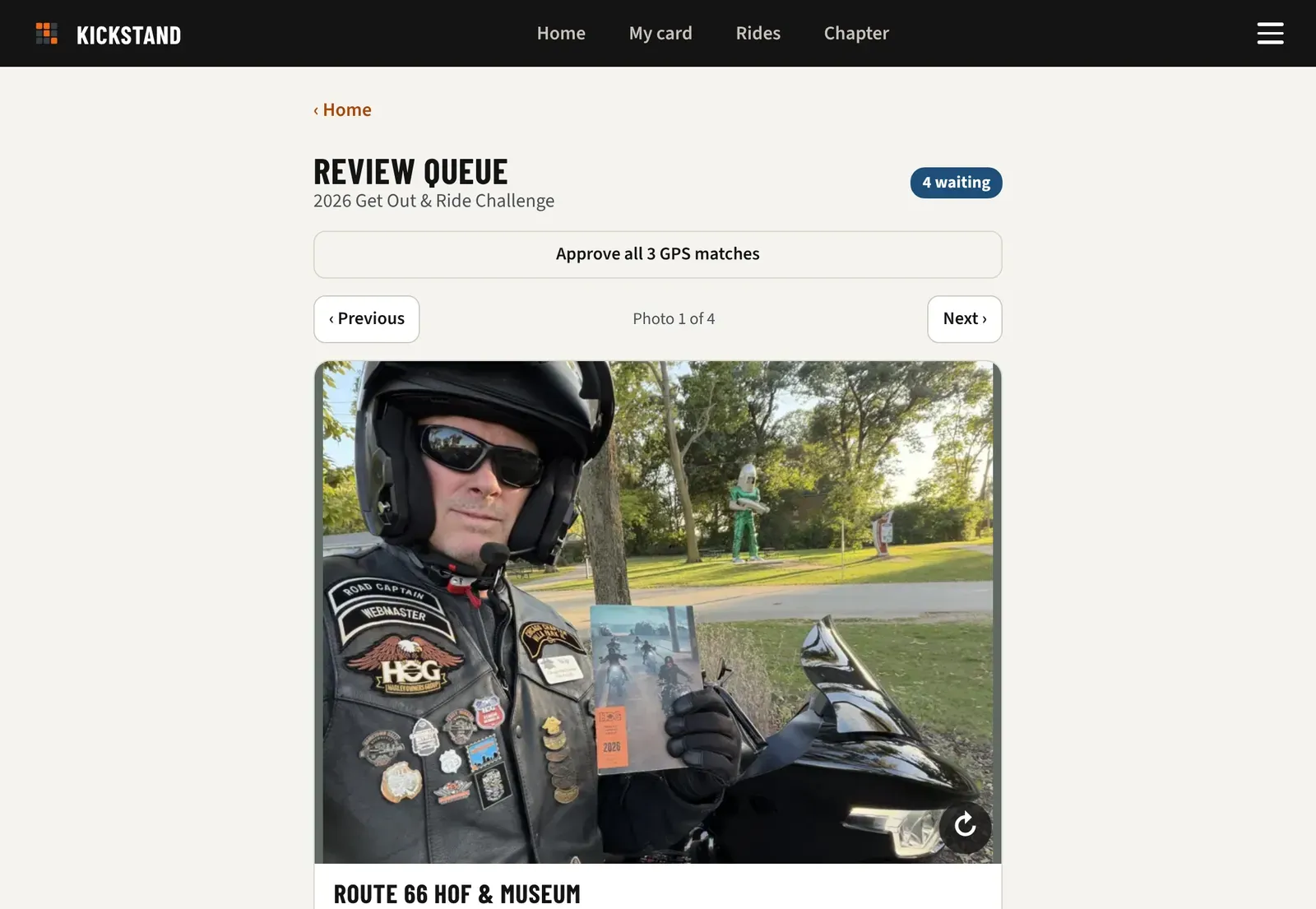
Open Review queue from Home and decide one photo at a time, oldest first. The GPS box and the rider’s note do most of the checking, and you can approve every GPS match in one tap.
-
On Home, under You manage, tap Review queue. Its badge shows how many photos are waiting, or it says “All caught up”. In Chapter console, the same link sits under the open challenge’s name.
-
Look at the photo, the rider’s name and note, the Photo must show list, the Instructions riders saw, and the GPS box.
-
If the photo came in sideways or upside down, tap the turn button (↻) on the corner of the photo until it’s upright. Each tap turns it a quarter turn clockwise.
-
Tap Approve if it’s good. You will see “Approved” and the next photo slides in.
-
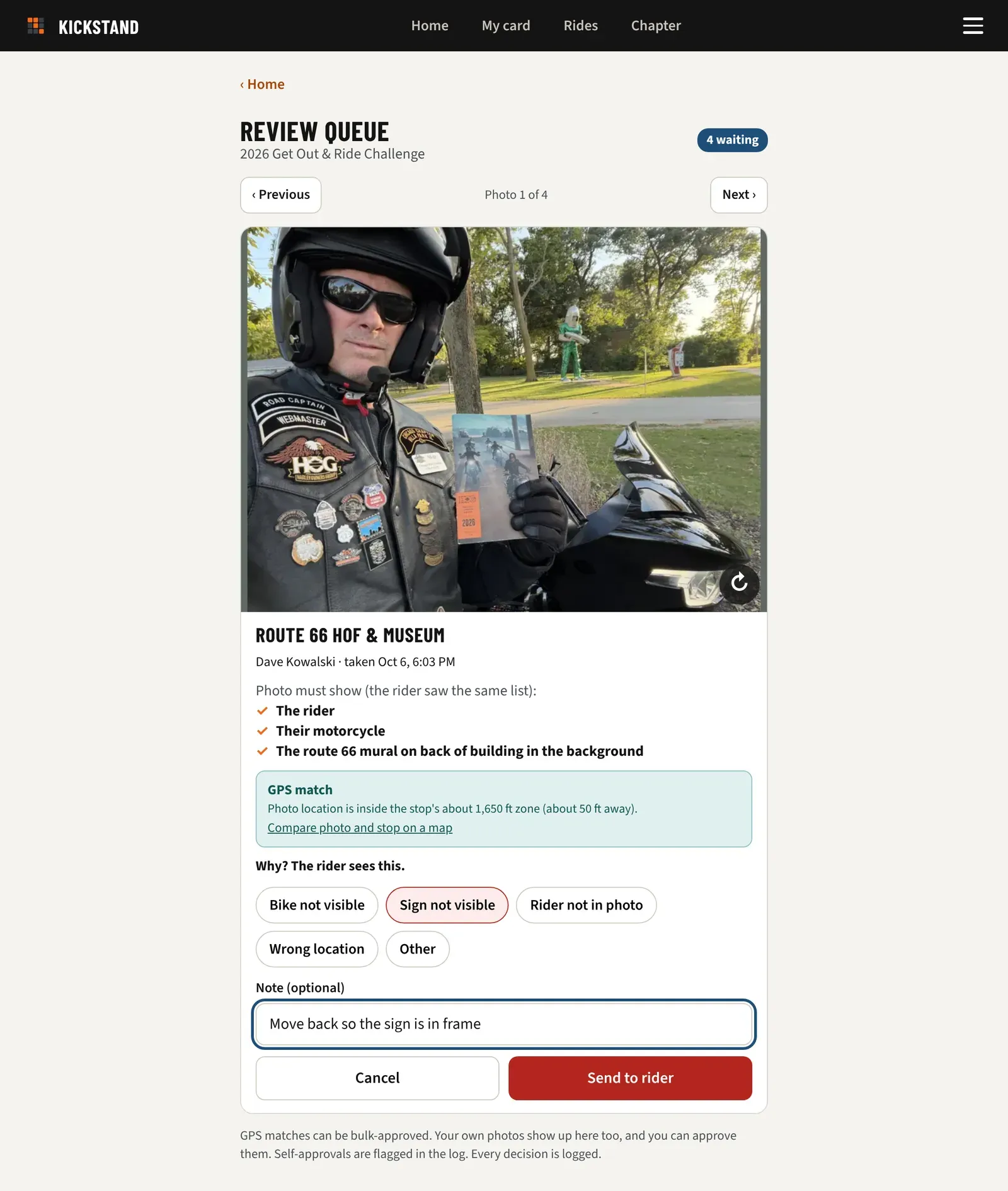
To send one back, tap Reject and pick a reason. Add a Note (optional) if it helps, then tap Send to rider. The button stays grey until you pick a reason. Cancel takes you back.
-
Tap Previous or Next to skip around. On a keyboard, the left and right arrow keys do the same, except while you type a note.
Reading the GPS box
Section titled “Reading the GPS box”- GPS match: taken inside the stop’s zone. It shows how far away the photo was.
- Far from the stop: shows the distance. Check it closely and read the rider’s note.
- No GPS in photo: judge it by eye.
- Same photo used before: this exact image was already sent on this challenge.
Tap Compare photo and stop on a map to open a map with both spots. It appears when the photo, or the rider’s phone, saved a location.
Go faster
Section titled “Go faster”- When more than one GPS match is waiting, a button such as Approve all 6 GPS matches appears. One tap approves them all. It skips a photo when that rider already has the stop approved, and your own photos when your chapter needs a second reviewer.
- A chapter admin can tick Auto-approve photos whose GPS matches the stop (review only the exceptions) under Details in challenge setup. Matches then count right away, and the queue holds only the exceptions.
Who can review
Section titled “Who can review”-
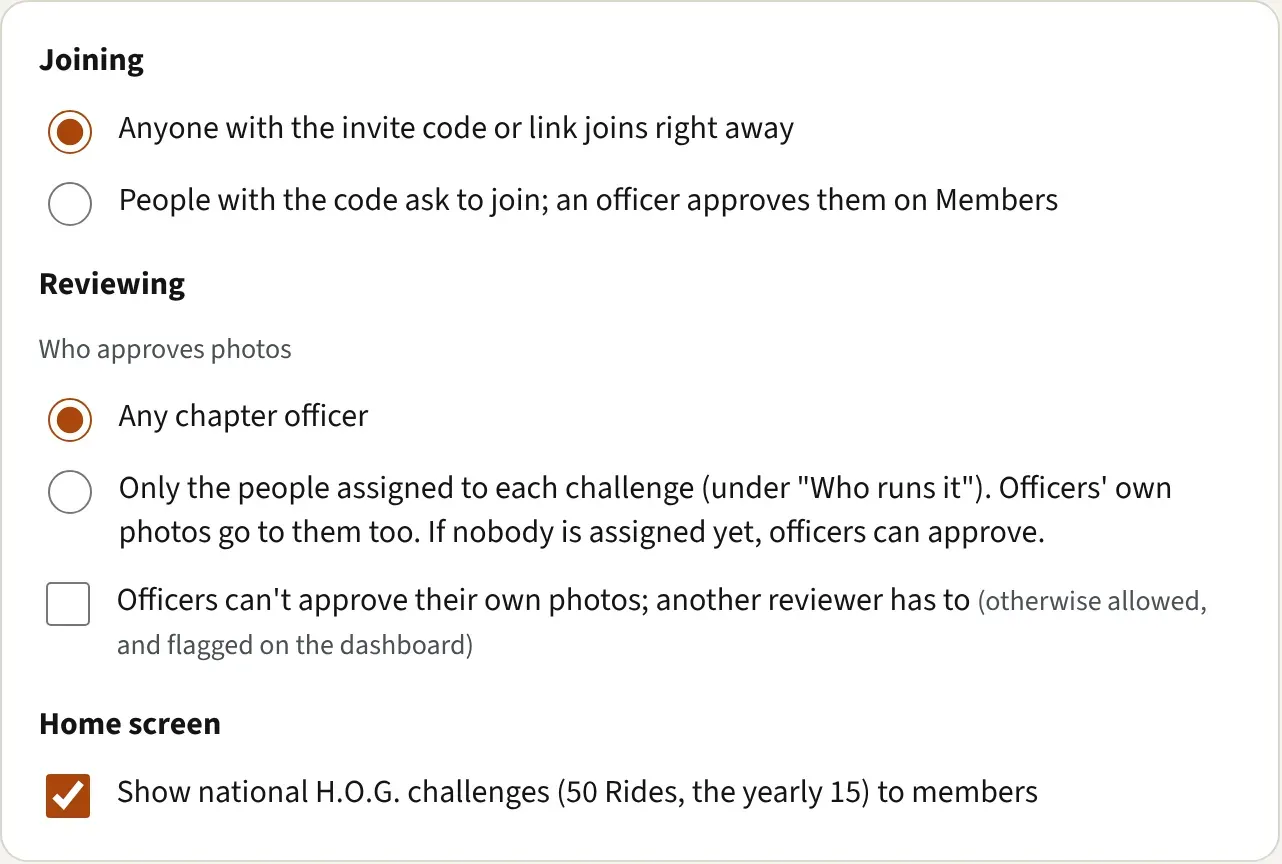
With Who approves photos set to Any chapter officer, every chapter admin can use the queue.
-
With it set to “Only the people assigned to each challenge”, only that challenge’s managers and reviewers can. Until someone is assigned, officers can still approve.
-
Assign people under Who runs it in challenge setup. A reviewer sees only the queue. A manager can also set up the challenge.
-
Change the setting under Chapter settings, then Reviewing.
Your own photos
Section titled “Your own photos”- They show up in the queue too, and you can approve them. Self-approvals are flagged in the log.
- If Officers can’t approve their own photos; another reviewer has to is ticked in Reviewing, you see “This chapter needs a second reviewer for your own photos.” Another reviewer has to approve them.
Good to know
Section titled “Good to know”- Turning a photo fixes the saved copy, so the rider and the gallery see it the right way up. It doesn’t approve or reject anything, and each turn is logged. You can also turn a photo on a rider’s card and in the gallery. See Open a rider’s card and add a photo and Run the photo gallery.
- Reasons are Bike not visible, Sign not visible, Rider not in photo, Wrong location, and Other.
- The rider sees the reason and your note on the stop page, and can send a new photo. An email with the same words goes out too, but the stop page is the one to count on.
- Every decision is logged.
Adding a photo for a member
Section titled “Adding a photo for a member”If a member texts or emails you a photo for a stop, you can add it to their card yourself instead of asking them to resend it. See Open a rider’s card and add a photo.