How the bingo card works
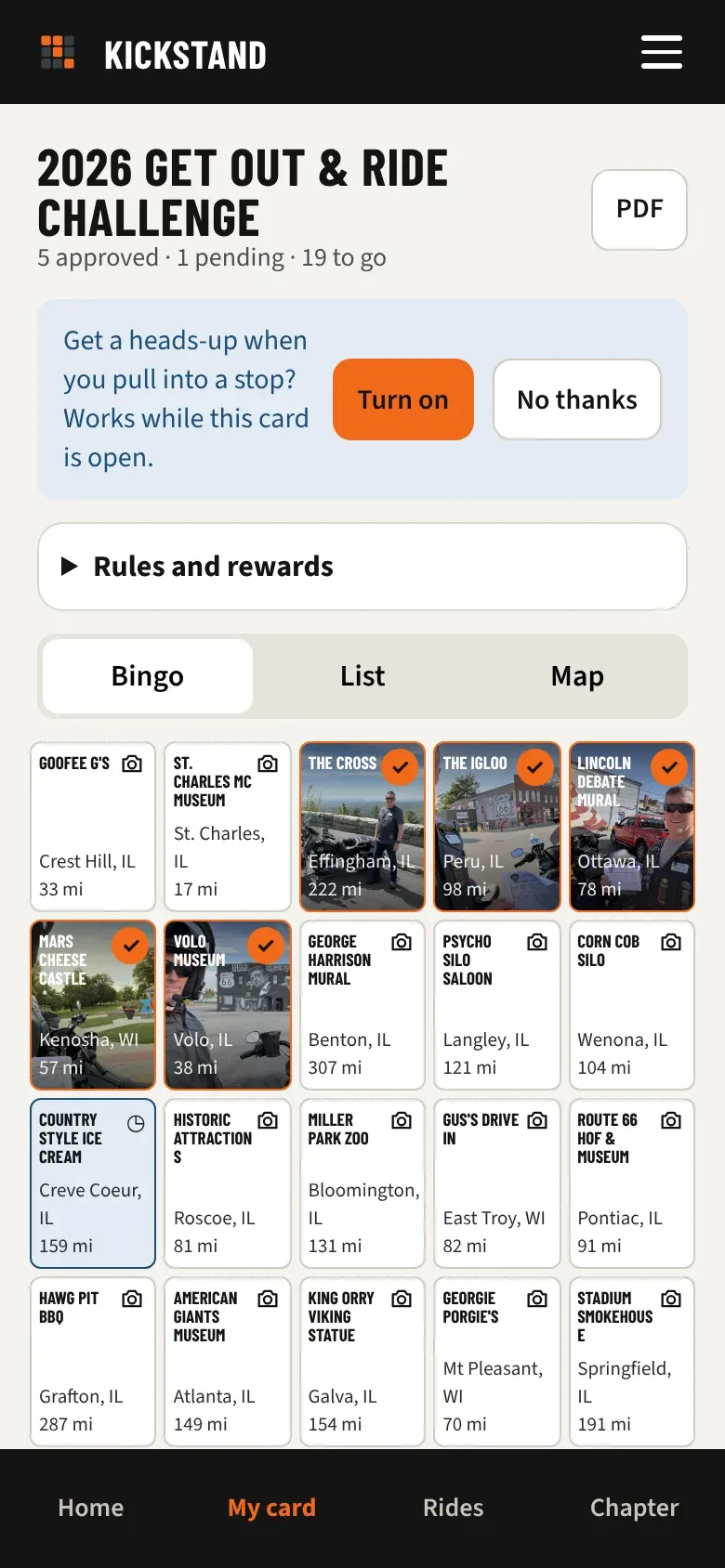
Each square on your card is a stop. Ride there, send a photo, and the square turns orange once your chapter approves it. Every approved stop counts, in any order.
- On Home, tap Join this challenge if you haven’t yet.
- Tap the My card tab at the bottom of your screen, or tap Open my card on Home.
- Each square shows the stop’s name, its town, and the miles from your chapter’s sponsoring dealer.
- Tap a square to open the stop and send your photo. Squares with a small camera are ready for one.
What the colors mean
Section titled “What the colors mean”Under the card, a small legend names three of them.
- Plain (legend: Not yet): not visited yet.
- Blue with a clock (legend: Pending review): your photo is waiting for a reviewer.
- Orange with a check mark (legend: Approved): that stop counts.
- Red with an exclamation mark: your photo was sent back. See Fix a photo that was sent back.
Three ways to see your card
Section titled “Three ways to see your card”Use the tabs above the card.
- Bingo shows the squares. Some challenges are list only and don’t have this tab.
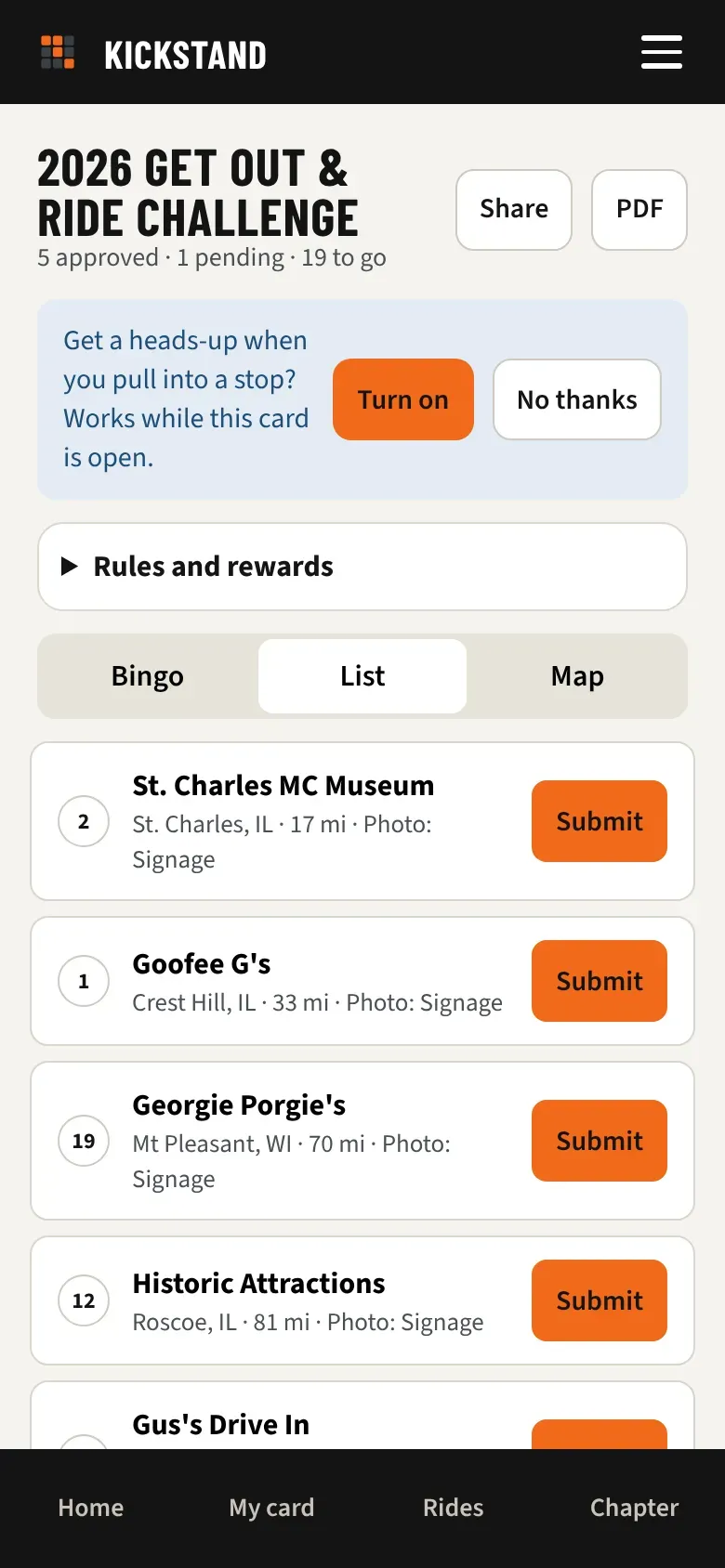
- List shows every stop, with the ones still to go first. Tap Submit (or Resubmit for a stop that was sent back) right from the list.
- Map shows each stop as a pin in the same colors. Tap a pin to open that stop.
Good to know
Section titled “Good to know”- Some cards have a FREE square in the middle. It isn’t a stop, so there’s nothing to send.
- There’s no need to get five in a row. Your total is what counts.
- If a challenge has more stops than squares, the card says “N more stops are in the List view.”
- The line under the title keeps score, such as “3 approved · 1 pending · 21 to go.”
- After you have an approved stop, tick Show my photos on the card to see your own photo in each approved square. Clear it to go back to plain orange. The app remembers your choice.
- Tap PDF for a printable copy of your card. See Share your card and your challenge page.
- The Chapter tab has the leaderboard, ranked by approved stops. Ties go to whoever reached that count first.
- How rewards work is up to your chapter. Many give everyone who finishes the card a patch and draw prizes at random. If your chapter wrote its rules down, tap Rules and rewards on your card to read them.
- Pick how your name shows on leaderboards under About you in your profile.
- Finish every stop and your card says “You finished every stop. Nice riding!”