Signing in without a password
Kickstand has no passwords. You sign in with a 6-digit code sent to your email, with a passkey on your phone, or with your Google, Apple, or Microsoft account when those buttons show.
Sign in with an email code
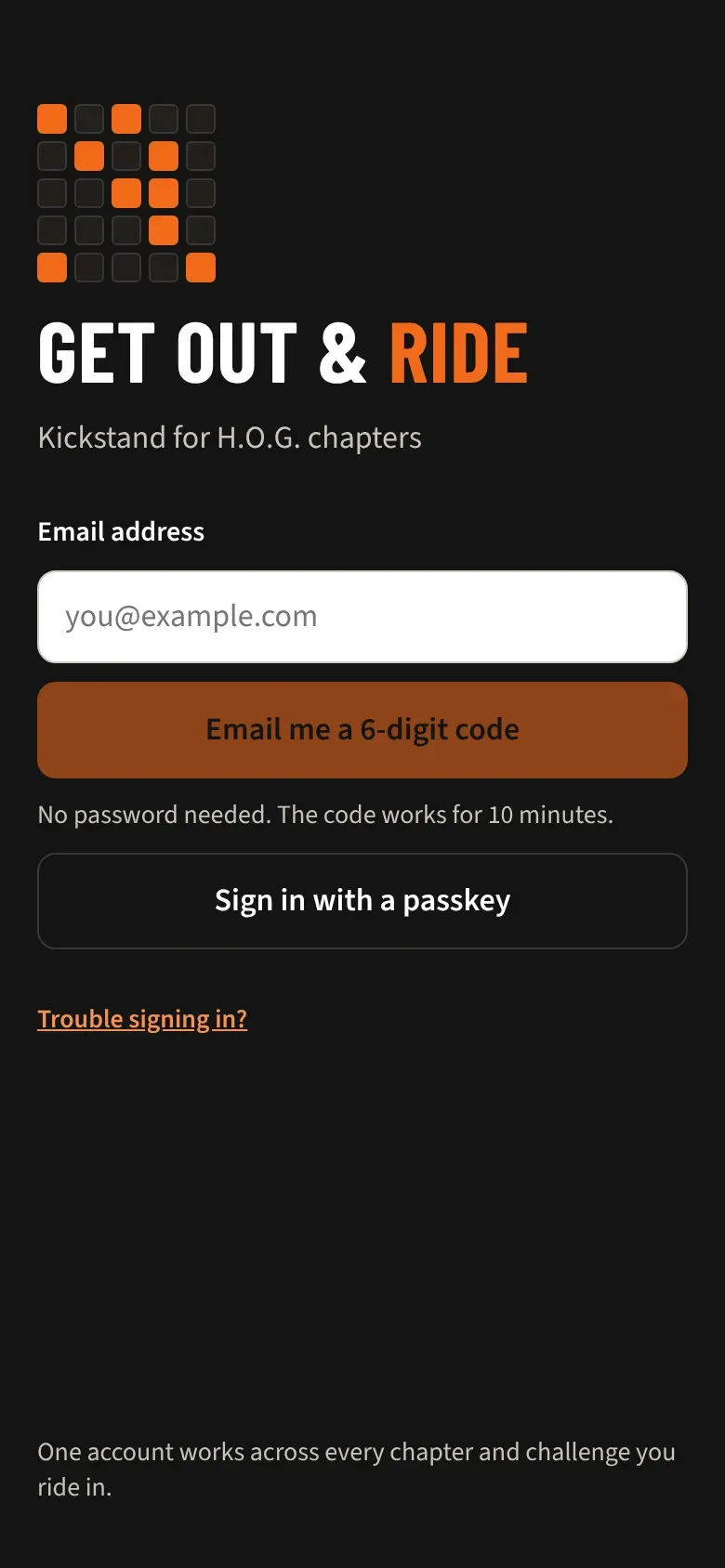
Section titled “Sign in with an email code”- Open the app at https://ride.getkickstand.app/login. You’ll see the sign-in screen.
- Type your address under Email address and tap Email me a 6-digit code.
- Open the email and find the 6-digit code.
- Type the code in the box and tap Sign in.
- Rather use an account you already have? Tap Continue with Google, Continue with Apple, or Continue with Microsoft instead. You only see the buttons that are set up, so one or two may be missing.
The first time you sign in, you accept the terms and answer a few quick questions. See Accept the terms and finish the welcome steps.
Sign in with a passkey
Section titled “Sign in with a passkey”A passkey lets Face ID, Touch ID, or your phone’s screen lock sign you in. No code needed. Set one up once:
- Sign in the usual way, then open the menu (three lines, top right) and tap Profile.
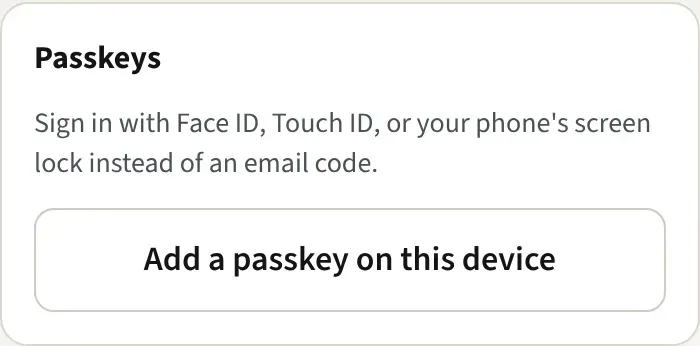
- Find the Passkeys card and tap Add a passkey on this device.
- Follow your phone’s prompt. You’ll see “Passkey added. Next time, tap Sign in with a passkey.”
Next time, tap Sign in with a passkey on the sign-in screen and confirm on your phone. The button only shows in browsers that support passkeys.
Remove a passkey
Section titled “Remove a passkey”- Open your profile and find the Passkeys card.
- Each passkey is listed by name (such as iPhone or iPad) with the date you added it. Tap Remove beside the one you want gone.
- Confirm. You can still sign in with an email code.
Good to know
Section titled “Good to know”- The code works for 10 minutes. Always use the newest email, because older codes stop working.
- No email? Check your spam or junk folder first. You can ask for up to 3 codes an hour.
- After 5 wrong tries, ask for a new code. There’s no resend button. Tap Use a different email, then Email me a 6-digit code again.
- Typed the wrong address? Tap Use a different email and start over.
- If a passkey doesn’t finish, you’ll see a message to try again. You can always use an email code instead.
- “You already have an account with that email. Sign in with your email code instead.” means that address has an account. Use the email code and you’re in.
- One account covers every chapter and challenge you ride in. Use the same email address each way you sign in. Apple’s “Hide My Email” gives the app a different address, which can start a second account.
- You stay signed in on your phone for about 30 days after you last open the app.
- To sign out, open your profile and tap Sign out at the bottom.
- Stuck? The Trouble signing in? link at the bottom of the sign-in screen opens this page.