Set up a challenge in 15 minutes
Create a draft (or clone last year’s), write the description and rules, set the dates, add your stops, pick a card size, and schedule it or open it right away. A computer or tablet makes this easiest.
-
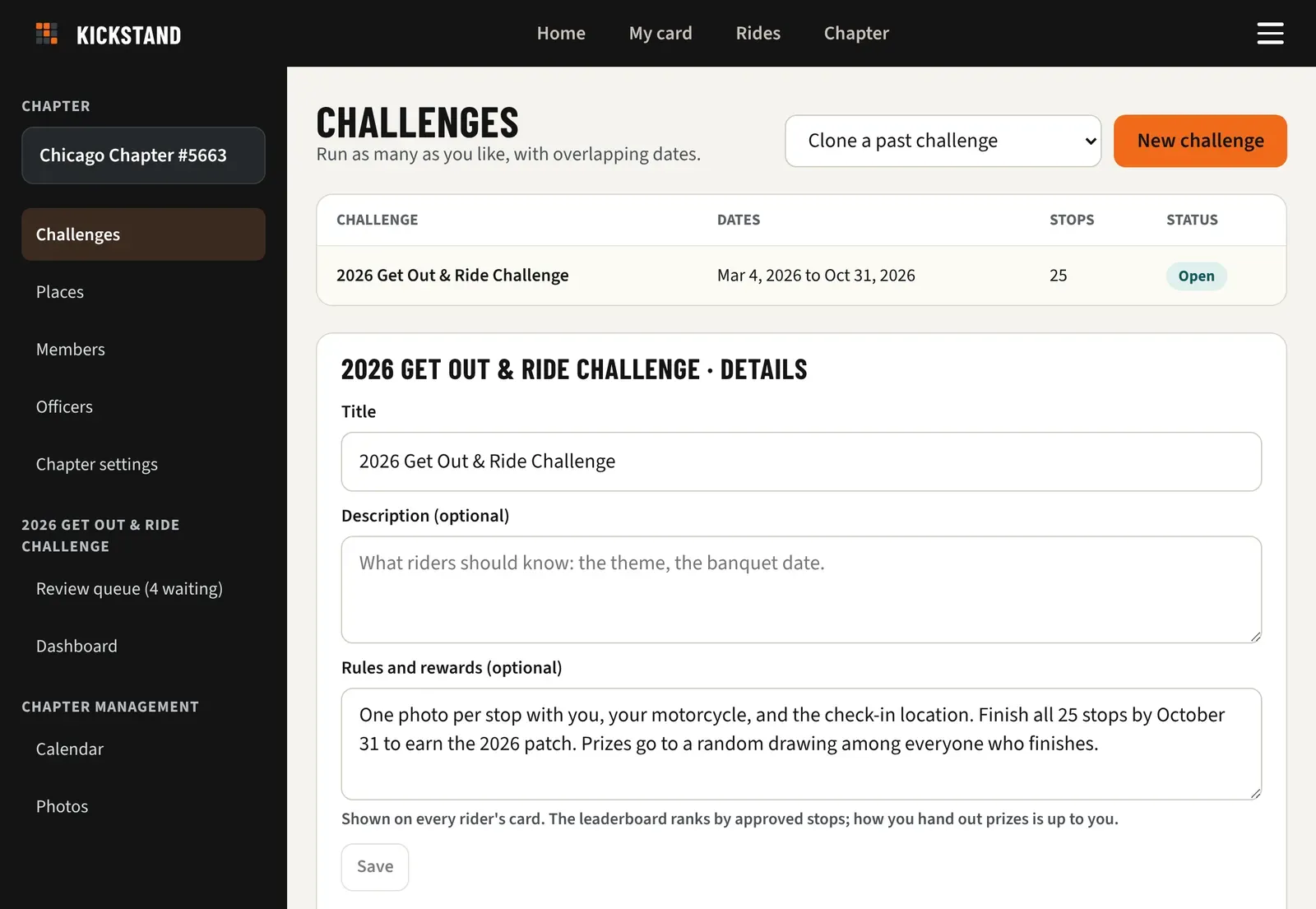
On Home, under You manage, tap Chapter admin and challenge setup. You can also open the menu and tap Chapter console. It opens on Challenges.
-
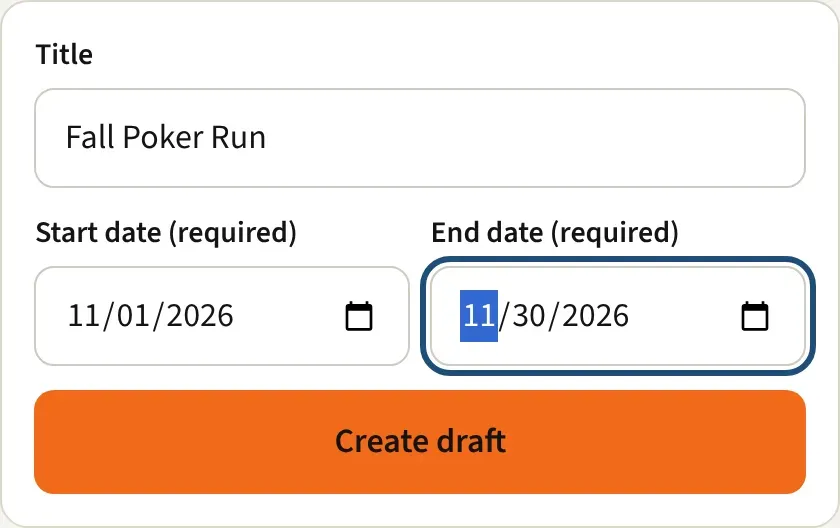
Tap New challenge, enter a Title, Start date (required), and End date (required), then tap Create draft. The end date has to come after the start date. Running it again? Pick last year’s from Clone a past challenge instead. That makes a draft with the same stops, rules, and settings, the dates moved ahead one year, and the year in the title bumped up by one.
-
The draft opens in the Details form. Add a Description (optional), such as the theme or the banquet date. Add Rules and rewards (optional). Riders see it on their card. The leaderboard ranks by approved stops, and how you hand out prizes is up to you. Tap Save.
-
Check the dates. If you change them, tap Save dates.
-
If you want a banner, go to Featured image and tap Upload, or Generate with AI and then Generate 4 options. Type the alt text, then tap the image you want.
-
Under Stops, add your places. Search for them, add one by hand with a map pin, or browse suggestions. See Add stops and use the place library.
-
Under Card layout, pick a Card size. The one marked “suggested” fits your stops. A new draft starts at 5 × 5. On a 3 × 3, 5 × 5, or 7 × 7 card you can also tick Free center square.
-
Under Who runs it, pick a member in Add a person…, choose Reviewer or Manager, and tap Add. Skip this if you will do it all yourself.
-
Tap Schedule (opens on the start date), or Open it now to let riders start today.
Good to know
Section titled “Good to know”- The challenge opens and closes on its dates by itself, in your chapter’s time zone. If the start date is today or earlier, Schedule opens it right away.
- If the start date is still ahead, Open it now asks you to confirm, because the start date moves to today. After you schedule, Open it now stays available.
- Both buttons stay grey until the dates are valid and the card has at least one stop. Members never see a draft.
- A free center square shows as “FREE” on the rider’s card. New stops skip that square, and you can’t put a stop in it.
- Managers can open setup for the challenges they manage (from Home, Set up the challenges you manage). Only chapter admins see Who runs it. Reviewers only see the review queue.
- Auto-approve photos whose GPS matches the stop sits under Details. See Reviewing photos fast.
- AI images are made without logos or text. The screen shows how many you have left this month.
- Riders join with your invite code. Open Chapter console, then Members, then Invite link. The app doesn’t announce new challenges yet, so share it in your newsletter or at a meeting. See Invite members to your chapter.
- Want to spread the word? Under Public page, turn on a page anyone can see and share. You choose whether it shows the stops, the rider count, and the leaderboard. Riders then get a Share button on their card.