The officer dashboard: finishers and fixing a stop's date
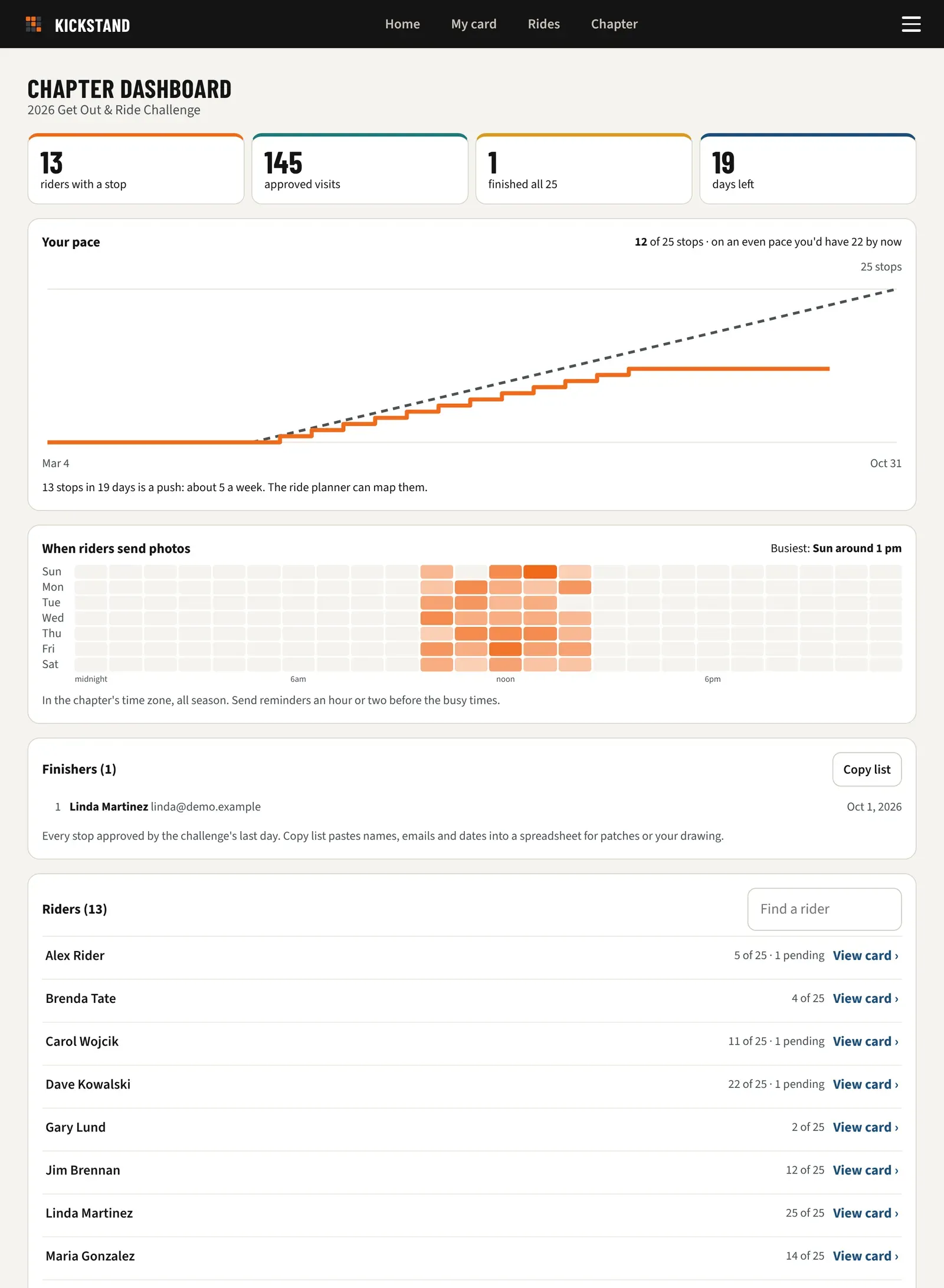
Every challenge has a dashboard. Chapter admins and the challenge’s managers see extra panels on it: who finished, when riders send photos, and a way to fix the date a stop counts. Reviewers and riders see the shared panels only.
Open it
Section titled “Open it”In Chapter console, look under the open challenge’s name and tap Dashboard. You can also tap the Chapter tab in the main bar.
Finishers
Section titled “Finishers”- Find Finishers (N). It lists riders who had every stop approved by the challenge’s last day, in the order they finished, with name, email, and date.
- Tap Copy list to copy the names, emails, and dates. Paste them into a spreadsheet for patches or your prize drawing. The button says “Copied” for a moment.
- Anyone who finished after the last day appears under “Finished after the last day” and is left out of the count and the copy.
When riders send photos
Section titled “When riders send photos”When riders send photos is a grid of days and hours. Darker squares mean more photos, and a line says when it’s busiest, such as “Sat around 10 am”. Rest your pointer on a square to see its count. It uses your chapter’s time zone and the whole season, so send reminders an hour or two before the busy times. It shows up once riders have sent photos.
Fix a stop’s date
Section titled “Fix a stop’s date”-
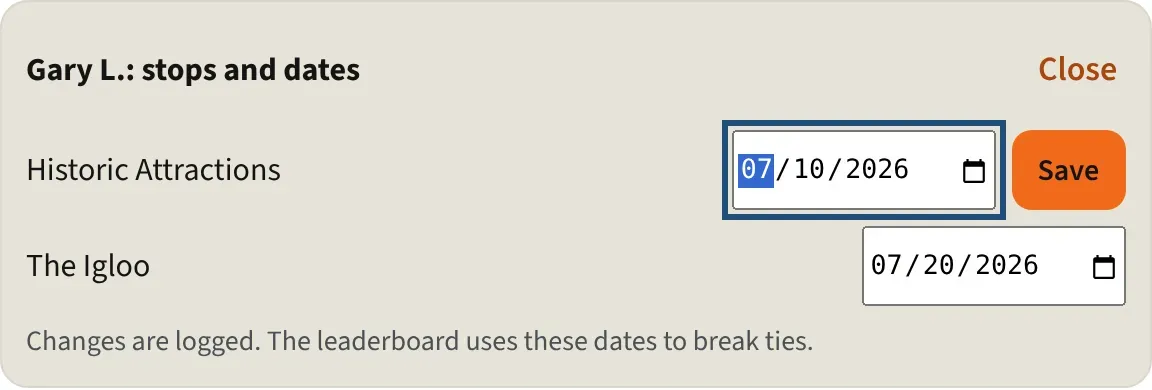
In the Leaderboard, tap a rider’s name. A line under the list reminds officers they can.
-
A panel opens with that rider’s name and stops and dates. It lists every approved stop. Stops loaded from a Word card say “from the Word card”.
-
Change the date next to a stop. A Save button appears.
-
Tap Save. You will see “Date saved. The leaderboard is updated.”
-
Tap Close when you’re done.
Open a rider’s card
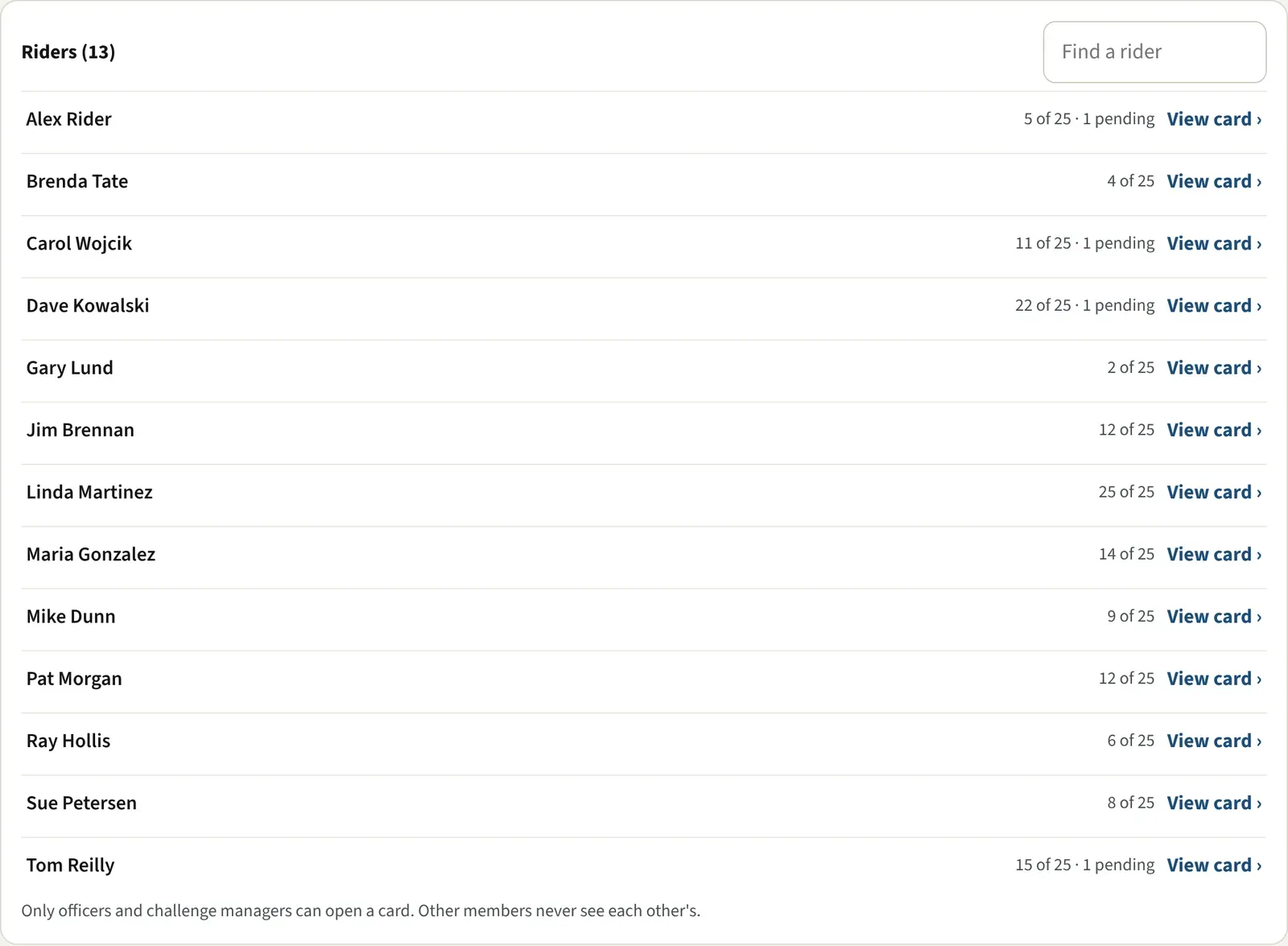
Section titled “Open a rider’s card”Below the Leaderboard, Riders (N) lists everyone in the challenge with their count, such as “22 of 25 · 1 pending”. Tap View card › to see that rider’s whole card, with their photos and credit dates. Only officers and challenge managers can open a card. See Open a rider’s card and add a photo.
Good to know
Section titled “Good to know”- Only approved stops have a date, and a date can’t be in the future.
- The leaderboard ranks by approved stops. Ties go to whoever reached that count first, so a date change can move riders up or down. Changes are logged.
- Word cards have no date for each stop, so every loaded stop starts on one day. See Load riders’ Word cards.
- National challenges don’t show Finishers.
What everyone sees
Section titled “What everyone sees”Everyone in the chapter sees the tiles (riders with a stop, approved visits, how many finished all the stops, and days left), the Leaderboard, and bars showing how many riders visited each stop. Riders taking part also see Your pace. For how riders read it, see The leaderboard and your pace.