How the GPS check works (and adding a note)
The app checks how far your photo was taken from the stop and shows the result to the reviewer. It’s only a hint. You can always send your photo, and add a note if the location looks off.
Your choice about location
Section titled “Your choice about location”Before your first photo, tapping Take photo or Choose from library brings up “Use your photo’s location?”
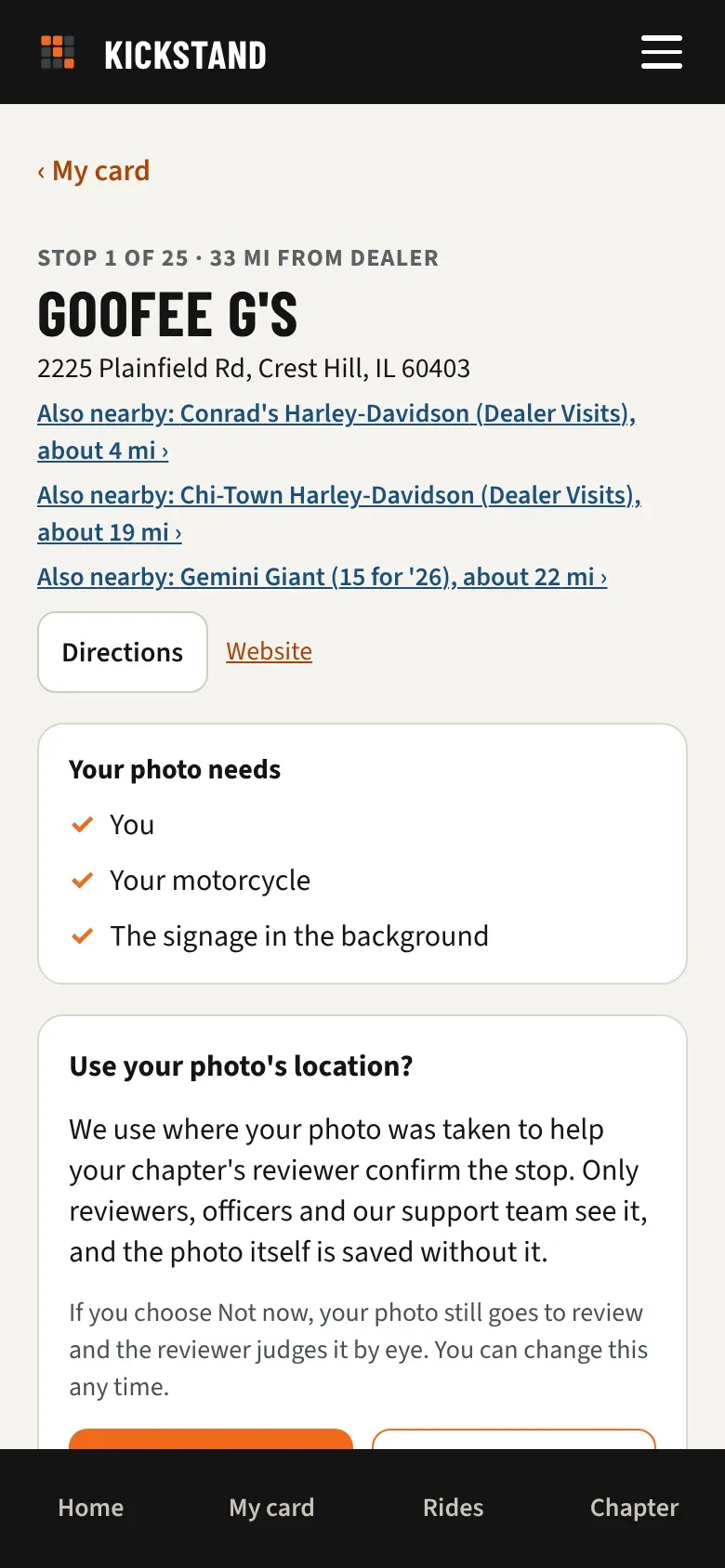
- Allow lets the app read where the photo was taken, and your phone’s location when you shoot in the app.
- Not now means the app reads neither and sends neither. Your photo still goes to review, and the reviewer judges it by eye.
You can change your mind any time. Under Take photo the link reads “Photo location is on. Turn it off” or “Photo location is off. Turn it on.”
How the check works
Section titled “How the check works”- When you pick a photo, the app reads where it was taken, if the photo has that.
- If it doesn’t, and you used Take photo, the app uses your phone’s location instead, if you allow it.
- It compares that spot with the stop’s pin and shows you a message before you send.
The three messages
Section titled “The three messages”- Location looks like a match. You were inside the stop’s zone, so the reviewer can approve it fast.
- This photo looks about 2.3 mi from the stop (with your real distance). You can still send it. Add a note if there’s a reason.
- No location in this photo. That’s fine. The reviewer will judge it by eye. If you chose Not now, this one reads “Photo location is off.”
Adding a note
Section titled “Adding a note”Below the photo, type in Tell the reviewer why (optional) when it looks far, or Anything the reviewer should know? (optional) otherwise. For example: “The mural is on a private lot. I shot it from the road.” Keep it under 500 characters. The reviewer sees your note next to the photo.
Arrival alerts
Section titled “Arrival alerts”Arrival alerts give you a heads-up when you pull into a stop.
- Open My card. The first time, a note asks “Get a heads-up when you pull into a stop?” Tap Turn on, or No thanks.
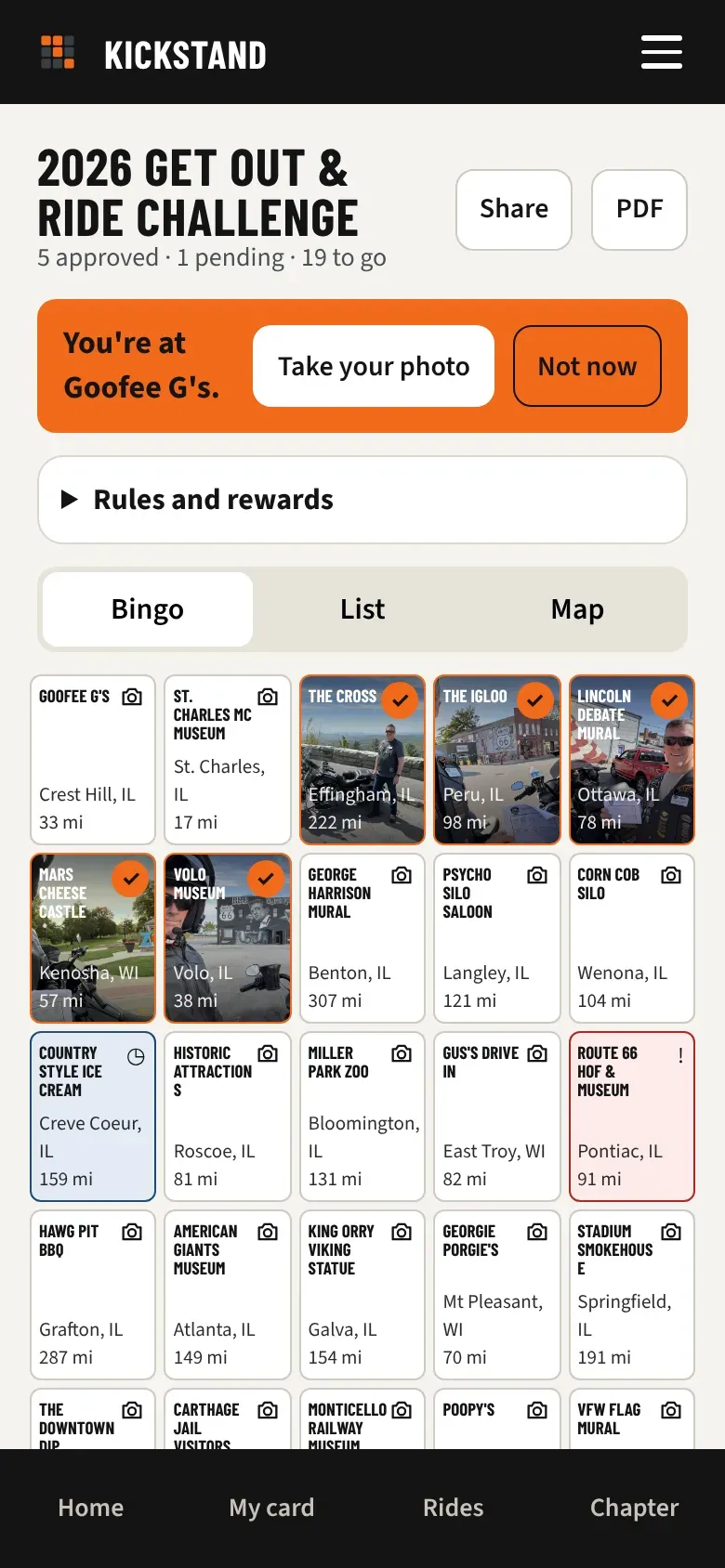
- Leave the card open while you ride. When you’re inside the zone of a stop that still needs a photo, an orange banner says “You’re at” and the stop’s name.
- Tap Take your photo to go straight to that stop (it reads Retake your photo for a stop that was sent back). Tap Not now to hide the banner for that stop.
- It only works while the card is open on your screen. Phones don’t let a web page watch your location in the background.
- Once it’s on, the card says “Arrival alerts are on.” Tap Turn off next to it to stop.
Privacy
Section titled “Privacy”- Arrival alerts compare your location with the stops on your phone. It never leaves your phone and the app doesn’t track where you ride.
- When you send a photo, the photo’s location and your phone’s location (if you allowed it) go along as a separate note for the check. Only the challenge’s reviewers, chapter officers, and the support team see it. Other members never do.
- The photo file we keep has no location data inside it.
Good to know
Section titled “Good to know”- Each stop has its own zone, set by your chapter, from about 500 feet up to 1 mile. New stops start at about 1,650 feet (500 meters).
- A far reading doesn’t mean a rejection. A person looks at your photo. Some chapters approve photos that match automatically and review the rest by hand.
- If your phone asks to share your location, saying no is fine. You can still send the photo.
- Some phones leave the location out of photos picked from the library.