Taking a photo that gets approved
Get four things in one shot: you, your motorcycle, the stop’s sign or landmark, and this year’s challenge card. National challenges ask for this year’s HOG membership guide instead, and chapter challenges do too from November 16, 2026. Each stop page lists exactly what its photo needs.
- On My card, tap the stop. Under Your photo needs you see the checklist: you, your motorcycle, the stop’s sign or landmark in the background, and this year’s challenge card visible (on a national challenge, and on every challenge from November 16, 2026, this year’s HOG membership guide). If your chapter added How to get the shot, follow it. It says where to stand and what has to be in the photo.
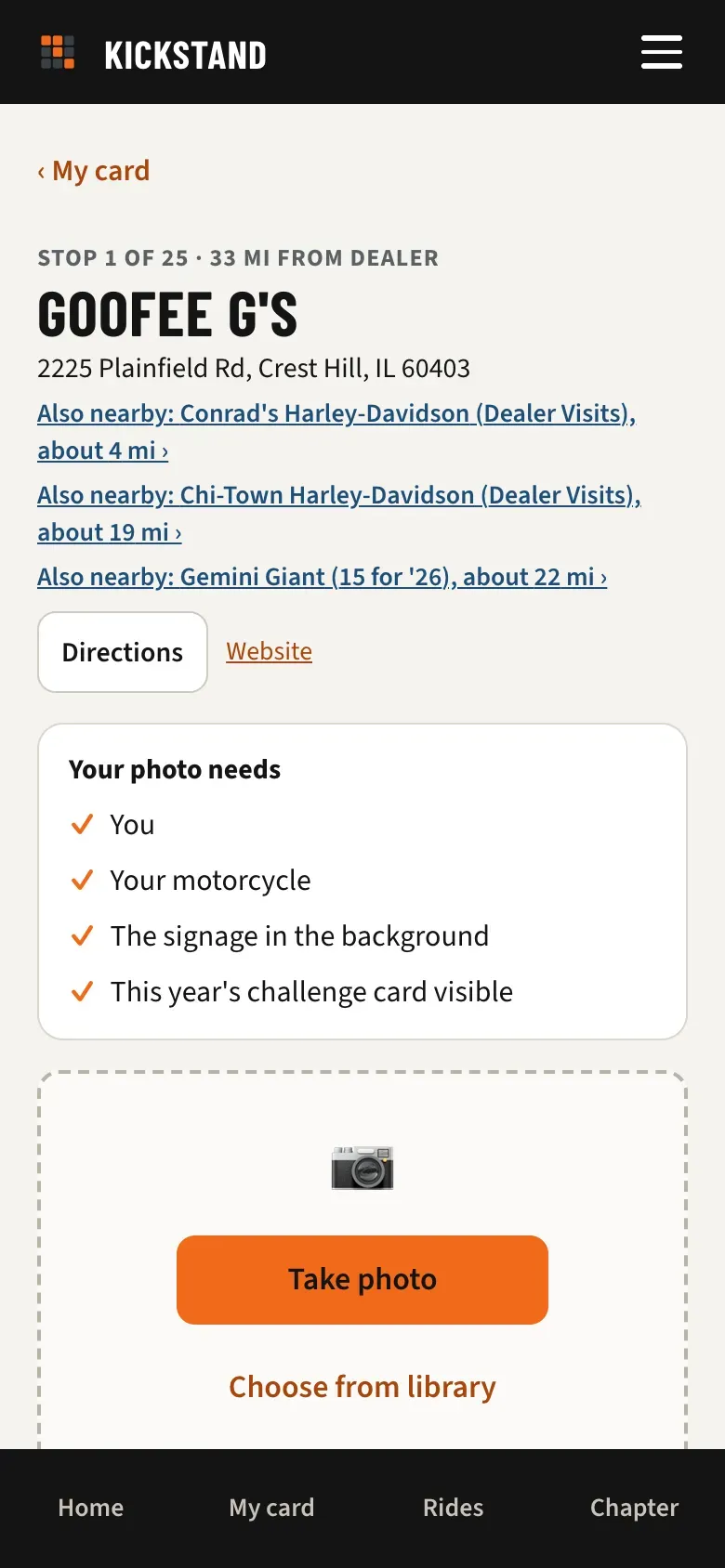
- Tap Take photo to use your camera, or Choose from library for a photo you already took there. The first time, the app asks “Use your photo’s location?” See How the GPS check works.
- Check the preview. Came in sideways or upside down? Tap the turn button (↻) on the corner of the photo. Each tap turns it a quarter turn clockwise, so tap until it’s upright. Not right at all? Tap Retake under the Submit for review button.
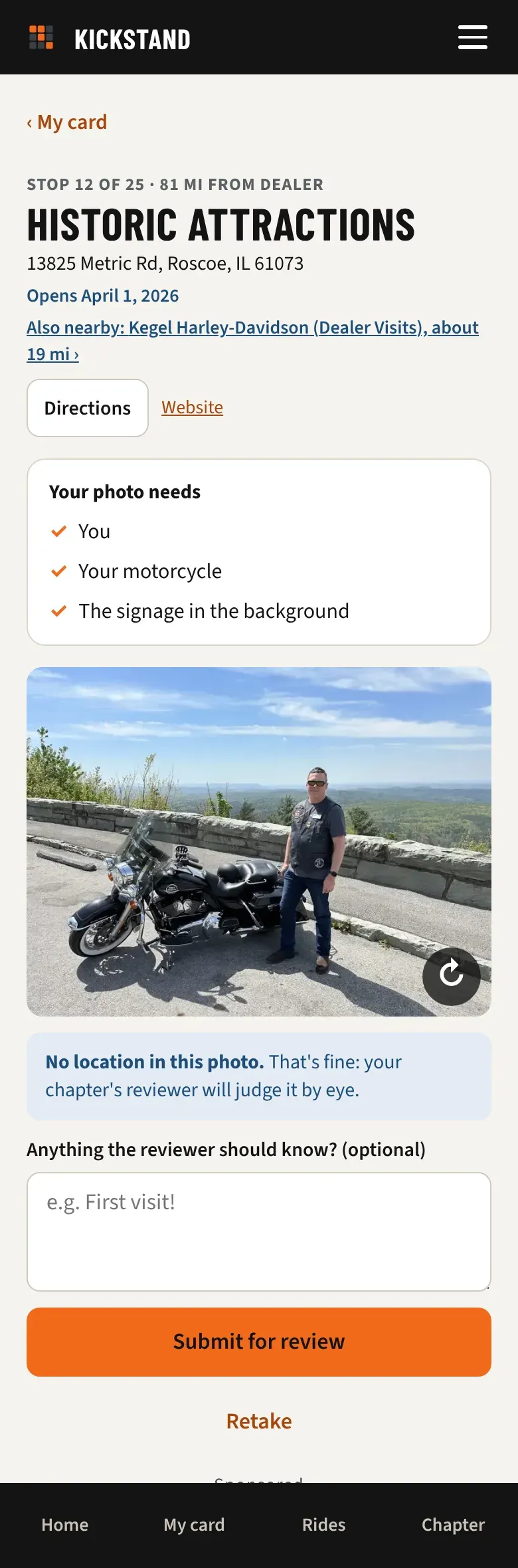
- If something needs explaining, type it under Anything the reviewer should know? (optional). Keep it under 500 characters.
- Tap Submit for review.
- You see “Sent to your chapter’s reviewer.” The square turns blue and shows as pending until someone looks at it. Tap Back to my card.
Tips for a photo that passes
Section titled “Tips for a photo that passes”- Step back far enough to fit you, the bike, and the whole sign.
- Hand your phone to a riding buddy, or set up a timer shot.
- Keep the sign or landmark readable, not hidden behind the bike.
- Take a fresh photo at every stop. An exact copy of a photo already sent on this challenge gets flagged for the reviewer.
What the reviewer checks
Section titled “What the reviewer checks”A person looks at your photo and compares it with the same checklist: you, your motorcycle, and the sign or landmark. They also see the GPS hint and your note. If it’s good, the square turns orange. If not, it’s sent back with a reason. See Fix a photo that was sent back.
Good to know
Section titled “Good to know”- Sent the wrong one? While it’s waiting, open the stop and tap Withdraw it (wrong stop or wrong photo).
- Some chapters approve photos that match the stop’s location right away. Then you see “Approved! It’s stamped on your card.”
- Turning only changes the picture on your phone before it’s sent. The photo’s location and time stay the same, so the GPS check isn’t affected. Photos you add to the chapter gallery have their own turn button. See Adding photos to the chapter gallery.
- The app shrinks your photo on your phone before sending (about 2,000 pixels on the long side), so it uploads quickly even on a weak signal. What we keep is web-sized, not your original: keep the full-size photo on your phone. The app isn’t a photo archive.
- After a challenge closes, a photo taken on or before the last day can usually still be sent for 3 more days.
- On national challenges that H.O.G. checks itself, your stop counts right away. The button there says Log this stop, there’s no note box, and the confirmation may remind you to submit it on H.O.G.’s own site.