Officers, positions and election changeovers
The Officers section keeps your board: who holds which position, since when, and who takes over after the next election. Positions run on dates, so you can set up a changeover days before it happens.
Give a member a position
Section titled “Give a member a position”- Open Chapter console from the menu (top right), then click Officers in the sidebar.
- Under Give a member a position, search for the member and pick them.
- Type a Position or pick one from the list, like Treasurer. Leave it empty to make them an officer without a title.
- Set Starts (today is filled in) and click Assign.
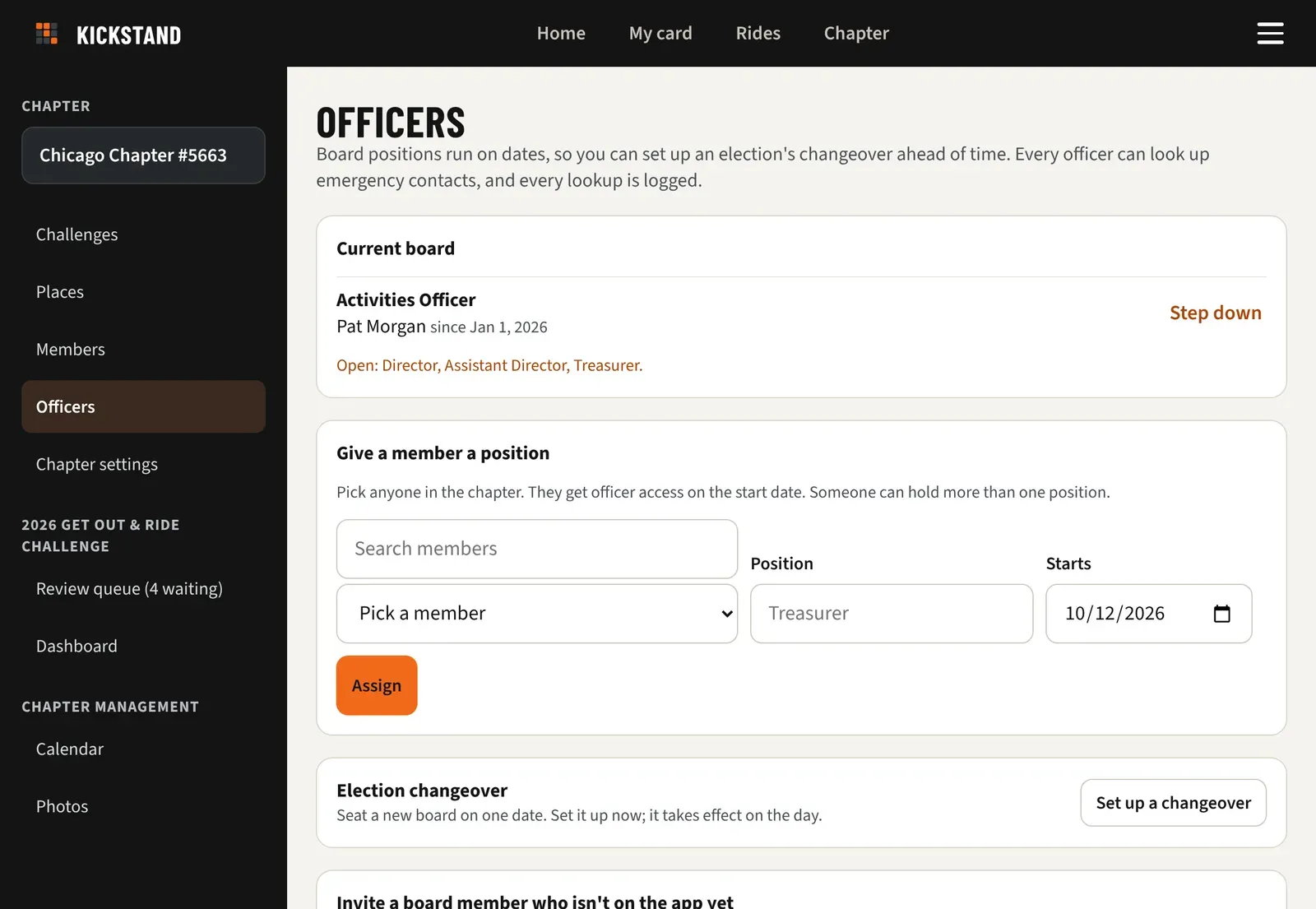
The Current board lists everyone holding a position now. An Open: line names any primary seat (Director, Assistant Director, Secretary, Treasurer) nobody holds. A member can hold more than one position. Starting dates in the future appear under Coming up, where Cancel removes one that hasn’t started.
Step down
Section titled “Step down”- In Current board, click Step down next to the officer.
- In the box that appears, enter the day as YYYY-MM-DD. They keep officer access until that day, and today steps them down right away.
If an end date is already set, the button reads Change end date. The chapter always needs at least one officer, so assign someone else first if you are the last one.
Set up a changeover
Section titled “Set up a changeover”- Under Election changeover, click Set up a changeover.
- Pick the day under New board starts.
- For each position, leave it as is, pick a new person, or choose Leave empty.
- Click Save changeover and confirm. Outgoing officers keep access until that day.
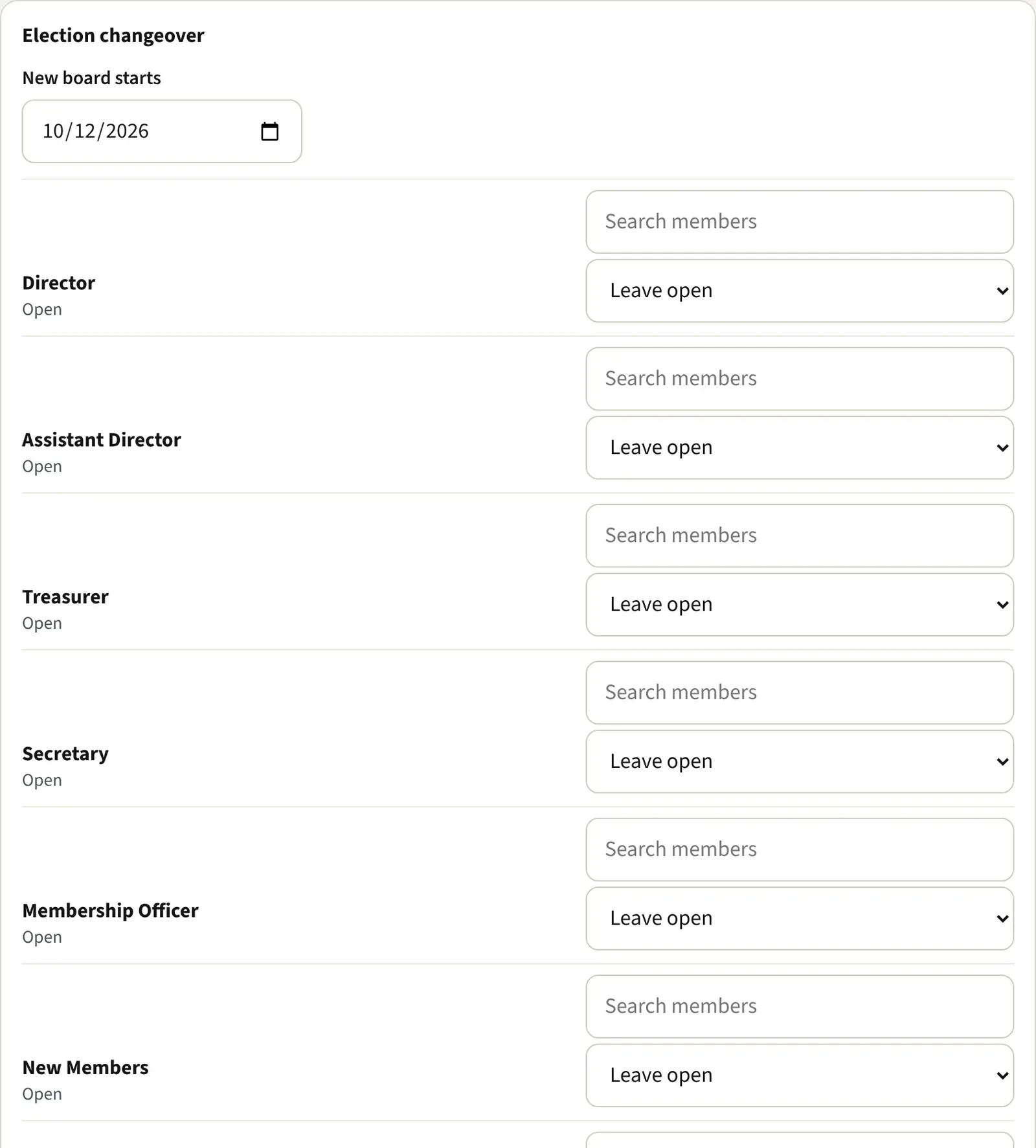
The change takes effect on the day. The app checks every 15 minutes, so the new board is in shortly after it starts. Past officers keeps the history.
What a position does
Section titled “What a position does”- Every board position makes someone a chapter admin. That means all of Chapter console: challenges, places, members, officers, chapter settings, and emergency contact lookups (each one is recorded).
- Positions are titles for access. A Treasurer has no more or less access than a Secretary. The one exception: only the four primary seats (Director, Assistant Director, Secretary, Treasurer) can tick off the Chrome Chapter checklist. See Track Ride 365 reports and the Chrome Chapter checklist.
- Photographer also approves gallery photos, as every officer does.
- You can type any title up to 40 characters. The list holds the usual board seats.
- To bring in a board member who isn’t on the app yet, see Invite a board member who isn’t on the app yet.
Make someone a challenge manager or reviewer
Section titled “Make someone a challenge manager or reviewer”Challenge roles are separate from board positions.
- In Chapter console, click Challenges and pick your challenge.
- Under Who runs it, choose the member under Add a person…, then Reviewer or Manager, and click Add.
A reviewer approves and rejects photos for that challenge. A manager can also set it up. Admins can always manage every challenge. To send every photo to your activities officer, open Chapter settings and, under Who approves photos, pick Only the people assigned to each challenge. If nobody is assigned yet, officers can approve.
Good to know
Section titled “Good to know”- Officers can approve their own photos. To make another reviewer approve them, tick Officers can’t approve their own photos under Reviewing in Chapter settings.
- On Members, officers show their position next to their name, and the Officers chip lists them. More settings: Set up your chapter.