Import your roster and invite everyone
Keep your members in a spreadsheet, a HOG[SCAN] export, or H.O.G.’s chapter membership report? Import it once and every new member is on Members before they open the app. You see a preview first, and nobody gets an email until you invite them. Anyone who already has a Kickstand account is asked before they are added. Member data belongs to H.O.G., so only import what your H.O.G. chapter rules allow.
Before you start
Section titled “Before you start”- Save the list as a CSV file under 2 MB (in Excel or Google Sheets: File, then Download or Save As, CSV). One import takes up to 2,000 rows.
- Email is how each member signs in, so a row needs one to bring a new person in. A row with a H.O.G. ID but no email still updates a member who is already on your chapter (see below).
- H.O.G.’s own Member Report (the chapter download from the national site) works as it comes: the title line above the headings is ignored.
- No export to use? Download the sample CSV (also offered next to Import roster), replace the three example rows with your members, and delete any column you don’t have. Only Email is required.
- The app reads these columns by their names: First Name and Last Name (or one Name column), Email, H.O.G. ID (or Member ID), Phone, Address, City, State (or State/Province), Zip, Member Since (the day they joined National H.O.G.), Join Date (the day they joined your chapter), Chapter Expiration, National Expiration (or EXP), Membership Type and Officer Role. Capitals and punctuation don’t matter, and other columns are ignored.
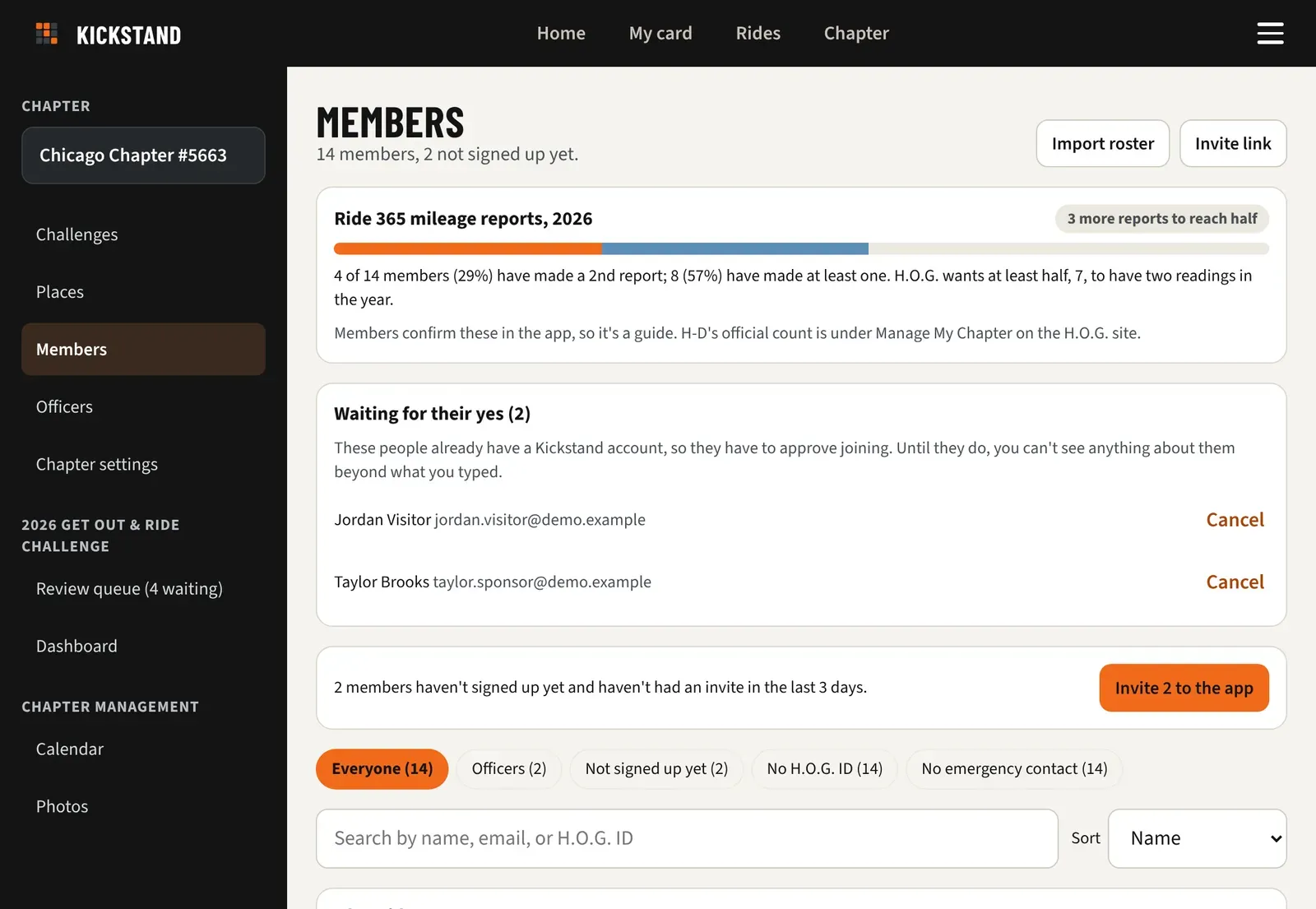
- Open Chapter console from the menu (top right), then click Members in the sidebar.
- Click Import roster.
- Click Choose CSV file and pick your file. The app reads it and shows Preview: nothing has changed yet.
- Check the counts: new member, added (had an account), invited (has an account, so they approve first), already a member (updated), and skipped. Open Row by row to see what happens to each line.
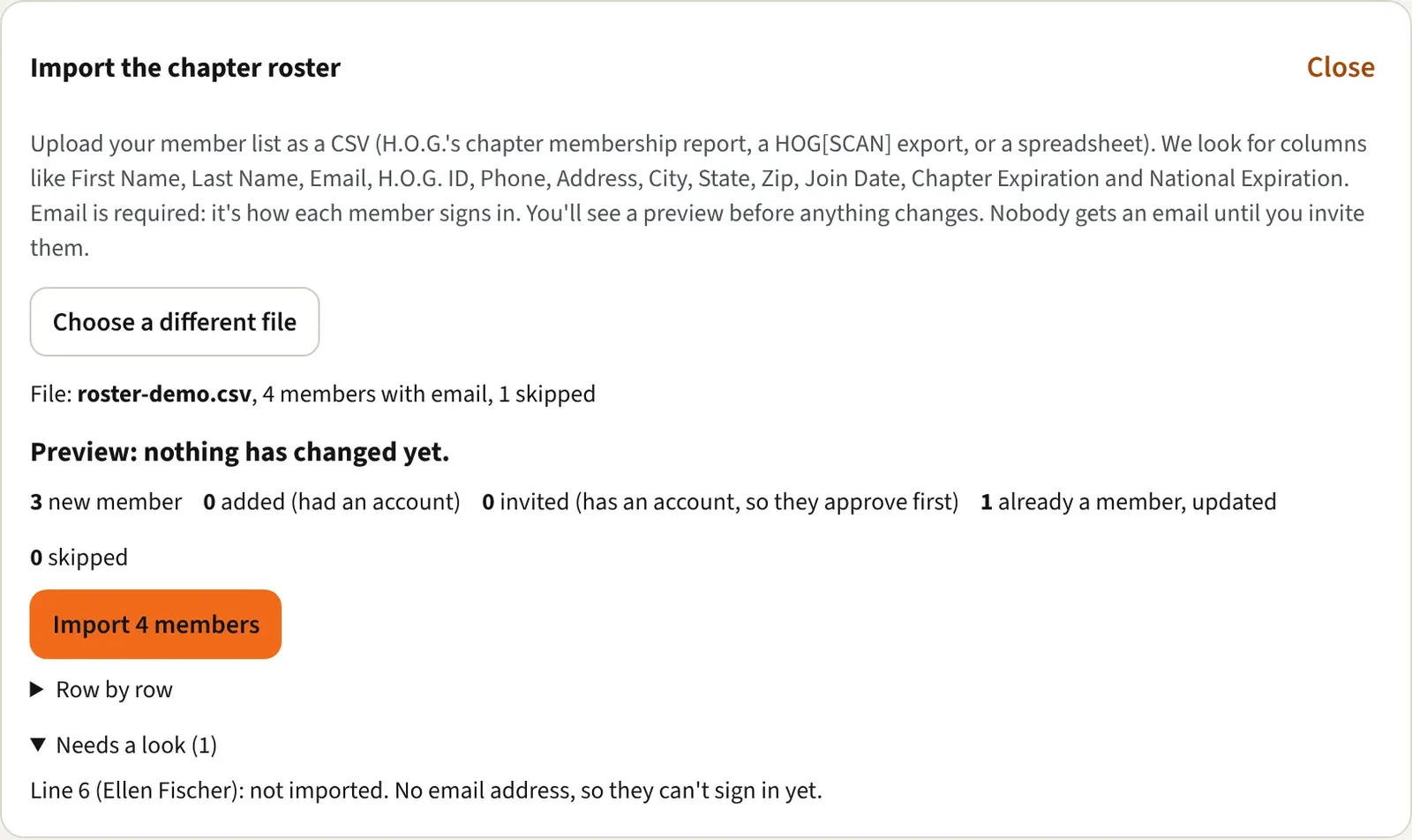
- Open Needs a look to see lines that can’t come in and lines that come in without one field.
- Fix the file and pick it again with Choose a different file, or click Import N members.
- When it says Imported., the new people are on Members as “Not signed up yet”. Anyone who was invited isn’t on the list until they say yes. See below.
- Click Invite N to the app in the bar at the top of Members, then confirm. Each person gets an email with a link to sign in with their own address.
How rows are matched
Section titled “How rows are matched”- A row is matched to an existing account by H.O.G. ID first, then by email.
- A row with a H.O.G. ID and no email updates the member on your chapter who has that ID. It never adds anyone and never asks anyone. If no one on your chapter has that ID, the line is skipped and says so; add their email to bring them in.
- No match makes a new member. If the row has no H.O.G. ID, the member gets a placeholder that is replaced when the real ID arrives.
- A match who is already in your chapter is updated. A match who has an account of their own and isn’t in your chapter is invited, not added. See the next section.
- For members already in your chapter, the import fills blanks only: name, phone, address, join date and H.O.G. ID if they only have a placeholder. It never replaces what a member typed. The roster’s expiration dates are the exception, because they are the current ones. Member Since (their National join date) is filled once and never replaced; you can correct it on their member page.
- Names and cities that arrive in ALL CAPS become normal capitals (Elk Grove Village, not ELK GROVE VILLAGE). Names that are already mixed case, like LaMantia, are left alone.
- A National expiration of 2100 or later, which is how H.O.G. writes a life member, is left blank: it means they never expire. Spelled-out states (Illinois) become two letters (IL).
- Membership Type from H.O.G. is kept (member, passenger, dealer). Passengers show a Passenger tag on Members.
- H.O.G. IDs start with one or two letters and then numbers, like US1234567 or an international ID like I1234567.
- If a member already has a different National ID, theirs stays and the row’s detail tells you to check it on their member page.
- Addresses at hogscan.com can’t be added to Kickstand. That line is skipped and says so.
Check the officer differences
Section titled “Check the officer differences”If your file has an Officer Role column, the preview adds Officers: H.O.G. and Kickstand differ on N. It lists where H.O.G.’s officers and your board in Officers disagree, matched by H.O.G. ID. Nothing is changed. After an election your chapter often updates Kickstand before National hears, so a difference is something to look at, not an error. A plain Road Captain and a dealership’s H.O.G. Manager are not board seats here and never appear.
Lapsed members stay
Section titled “Lapsed members stay”A member whose H.O.G. membership has run out still comes in, with the date it ran out. Members marks them Lapsed and counts them (“153 members (5 lapsed)”), and the Lapsed chip lists them. Nothing is deleted or blocked. A new date from your next import clears the mark. See Manage a member.
People who already have an account
Section titled “People who already have an account”Someone has an account of their own when they have signed in, or they belong to another chapter. Kickstand never adds that person for you. They are invited, and only their yes adds them.
- The preview counts them as invited (has an account, so they approve first). Their row says “Already has an account, so we asked them to join. Nothing is added until they say yes.”
- They aren’t in the Import N members count. When you click it, they get an email, and a card on their Home screen with Join and No thanks. See Joining your chapter.
- Nothing on their account is read, filled in, or changed. You can’t see their phone, address, H.O.G. ID or emergency contact until they say yes.
- A line whose person said no thanks to your chapter earlier is skipped, and they aren’t asked again.
- Someone who has never signed in and belongs to no other chapter is added straight away, as before. The preview counts them under added (had an account).
See who hasn’t answered
Section titled “See who hasn’t answered”- In Chapter console, click Members.
- At the top, find Waiting for their yes (N). It only appears when someone has an open invitation.
- Each line shows the name and email you typed, never what is on their account.
- Click Cancel to take a request back. It goes away at once, with no question first.
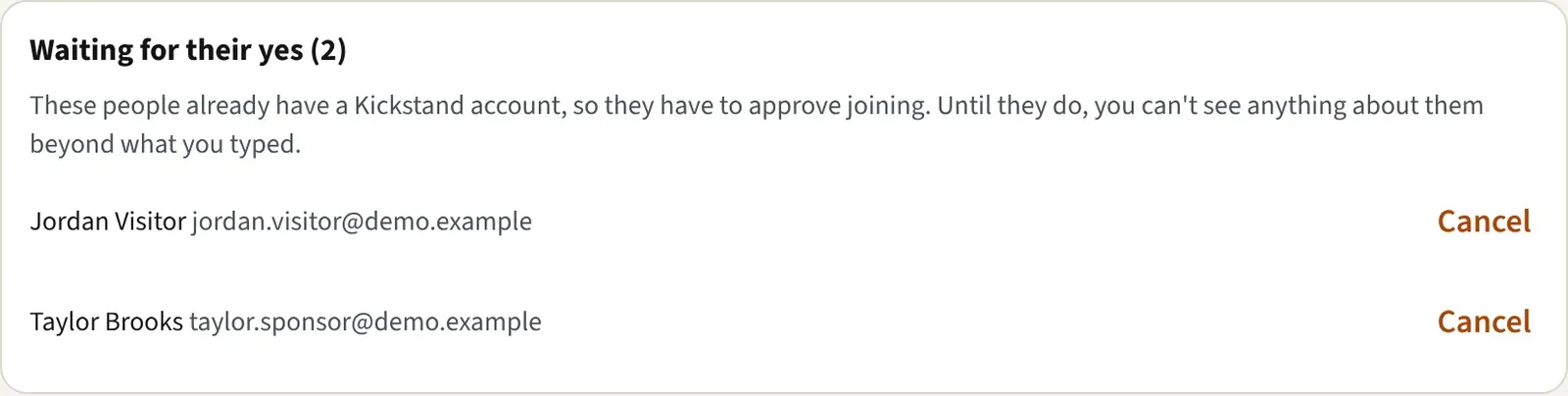
When they say yes, they move to the member list. If they say no, they leave Waiting for their yes and later imports skip them.
Good to know
Section titled “Good to know”- Needs a look skips lines with neither an email nor a H.O.G. ID, an email that isn’t an address, the same email or H.O.G. ID as an earlier line, a hogscan.com address, or an email and H.O.G. ID that belong to two different accounts. Someone you removed from the chapter earlier is skipped too.
- Two people who share one email address can’t both come in yet, because the email is how each signs in. The second line is skipped as a repeat.
- A line with an unreadable H.O.G. ID (no country code, like US), phone number, date, state or membership type still comes in, without that field.
- Imported members haven’t signed in yet. When they sign in with the email on their row, they land in that account with everything already filled in.
- Invite N to the app skips anyone who has signed in, anyone invited in the last 3 days, and anyone waiting for approval. One send covers up to 500 people. Run it again later for the rest.
- To invite one person, open their page on Members. See Manage a member.