Run the photo gallery
Members add photos to your chapter’s albums. Officers and the chapter Photographer decide what the rest of the chapter sees. Photos come with the Chapter Platform plan. See Choose a plan and pay for it. Members see it through Chapter photos. On a computer, the Photos page, albums, and review grid use more of the screen, with larger tiles.
Who can approve
Section titled “Who can approve”- Every officer, and anyone holding the Photographer position. Give a member that position in Officers. See Officers, positions and changeovers.
- Their own photos go straight in. Everyone else’s wait for review.
- Who approves photos in Chapter settings is for challenge stop photos. It doesn’t change who approves gallery photos.
Review the photos waiting
Section titled “Review the photos waiting”- In the Chapter console, click Photos under Chapter management. On Home, tap Photos.
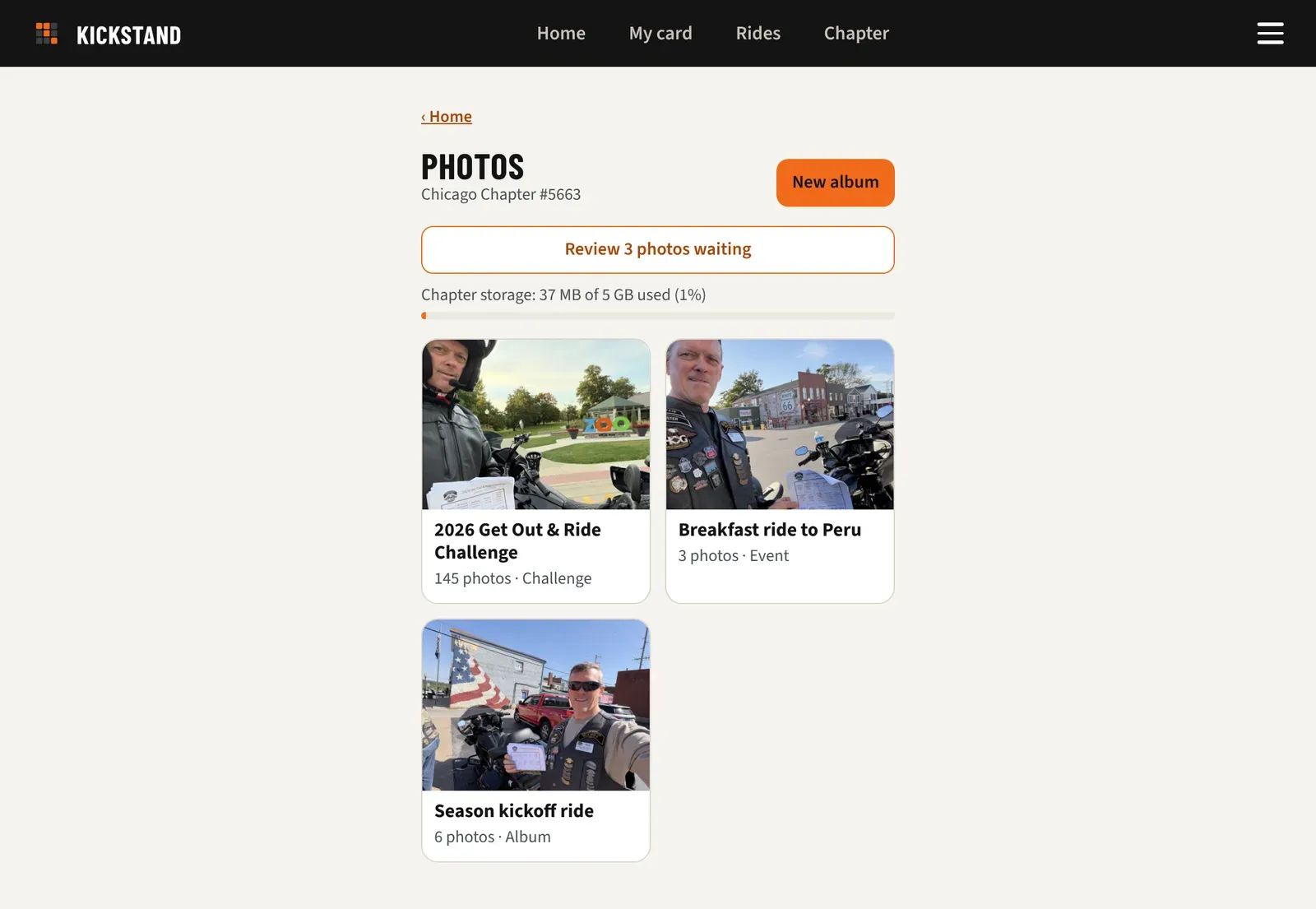
- Click Review N photos waiting at the top. It shows only when something is waiting.
- Click photos to pick them, or click Pick all N. See it full size opens one on its own.
- Click Approve N to show them to the chapter, or Remove N to delete them. Remove asks you to confirm.
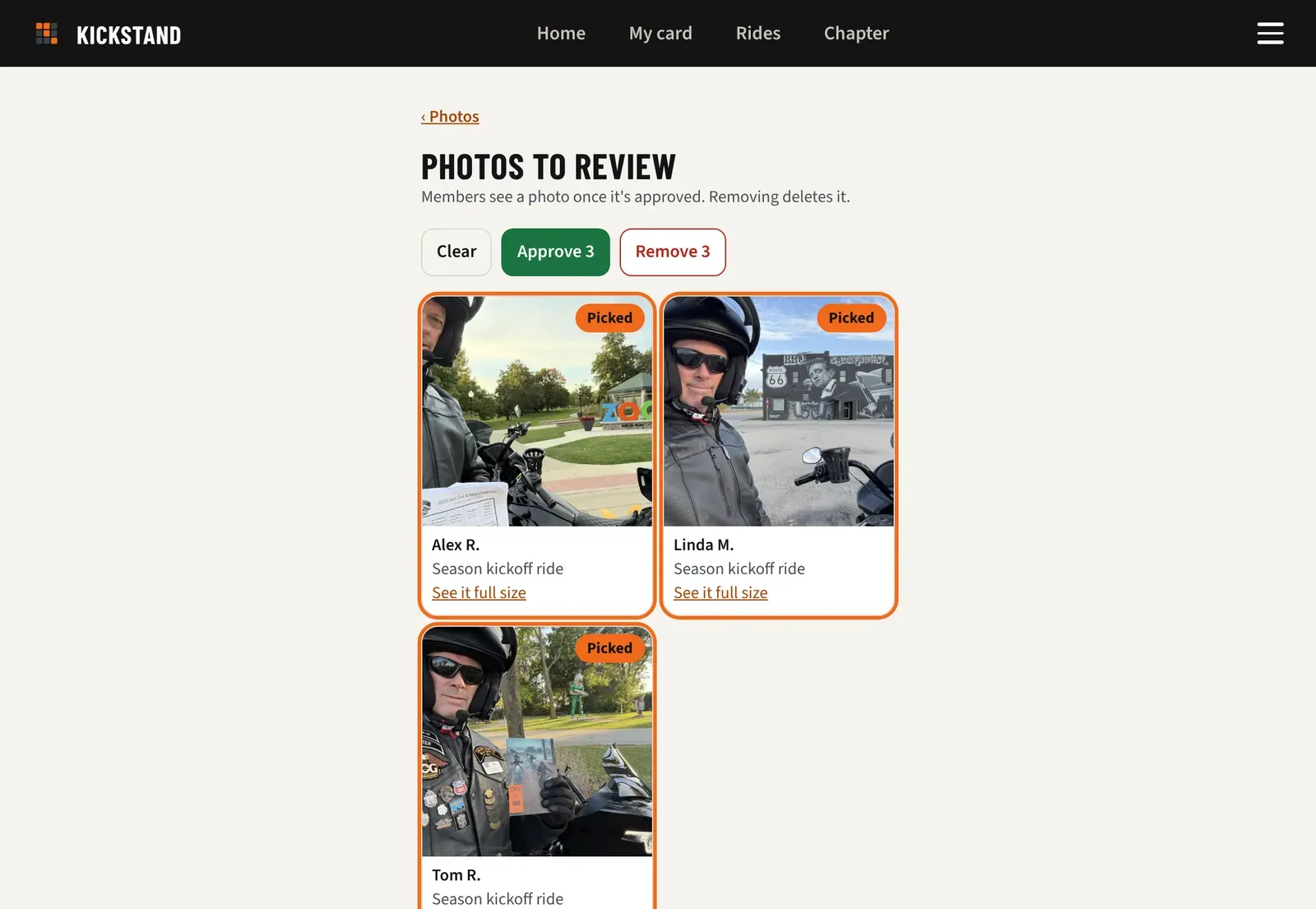
The page lists the oldest 300 waiting photos. Approve or remove those and the rest appear.
Start an album
Section titled “Start an album”Event albums make themselves when a member adds the first photo after the event starts. For anything else, like the banquet:
- On Photos, click New album.
- Type an Album name (up to 80 characters).
- Click Make the album. It opens, ready for Add photos.
Look after an album
Section titled “Look after an album”- In a photo, click Use as cover to set the album’s cover. Without one, the newest photo is the cover.
- In a photo, click the turn button, the circular arrow in the corner, to turn it a quarter turn clockwise. Click again until it is upright. The turned photo is saved for everyone. You can turn any photo in an album. Members can turn only the photos they added.
- Stop photos in the challenge album turn too, but only for people who can review that challenge’s photos. If a message says only the challenge’s reviewers can turn photos, ask one of them.
- In a photo, click Remove to delete it for everyone.
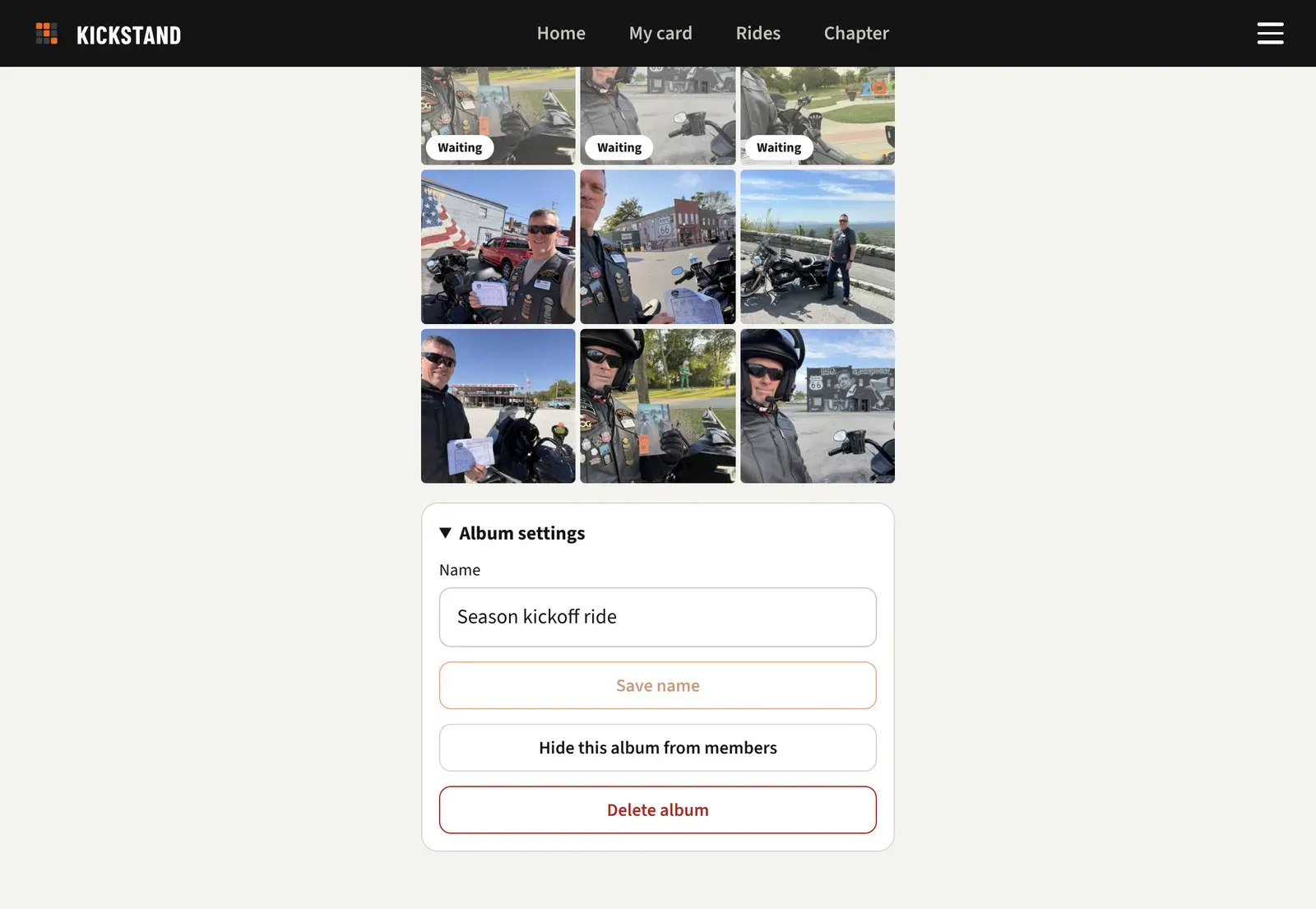
- Under Album settings, change the Name and click Save name.
- Hide this album from members takes it off their Photos page and stops new photos. You still see it, dimmed and marked Hidden. The button then reads Show this album to members.
- Delete album removes the album and every photo in it, after you confirm. It can’t be undone.
The challenge album
Section titled “The challenge album”Each challenge that isn’t a draft gets an album that fills itself with approved stop photos from riders who turned on Share my approved photos with my chapter. Nobody uploads to it. Members see it once it holds a photo.
To remove one, open it and click Take out of album. The rider keeps the stop and the credit. The app has no undo for this. You can hide the challenge album but not delete it.
Storage
Section titled “Storage”Photos shows “Chapter storage” with a bar, like “412 MB of 5 GB used (8%)”. It counts stop photos, featured images, and gallery photos. From 80% you get a warning. Uploads are never blocked, even past 5 GB, and extra storage will be available to buy later.
Removing photos and deleting albums deletes their files and frees the space. Taking a stop photo out of the challenge album does not.