Open a rider's card and add a photo
A rider’s card shows the card the way the rider sees it, with the photo and the date for every stop they have done. Chapter officers and the challenge’s managers can open it. If a member texts or emails you a photo for a stop, some officers can also add it to their card.
Who can open a card
Section titled “Who can open a card”- Chapter officers, and anyone assigned as a manager on the challenge. A reviewer who is neither an officer nor a manager can’t.
- Members never see another member’s card.
- Chapter challenges only. Cards for national challenges stay the rider’s own.
- Opening a card isn’t written to a log. Looking up an emergency contact is, and that is a separate step. See Manage a member.
Open a card
Section titled “Open a card”There are two ways in. Use whichever is closer.
From the dashboard
- Open Chapter console from the menu (top right). Under the open challenge’s name, tap Dashboard.
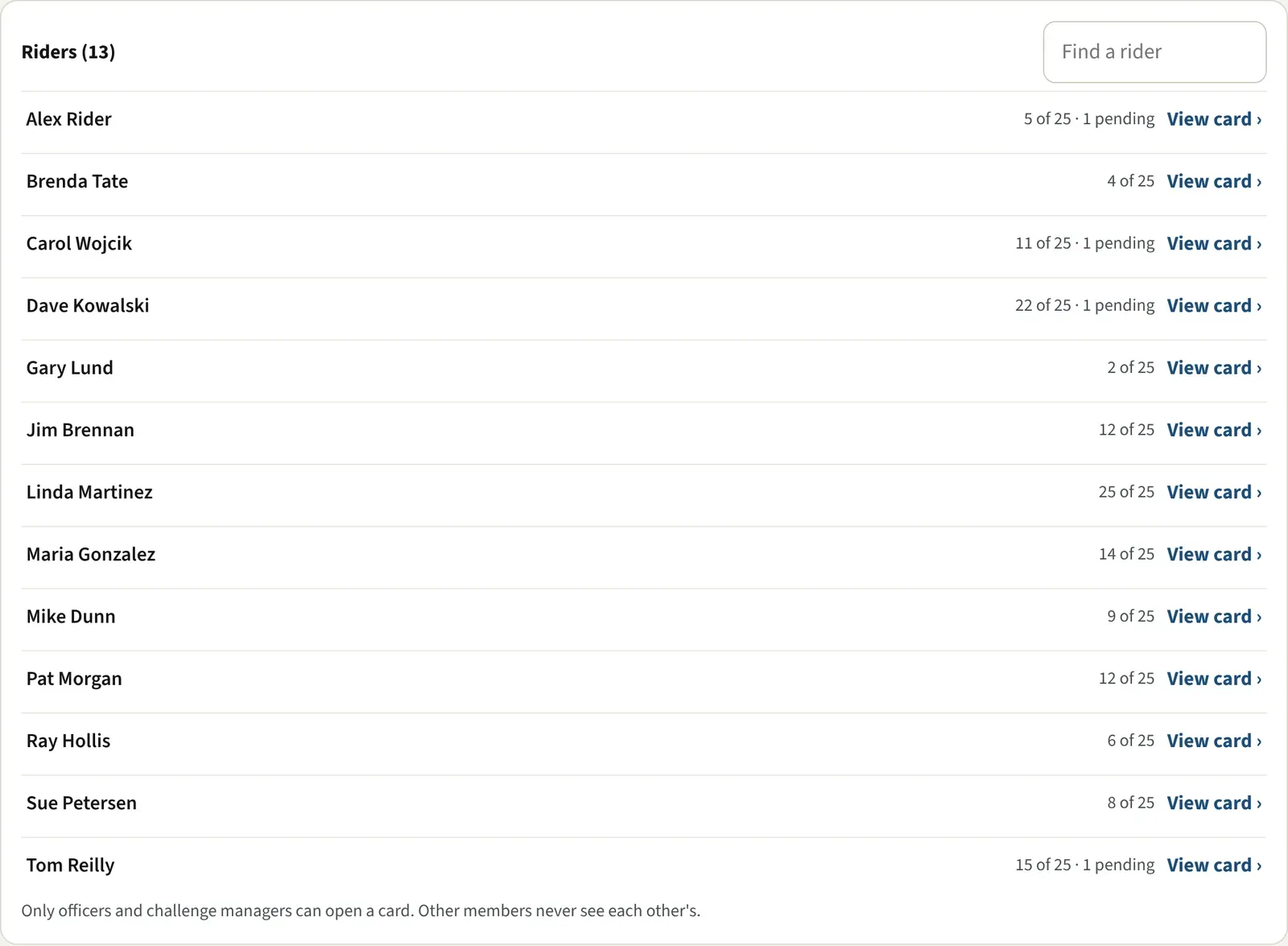
- Find Riders (N). It lists everyone on the challenge, including riders with no approved stop yet. With more than 8 riders, a Find a rider box appears.
- Tap a rider’s row. It shows how many stops they have, such as “3 of 25”, and how many are pending.
From Members
- In Chapter console, click Members, then click the member’s name.
- Under Challenge cards, click the challenge. Each row shows how many stops are approved. A member who hasn’t joined a challenge yet has no card to open. Members is for chapter officers, so a manager who isn’t an officer uses the dashboard.
What you see
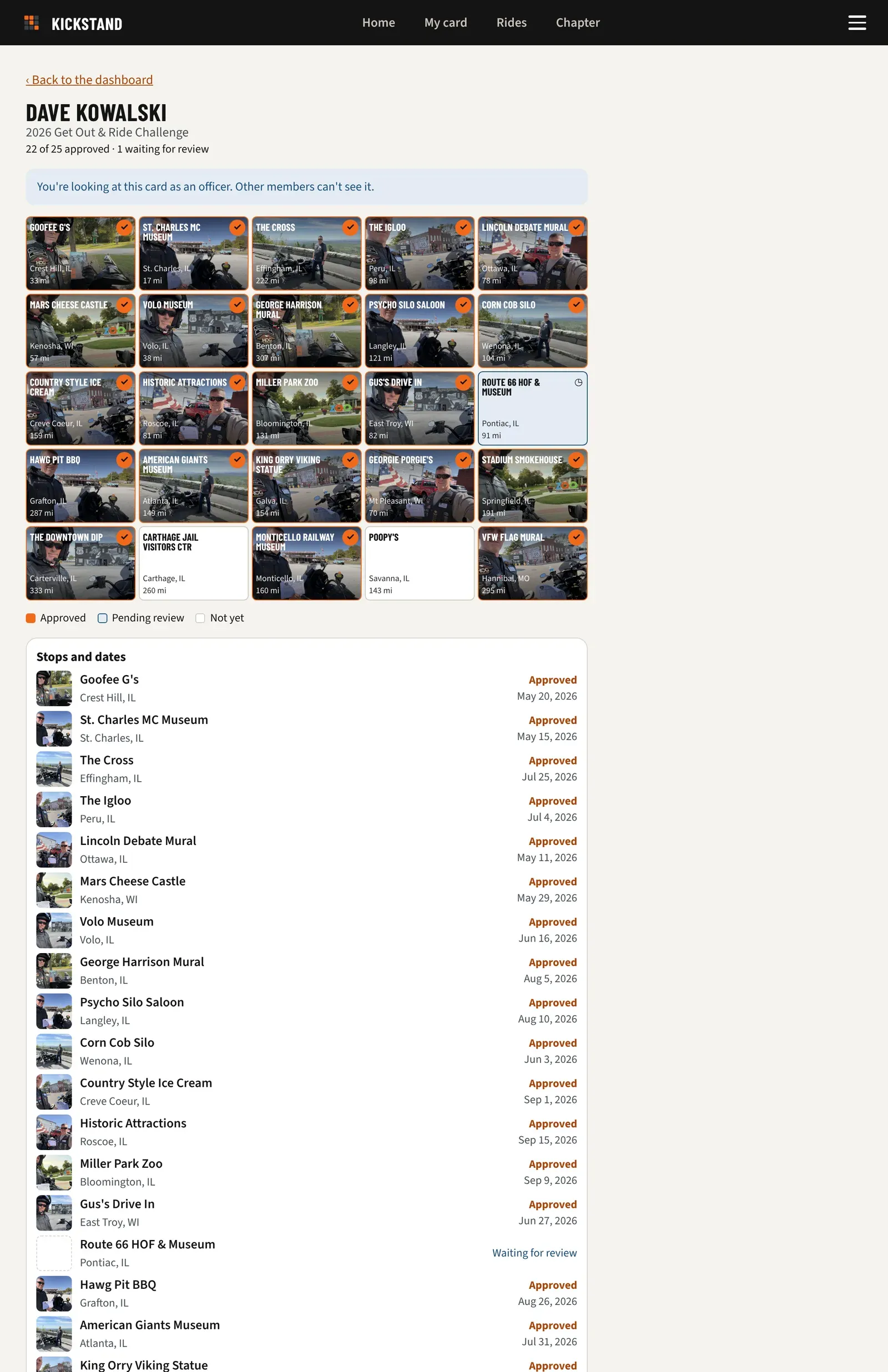
Section titled “What you see”- The rider’s name, the challenge, and a line such as “12 of 25 approved · 1 waiting for review · Finished the card”.
- A note: “You’re looking at this card as an officer. Other members can’t see it.”
- The card itself, with their photos on the squares they have done.
- Stops and dates: every stop, with a small photo, the town, and a status of Approved, Waiting for review, Not approved or Not yet. An approved stop also shows the date it counted. A stop loaded from a Word card says “from the Word card”.
Tap a small photo to see it full screen with “Counted” and its date. Tap Close, tap outside the photo, or press Escape.
Only approved photos show here. A photo that is waiting stays in the review queue. See Reviewing photos fast.
Turn a photo that is sideways
Section titled “Turn a photo that is sideways”If you are allowed to review photos on this challenge, an approved photo has a turn button (↻) in its corner when you open it. Each tap turns it a quarter turn clockwise. The saved copy is fixed, so the rider and the gallery see it upright. It doesn’t change the approval.
Add a photo a member sent you
Section titled “Add a photo a member sent you”This is for a member who texted or emailed you their photo instead of using the app.
Who can: the Director, Assistant Director, Secretary, Treasurer, Activities Officer and Webmaster. Other officers and challenge managers can open the card but won’t see Add photo. Your position is the title on the Officers page. See Officers, positions, and changeovers.
- Open the member’s card.
- In Stops and dates, find the stop. Add photo shows on stops marked Not yet or Not approved.
- Tap Add photo and pick the photo from your phone or computer.
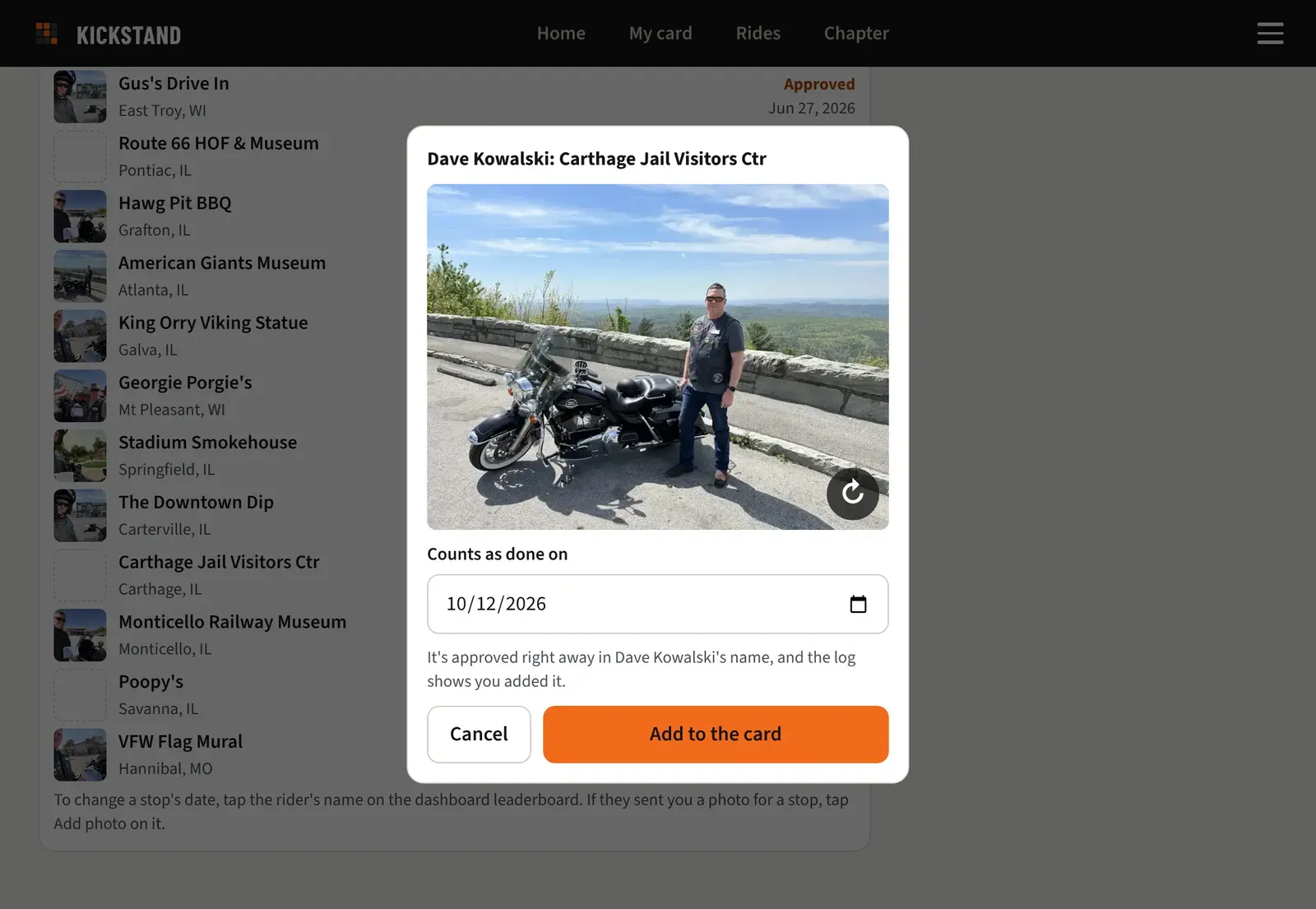
- A window opens with the photo. If it came in sideways, tap the turn button (↻) on its corner until it’s upright.
- Check Counts as done on. It starts on the day the photo was taken, or today if the photo has no date. It can’t be in the future.
- Tap Add to the card. Tap Cancel to back out.
What happens next
Section titled “What happens next”- The stop is approved at once, in the member’s name, on the date you picked. It counts on the leaderboard and toward finishing like any other approved stop. Nothing goes to the review queue.
- The log records that you added it, so there is always a trail of who did it.
- It is not marked as loaded from a Word card, so it counts in your activity numbers, such as “When riders send photos”.
- Big photos are shrunk for you, the same way a rider’s photo is.
Good to know
Section titled “Good to know”- Add photo never shows on a stop the member already has approved or has waiting. If they have a photo waiting, approve it in the review queue. If the photo they have is the wrong way up, open it and turn it.
- To change the date of a stop later, see The officer dashboard.
- For a whole season of Word cards, see Load riders’ Word cards.