Using your sponsor portal
The sponsor portal is where you see how your ads are doing and where you upload new ones. The Kickstand team sets up every sponsorship, so there is nothing to sign up for. Once we add your email address, you can sign in.
Sign in
Section titled “Sign in”- Open https://ride.getkickstand.app/login.
- Type the address we added under Email address and click Email me a 6-digit code. There is no password.
- Type the code from the email and click Sign in. The code works for 10 minutes. More on that in Signing in without a password.
- The first time, you see Before you start. Read the Terms of Use and Privacy Policy, which cover how the sponsor portal works and what we collect. Tick I have read and agree to the Terms of Use and Privacy Policy. and click Continue. Not now, sign me out leaves without accepting.
- You land on your sponsorship. A new sponsor account skips the rider welcome steps.
Seeing “This account isn’t connected to a sponsorship.”? You signed in with an address we didn’t add. Sign out and use the one on your sponsorship, or ask the person who set it up to add the new one. You can also email hello@getkickstand.app.
What you see
Section titled “What you see”Top to bottom, for each sponsorship on your account:
- Your business name. If our team has set a booking link, Book time with us sits beside it and opens in a new tab.
- Views and clicks, then Your ads, Contact us, and Invoices.
- Dealerships also see Riders pointed your way. See For dealerships.
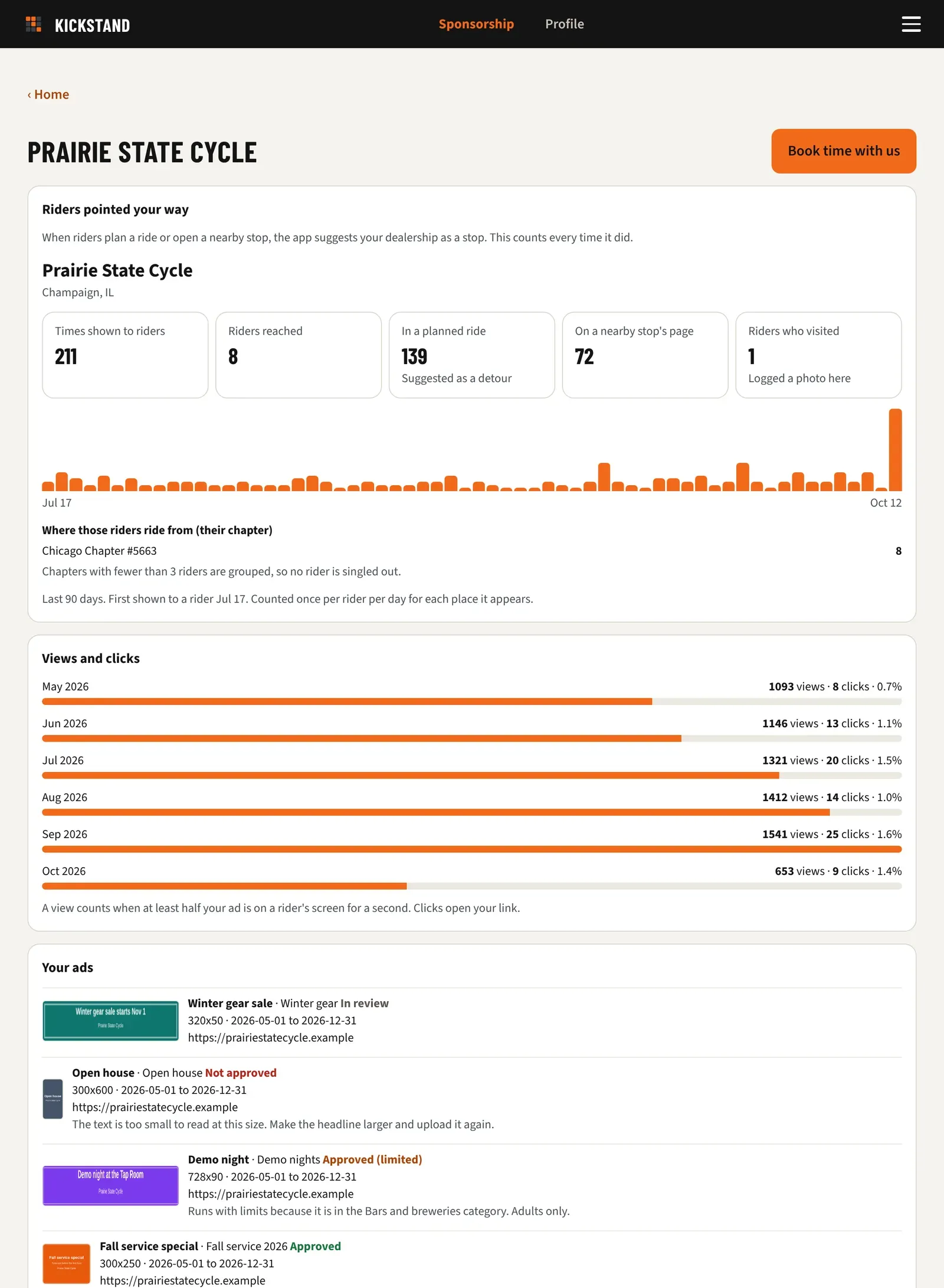
Read your views and clicks
Section titled “Read your views and clicks”Each month gets one row with its views, clicks, and the share of views that clicked. The bar is longest for your busiest month. The numbers cover all your ads together, for this month and the five before it. A month with no activity doesn’t appear.
A view counts when at least half your ad is on a rider’s screen for a second. Clicks open your link. Before your first ad runs, you see “No views yet. They start counting as soon as your ad runs.”
Check and add ads
Section titled “Check and add ads”Your ads lists every ad with its picture, name, campaign, review status, size, dates, link, and any reason from our team. An ad that looks faded and says “paused” has been paused by our team. Click Upload an ad to add a new one. Every new ad starts as In review. See Ad specs and the review process. To see where riders find your ad, read How riders see your ad.
Message the team
Section titled “Message the team”- Find Contact us.
- Type a Subject and a Message.
- Click Send. You see “Sent. We’ll get back to you by email.”
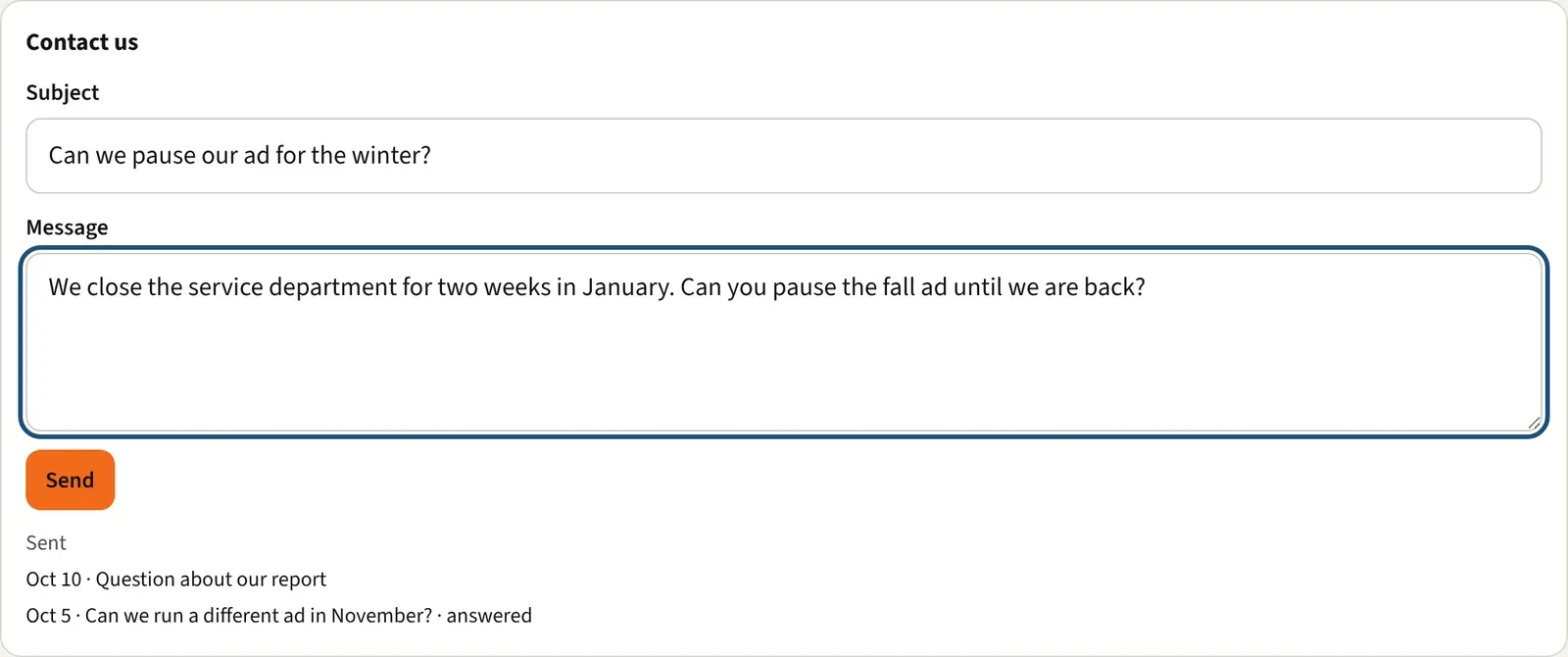
Under Sent you see the date and subject of your earlier messages. “ · answered” appears after our team marks one done. Replies arrive by email, not in the portal.
Which tabs you see
Section titled “Which tabs you see”- Sponsor only: the tabs are Sponsorship and Profile, and the menu (top right) adds Help. Home sends you straight to your sponsorship.
- Sponsor who also rides with a chapter: you get the usual rider tabs. Home has a row that reads “Your sponsorship:” and your business name. Click it to open the portal at https://ride.getkickstand.app/partner.
Good to know
Section titled “Good to know”- Invoices says “Invoices and online payment are coming soon. Until then, we’ll send your invoice by email.”
- Only people we add can sign in for your sponsorship. To add a coworker, send their address through Contact us.
- You can’t edit or delete an ad after you upload it. Upload a new one, or ask us through Contact us.