Invite members to your chapter
Every member joins with your chapter’s invite link or code. Officers join that way too, and you give them their position afterward.
Share your invite link
Section titled “Share your invite link”- Open Chapter console from the menu (top right), then Members.
- Tap Invite link. A card shows your link and your code.
- Tap Copy link and paste it into your newsletter, an email, a text, or your chapter’s Facebook group.
- Riders open the link and sign in. The link fills in the code for them.
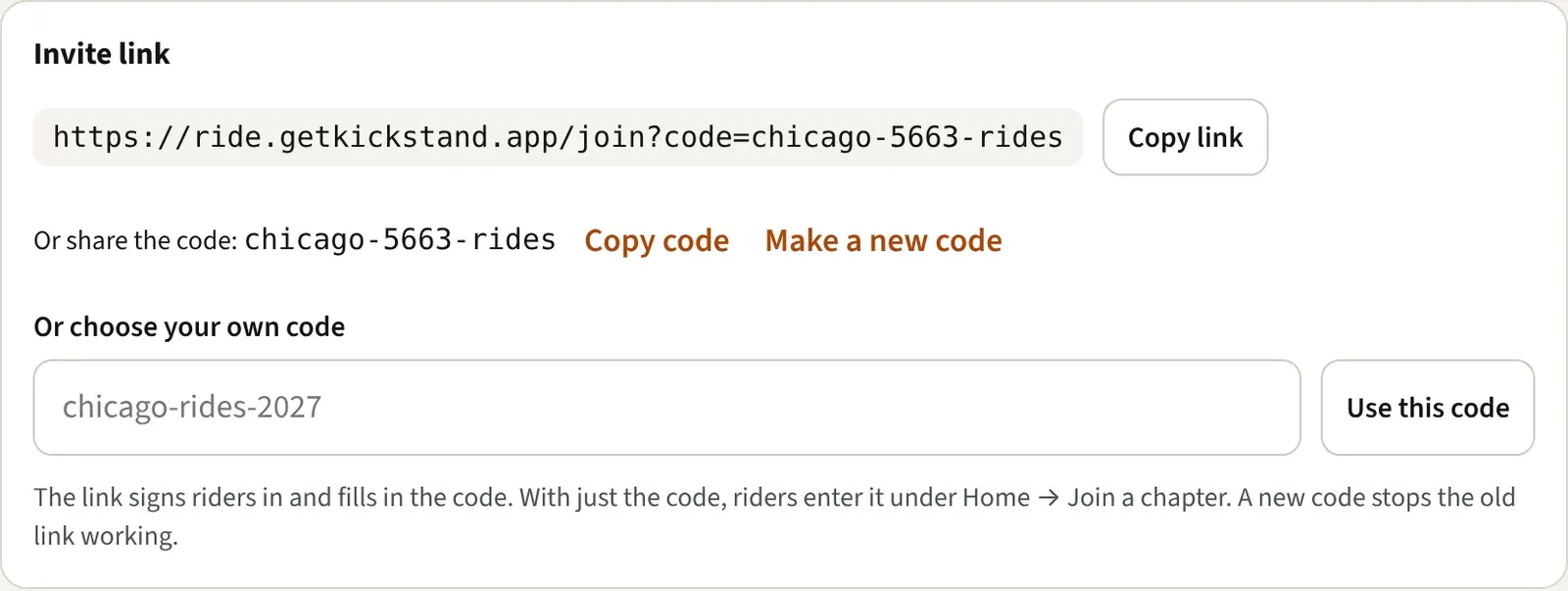
Prefer a code people can say out loud at a meeting? Tap Copy code. Riders type it under Join a chapter, or at https://ride.getkickstand.app/join. A rider already in a chapter taps their chapter’s name at the top of Home, then + Join a chapter with an invite code.
Change your code
Section titled “Change your code”- Tap Make a new code and confirm. A fresh code replaces the old one.
- Or type your own under Or choose your own code, like “chicago-rides-2027”, and tap Use this code. Confirm when asked.
Codes use letters, numbers, and dashes, 6 to 40 characters, with dashes between words. Spaces become dashes, and capital letters don’t matter. If another chapter already has the code you want, the app says so. Try another.
Choose who joins right away
Section titled “Choose who joins right away”Under Chapter settings, Joining, pick one:
- Anyone with the invite code or link joins right away.
- People with the code ask to join; an officer approves them on Members.
Approve riders who ask to join
Section titled “Approve riders who ask to join”- On Members, tap the Waiting for approval chip. It shows a count, and only appears when someone is waiting.
- Tap the person’s name, then tap Approve.
- Not someone you want? Use the Remove from the chapter section at the bottom of their page instead.
People who already have an account
Section titled “People who already have an account”When you import a roster, or load someone’s Word card by email, anyone who already has a Kickstand account (they have signed in, or they belong to another chapter) isn’t added automatically. Kickstand asks them instead. They get an email, and a card on their Home screen with Join and No thanks. Only their yes adds them.
Until they answer, they appear under Waiting for their yes at the top of Members, with just the name and email you typed. You can’t see their phone, address, H.O.G. ID or emergency contact, and nothing on their account is filled in or changed. Click Cancel to take the request back. If someone says no thanks, later imports skip them.
New people, and members already in your chapter, are handled the same way as before. See Import your roster and invite everyone and Load riders’ Word cards.
What a rider sees
Section titled “What a rider sees”- A new rider signs in and goes through the welcome steps. The last one, Join your chapter, has the code filled in. They tap Finish.
- A rider who already finished the welcome steps lands on Join a chapter with the code filled in and taps Join.
- If you let anyone in, they see “You’re in.” If you approve people, they see “Request sent. A chapter officer will approve you soon.” Tell them once you approve them.
- Then they pick the challenge. See Joining your chapter.
Good to know
Section titled “Good to know”- A new code (or your own) stops the old code and link working. Riders already in your chapter stay in.
- Removing a member takes away their access to your challenges. Their approved stops stay on the leaderboards. They could rejoin with the current code, so make a new one if you need to keep them out.
- Have a roster file? See Import your roster to email everyone at once.
- To make someone an officer, see Invite a board member and Officers, positions, and changeovers.