Chapter photos
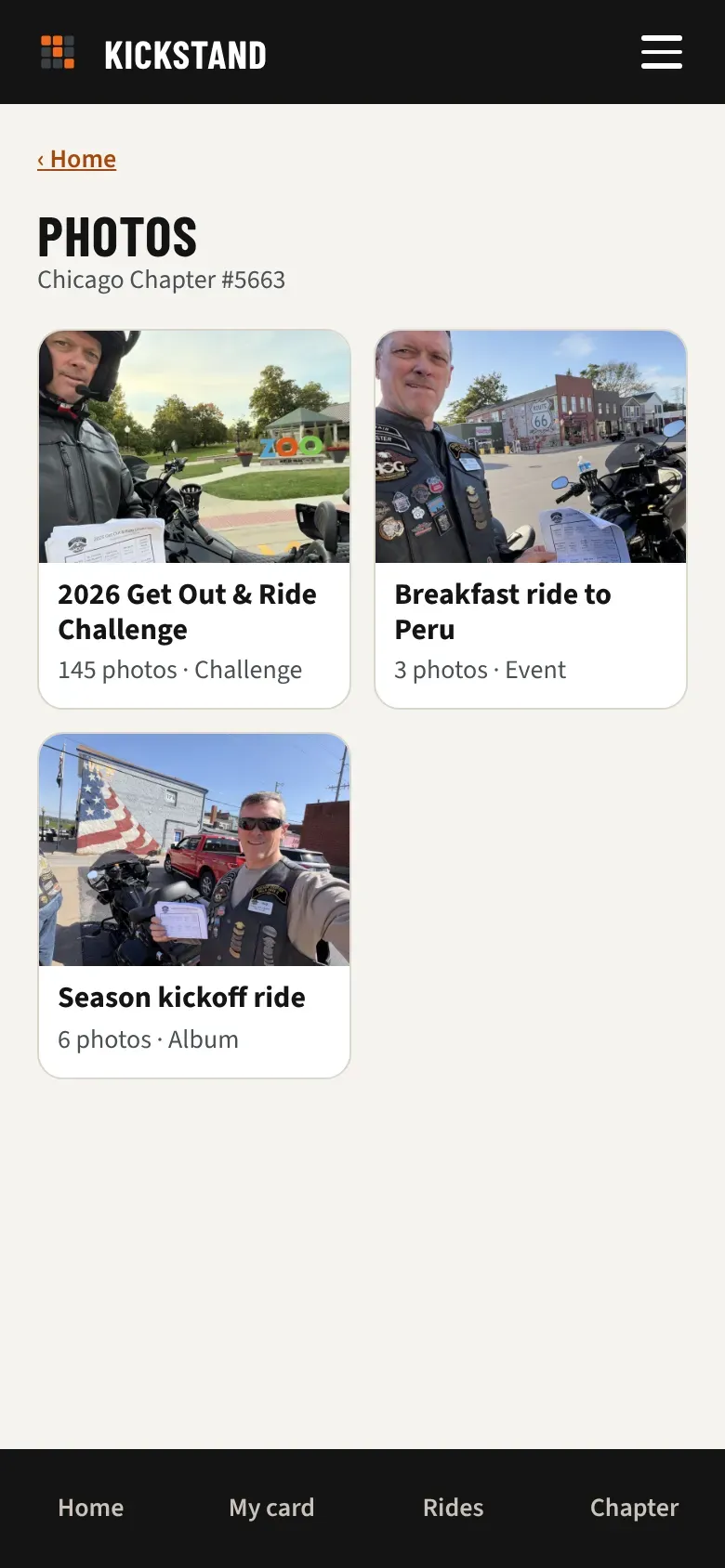
Your chapter keeps its photos in albums: one for each event, one for each challenge, and others that officers start, like the banquet or a rally trip. Albums are for your chapter’s members only.
Photos come with the Chapter Platform plan. If you don’t see the Chapter calendar and Photos buttons on Home, your chapter isn’t on that plan. Ask your officers about it.
Look through the albums
Section titled “Look through the albums”- On Home, tap Photos.
- Tap an album. Each tile shows how many photos it holds and whether it is an Album, an Event, or the Challenge.
- Tap a photo to see it full screen. Swipe left or right, or tap the arrows, to move through the album. The top shows where you are, like “3 of 6”. On a computer, the left and right arrow keys do the same, and Esc closes the photo.
- Tap Save to keep a copy. Tap Close to go back to the grid.
On a computer or tablet, the Photos page and the albums use more of the screen, and the tiles get larger.
Full screen, you see the photo’s caption and who took it, shown the way that member chose to appear on leaderboards.
Add photos
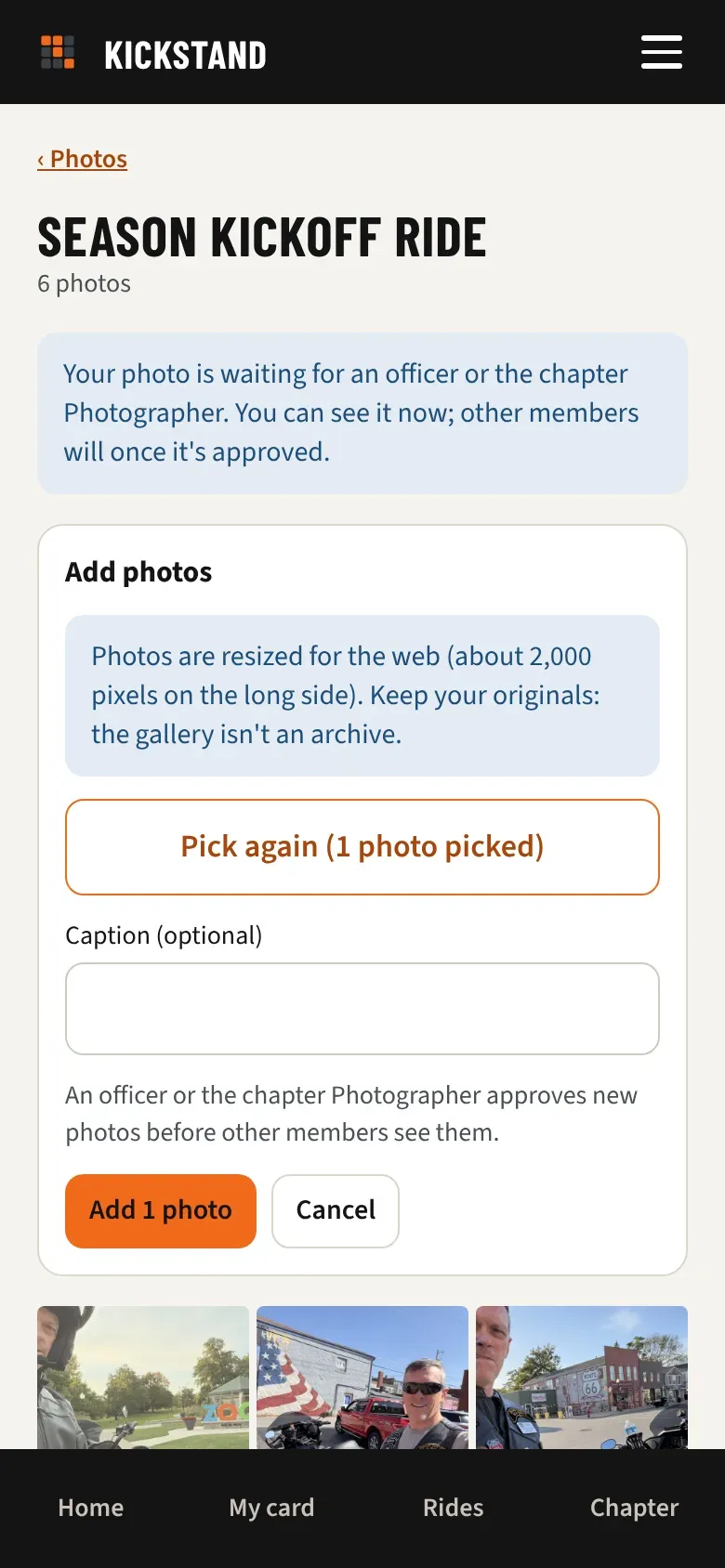
Section titled “Add photos”- Open the event on Coming up or Chapter calendar and tap Add photos under Photos. Or open an album from Photos and tap Add photos there.
- Tap Pick up to 30 photos and choose them. If you pick more, the first 30 go in now and you add the rest next.
- Adding just one photo? You can type a Caption (optional).
- Tap Add N photos and wait while the bar fills.
- When it says the photos are added, tap Done.
An event’s album opens when the event starts. Before that, the event page has no Add photos button. The first photo added creates the album.
When others see them
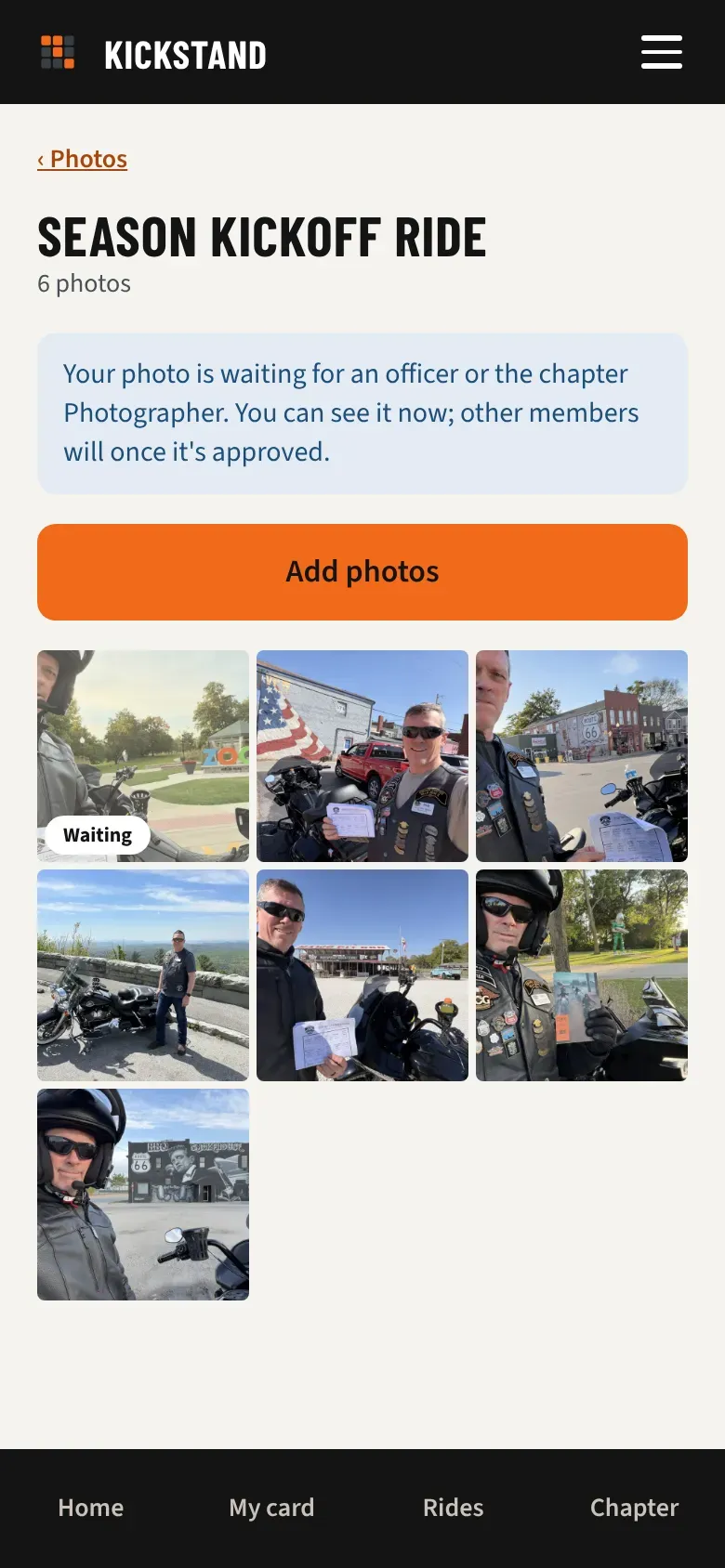
Section titled “When others see them”An officer or the chapter Photographer approves new photos before the rest of the chapter sees them. You see yours right away, with a Waiting badge and a note at the top of the album. Other members see them once they are approved. If an officer removes a waiting photo, it is deleted.
Turn your own photo
Section titled “Turn your own photo”Added a photo that came in sideways or upside down? Open it full screen and use the turn button, the circular arrow in the corner of the photo. Each tap turns it a quarter turn clockwise, so tap again until it is upright. The turned photo is saved for everyone, not just on your screen.
You can turn photos you added. Officers and the chapter Photographer can turn any photo in an album. You can’t turn a photo that someone else added, or the stop photos in the challenge album. Ask an officer.
Remove your own photo
Section titled “Remove your own photo”Open your photo and tap Remove, then confirm. It is deleted for everyone.
The challenge album
Section titled “The challenge album”Each challenge has an album that fills itself with approved stop photos from riders who tick Share my approved photos with my chapter. Find it in your profile settings. You can’t add to this album. Your stops count whether you share or not. Officers can take a photo out of the album, and you keep the stop.
Good to know
Section titled “Good to know”- Photos are resized for the web (about 2,000 pixels on the long side) and stored without location data. Keep your originals: the gallery isn’t an archive.
- Officers manage albums. See Run the photo gallery.