Your profile and settings
Everything about you lives on one screen. Open the menu (three lines, top right) and tap Profile, or tap your round picture at the top left of Home. You can also go straight to https://ride.getkickstand.app/profile. The cards run top to bottom in the order below.
Profile picture
Section titled “Profile picture”- Tap Add a picture. If you already have one, it says Change picture.
- Pick a photo. A full-screen cropper opens with “Move and zoom to fit the square.”
- Drag to move the photo. Pinch, scroll, or slide Zoom to zoom. The dashed circle shows how the round version will look.
- Tap Save picture, or Cancel to back out.
To take your picture down, tap Remove next to it. Your chapter sees it next to your name. The photo is shrunk on your phone first, and the saved copy carries no location data.
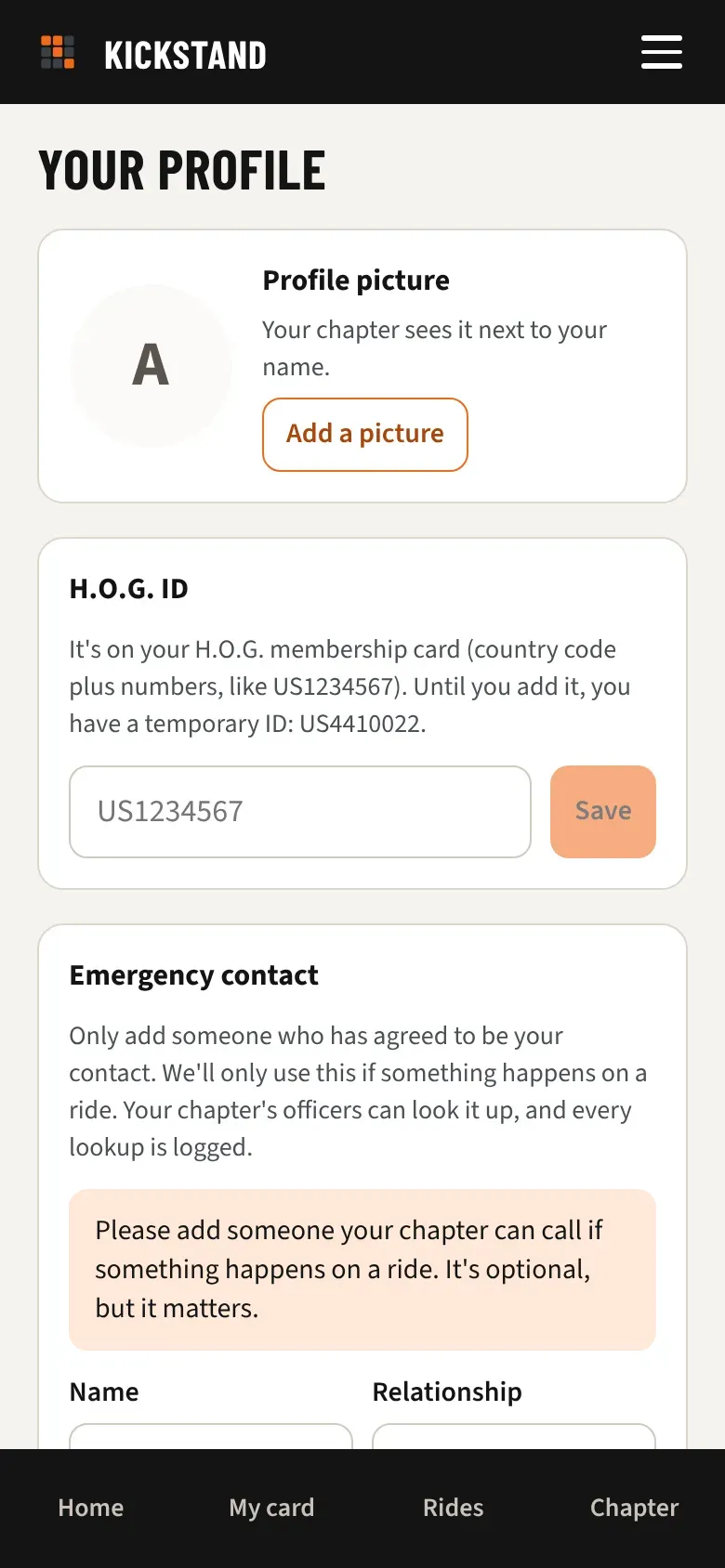
Below it are the H.O.G. ID and Emergency contact cards. See Where to find your H.O.G. ID and Your emergency contact and privacy.
Riding preferences
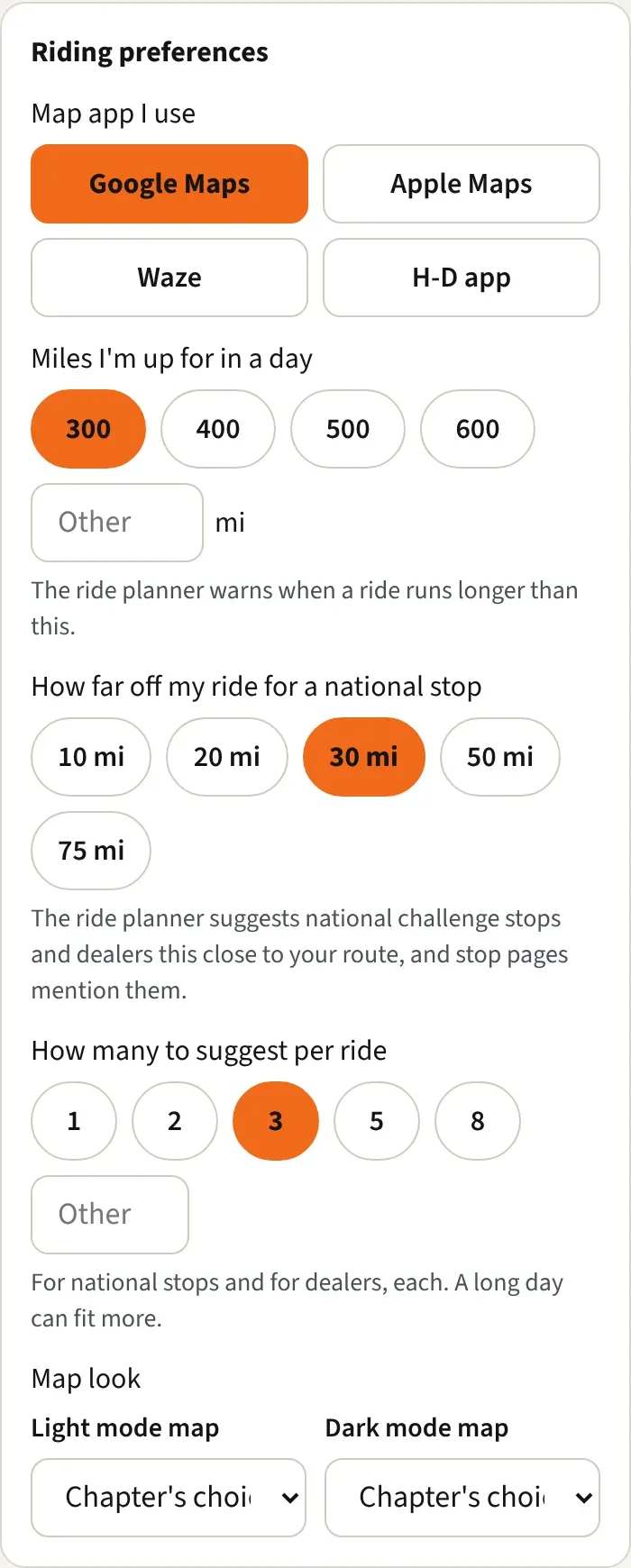
Section titled “Riding preferences”These save the moment you tap, and “Saved.” appears at the bottom of the card.
- Map app I use: Google Maps, Apple Maps, Waze, or H-D app. The ride planner offers your pick first.
- Miles I’m up for in a day: 300, 400, 500, or 600, or type your own under Other. The lowest is 300 and the highest is 1,500. The ride planner warns you when a ride runs longer.
- How far off my ride for a national stop: 10, 20, 30, 50, or 75 mi. The planner suggests national stops and dealers this close to your route.
- How many to suggest per ride: 1, 2, 3, 5, or 8, or type up to 20 under Other. This is the number for national stops and for dealers, each.
- Map look: a Light mode map (Chapter’s choice, Bright (vivid), Liberty (soft), or Positron (light gray)) and a Dark mode map (Chapter’s choice, Dark, or Fiord (dark blue)).
Passkeys and Appearance
Section titled “Passkeys and Appearance”Passkeys lets you add or remove a passkey. See Signing in without a password.
Appearance has Light, Dark, and System. System follows your phone’s light or dark setting. It saves on this device only.
About you
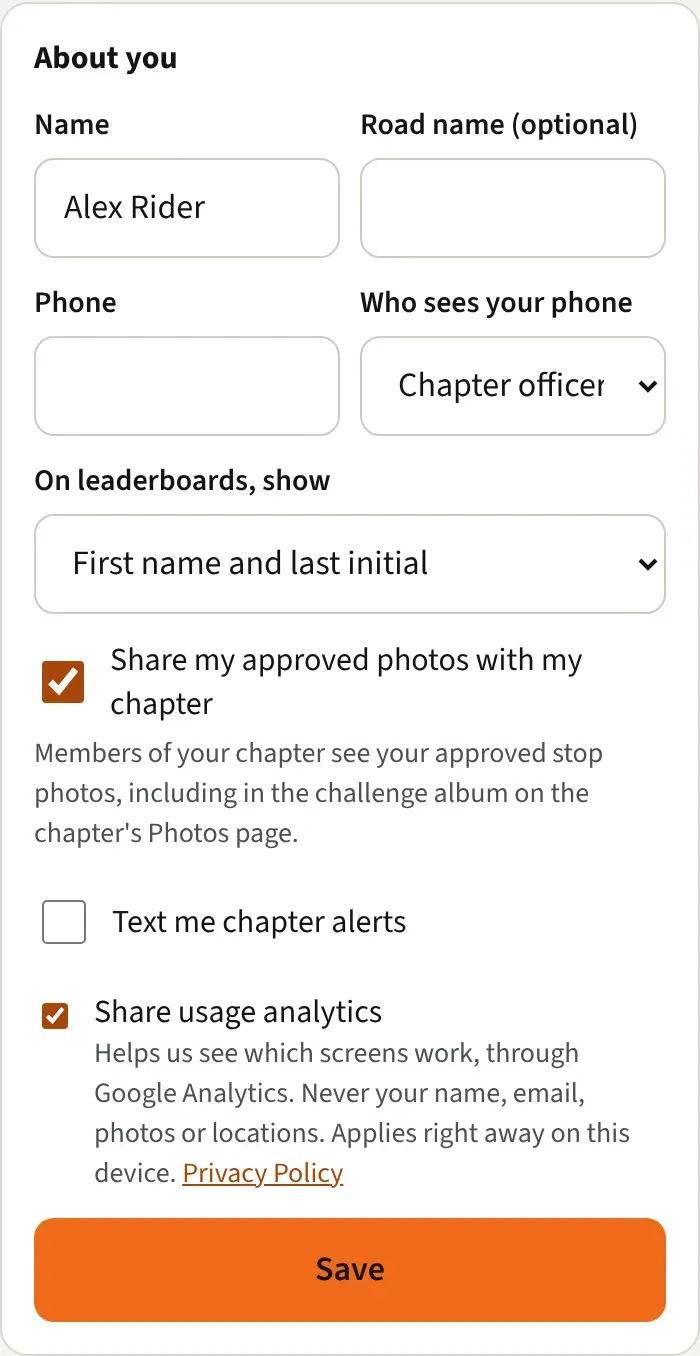
Section titled “About you”Fill in what you like, then tap Save at the bottom of the card. You’ll see “Saved.”
- Name and Road name (optional). With a road name, Home greets you by it.
- Phone, with the area code, like (312) 555-0100.
- Who sees your phone: Only me, Chapter officers, or Chapter members.
- On leaderboards, show: My full name, First name and last initial, or Keep me off the public leaderboard (I still compete). With the last choice, other riders see “Rider (private)” in your spot, and you still count and rank.
- Share my approved photos with my chapter: chapter members can see your approved stop photos, including in the challenge album on the chapter’s Photos page. Clear it and any challenge banner made from your photos comes down.
- On event RSVP lists, show me as: Full name, Initials, or Nothing (just counted). It starts on your chapter’s setting, and your pick wins. Officers always see who answered. See The chapter calendar.
- Text me chapter alerts: tick it if you’re happy to get texts from your chapter.
- Share usage analytics: helps us see which screens work, through Google Analytics. It never includes your name, email, photos, or locations. It takes effect right away on this device and doesn’t need Save.
Sign out
Section titled “Sign out”At the very bottom, “Signed in as” shows your email. Tap Sign out to leave. Help opens the help center.
Good to know
Section titled “Good to know”- Your email is the one you sign in with, and it’s shown but not editable here.
- One profile covers every chapter you belong to. Chapter officers can see your name, email, and H.O.G. ID on the chapter’s Members page.